Using Windows Vista in Workgroups and Domains
Using Windows Vista in Workgroups and Domains
You can use Windows Vista in workgroup configurations and domain configurations. Workgroups are loose associations of computers in which each computer is managed separately. Domains are collections of computers that you can manage collectively by means of domain controllers, which are servers running Windows that manage access to the network, to the directory database, and to shared resources. Typically, home users will use Windows Vista in workgroup configurations and businesses will use Windows Vista in domain configurations. Although all versions can be used in workgroup configurations, you cannot use the home versions in domain configurations.
Understanding Log On, User Switching, Locking, and Log Off in Windows Vista
In a workgroup configuration, Windows Vista displays the Log On screen at startup. All standard user and administrator accounts that you’ve created on the computer are listed on the Log On screen. To log on, you click the account name. If the account is password protected, you must click the account name, type the account password, and then click the arrow button.
In a domain configuration, Windows Vista displays a blank startup screen after initializing the operating system. You must press Ctrl+Alt+Del to display the Log On screen. By default, the last account to log on to the computer is listed in computer\username or domain\username format. To log on to this account, you type the account password and then click the arrow button. To log on to a different account, click the Switch User button, and then click Log On As
Another User. Type the user name and password, and then click the arrow button. Keep the following in mind:
-
If the account is in the default domain, you don’t have to specify the domain name.
-
If the account is in another domain, you can specify the domain and the account name using the format domain\username, such as cpandl\williams.
-
If you want to log on to the local machine, type .\ username where username is the name of the local account, such as .\williams.
Both the workgroup and the domain configurations of Windows Vista allow fast user switching. You can easily change passwords, lock a computer, and log off as well.
Switching Users
You can switch users by following these steps:
-
Press Ctrl+Alt+Del, and then click the Switch User button.
-
In a workgroup configuration, the Log On screen is displayed as at startup.
-
In a domain configuration, a screen appears with the message “Press Ctrl+Alt+Del To Log On”. To display the Log On screen, you must press Ctrl+Alt+Del again.
-
Once the Log On screen appears, you can log on to another account using a technique similar to logging on at startup.
Note You can also initiate the switch-user process by clicking Start, clicking the Options button to the right of the Power and Lock buttons, and then clicking Switch User.
-
Changing Passwords
You can change passwords by following these steps:
-
Press Ctrl+Alt+Del, and then click the Change Password option.
The account name for the current user is listed on the change password screen. In a domain configuration, the user account name is listed in domain\username format. In a workgroup configuration, the local user account name is listed.
Tip By clicking in the User Name text box, you can change the account name. Specify the domain and the account name using the format domain\username, such as cpandl\williams. Type .\ username where username is the name of the local account, such as .\williams.
-
Type the current password for the account in the Old Password text box.
-
Type and confirm the new password for the account in the New Password and the Confirm Password text boxes.
-
Click the arrow button to confirm the change.
Locking and Unlocking a Computer
You can lock and unlock the computer by following these steps:
-
Press Ctrl+Alt+Del, and then click the Lock This Computer option.
-
In a workgroup configuration, a lock screen is displayed with the name of the user who is logged on. Clicking the account name or picture allows you to log on again as that user. If a password is required for the account, you’ll need to enter the password before logging on.
-
In a domain configuration, a lock screen is displayed with the name of the user who is logged on. If you want to log on again as the user, you must press Ctrl+Alt+Del and then type the user’s password.
-
You can click the Switch User button to log on as a different user.
Note You can also lock the computer by clicking Start and then clicking the Lock button. The Lock button is a blue button with a picture of a lock on it.
Logging Off a Computer
You can log off by pressing Ctrl+Alt+Del and then clicking the Log Off option. If there is a problem logging off, the Log Off dialog box appears. This dialog box shows the programs currently running on the computer.
If one of the currently running programs is causing a problem with logoff, an explanation of the problem is displayed below the program name. You can then cancel the logoff or continue:
-
If you cancel the logoff, you can resolve the issue with the problem program—for example, by saving your work and exiting the program.
-
If you continue logging off by clicking Log Off Now, Windows Vista will force the program causing problems to close, and you might lose work as a result.
Note You can also log off by clicking Start, clicking the Options button to the right of the Power and Lock buttons, and then clicking Log Off.
Understanding Windows Vista User Accounts and Windows Security Permissions
Windows Vista has two primary types of local user accounts:
-
Standard user Standard user accounts can use most software and can change system settings that do not affect other users or the security of the computer.
-
Administrator Administrator accounts have complete access to the computer and can make any desired changes.
In Windows Vista, all applications run using either standard user or administrator permissions. As discussed in Chapter 9 under “Introducing User Account Control,” this change has far-reaching effects on the operating system as well as how you work with user accounts and manage applications. Because of User Account Control, whether a user logs on as an administrator or a standard user, the user sees a User Account Control dialog box containing a warning prompt stating, “Windows needs your permission to continue.” This dialog box is shown in Figure 1-4.
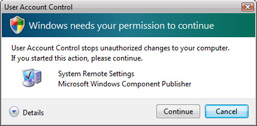
Figure 1-4: The User Account Control dialog box
The way the prompt works depends on whether the user is logged on with an administrator account or a standard user account. Users with administrator permissions are asked for confirmation. The user can click Allow to allow the task to be performed or Cancel to stop the task from being performed. Clicking Details shows the full path to the program being executed.
Users with standard accounts are asked to provide a password for an administrator account. In a workgroup configuration, each local computer administrator account is listed by name. To allow the task to be performed, you must click an account, type the account’s password, and then click Submit.
In a domain configuration, administrator accounts for users who have logged on to the computer are listed. These accounts can be both domain administrator accounts and local computer administrator accounts. You also have the option of choosing a different account. To run the task using a different user’s permissions, click Use Another Account, type the user account, and then type the account’s password. If the account is in the default domain, you don’t have to specify the domain name. If the account is in another domain, you can specify the domain and the account name using the format domain\username, such as cpandl\williams.
 |
User Account Control is as much about usability as it is about security. Unlike earlier versions of Windows, any user account can be used to run administrator programs. You don’t need to know which programs require administrator permissions beforehand; you simply run the program and respond as appropriate if you are prompted. This makes it much easier to use a standard user account as your everyday user account—and it is why Microsoft recommends this as a best practice as well.
Tony Northrup
Author, MCSE, and MVP—For more information, see http://www.northrup.org.
|


