Navigating Your Computer’s Startup, Running, and Network-ConnectedPrograms
Navigating Your Computer’s Startup, Running, and Network-Connected Programs
Windows Vista includes Windows Defender for safeguarding your computer from spyware. To be able to do its job in tracking potentially malicious programs on your computer, Windows Defender must also track all the programs running on a computer and identify how those programs are being used. The component that handles these tasks is Software Explorer.
You access Software Explorer in Windows Defender. Click Start, point to All Programs, and click Windows Defender. Click Tools on the Windows Defender toolbar, and then click Software Explorer. Using the Software Explorer, you can quickly determine a computer’s:
-
Startup programs
-
Currently running programs
-
Network-connected programs
Exploring Your Startup Programs
Any programs configured to start automatically when you log on are considered to be startup programs. In Software Explorer, you select Startup Programs in the Category list to view currently configured startup programs.
| Tip |
In Windows Vista, you specify startup programs for all users by adding a program shortcut to the %SystemRoot%\ProgramData\Microsoft\Windows\Start Menu\Programs\Startup folder. You specify startup programs for yourself or another user by adding a program shortcut to the %UserProfile%\AppData\Roaming\Microsoft\Windows\Start Menu\Programs\Startup folder. Both folders are hidden and can be viewed only by changing the default Folder Options. Registry settings for the current user or local machine can also be used to configure startup programs. |
As shown in Figure 6-1, startup programs are grouped by software publisher by default. You can group programs by startup type by right-clicking in the left pane and then selecting Startup Type on the shortcut menu.
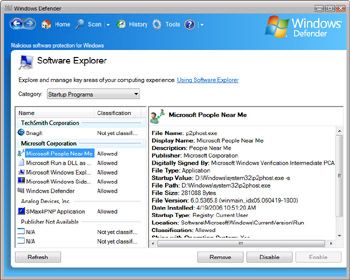
Figure 6-1: Viewing startup programs in Software Explorer
To view details about a startup program’s configuration, click the program in the left pane. The details listed for each startup program include:
-
File Name The executable file name.
-
Display Name The application name that Windows Vista uses.
-
Description A description of the program.
-
Publisher The company that published the software.
-
File Type The type of file listed in the File Name field, such as whether a file is an application file or an application extension file.
-
Startup Value The options or parameters passed to the program at startup.
-
Verified Specifies whether the file has been digitally verified as authentic.
-
File Path Shows the complete file path to the executable file.
-
File Size The size of the executable file in bytes.
-
File Version The version and revision number of the executable file.
-
Date Installed The date and time the file was installed.
-
Startup Type Specifies how you have configured the program to start automatically, such as whether the startup program is in the All Users Startup folder or in the user’s personal Startup folder.
-
Location The folder path where the startup program shortcut was created or the Run registry key value was set.
-
Classification The classification of the executable file as either allowed or not allowed.
-
Ships With OS Specifies whether the executable file ships with the operating system.
When you select a startup program in the left pane, you can easily remove, enable, or disable a startup program:
-
Click Remove to delete the shortcut or registry value that sets the program to start automatically.
-
Click Disable to configure the program so that it doesn’t start automatically, without removing the shortcut or registry value that sets the program to start automatically.
-
Click Enable to allow a previously disabled startup program to run automatically at logon.
Determining Your Currently Running Programs
In earlier versions of Windows, Task Manager is the primary way to determine which programs and processes are running. In Windows Vista, you typically will use the Currently Running Programs view in Software Explorer to determine which programs are currently running. You can then access Task Manager from Software Explorer if you need to manage running programs or processes.
As shown in Figure 6-2, Software Explorer displays currently running programs when you select Currently Running Programs in the Category list. Software Explorer groups running programs by software publisher by default. To group programs by user, right-click in the left pane and then select User Name on the shortcut menu.
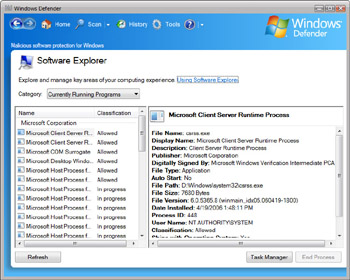
Figure 6-2: Viewing running programs in Software Explorer
You can view details about a running program’s configuration by clicking the program in the left pane. The details listed for each running program are similar to those for startup programs. There are two important exceptions:
-
Process ID lists the process ID number of the related process.
-
User Name lists the user account under which the process is running.
The key tasks you can perform in the Currently Running Programs list are:
-
Terminate a process When you select a top-level process or an application’s main process in the program list, you can end the process by clicking Terminate and then clicking Yes when prompted to confirm the action.
-
Run Task Manager When you click the Task Manager button, Windows Vista opens the Task Manager, and you can then manage processes as you would in earlier versions of Windows.
Examining Network-Connected Programs
In Software Explorer, you select Network Connected Programs in the Category list to view programs that are connected to the local area network (LAN), the Internet, or both. When you select a network-connected program, you can view the configuration details, as shown in Figure 6-3.
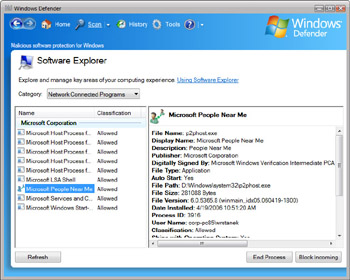
Figure 6-3: Viewing network-connected programs in Software Explorer
The details listed for each network-connected program include a list of active connections according to the following criteria:
-
Protocol The TCP/IP protocol being used.
-
Local Address The local IP address and port number being used.
-
Foreign Address The remote IP address and port number being used (if any).
-
State The state of the port being used, such as whether it is listening for incoming requests.
When you select a user-started program in the left pane, you can easily stop the program or block incoming connections to the program:
-
Click Terminate to stop the program.
-
Click Block Incoming to block incoming connections to the program.


