Using Windows Shared View
Using Windows Shared View
Windows Shared View allows you to make virtual presentations over the network, share handouts, and collaborate with coworkers. When you work with Windows Shared View, you are able set up or join a Windows Shared View session. Because Windows Shared View establishes connections with other computers, you’ll need to create exceptions on your computer’s firewall and on any other firewalls between your computer and the computers participating in the Windows Shared View session.
Getting Started with Windows Shared View
Most versions of Windows Vista include Windows Shared View, which uses the People Near Me feature for sharing information. Windows Shared View also requires that you enable file synchronization and configure a Windows Firewall exception. The first time you run Windows Shared View, you are prompted to automatically configure these options.
You can start and configure Windows Shared View for first use by following these steps:
-
Click Start, point to All Programs, and then click Windows Shared View.
-
In the Windows Shared View Setup dialog box, click Enable File Synchronization And Windows Firewall Exception to continue to set up Windows Shared View.
-
In the Set Up People Near Me dialog box, type the display name you want to use, and then click OK. The default display name is your Windows logon display name.
-
The main Windows Shared View window appears in which you can start a new session, join a session near you, or open an invitation file.
Windows Shared View uses the concept of sessions to define the virtual space in which you make virtual presentations over the network, share handouts, and collaborate with coworkers. To control entry into a Windows Shared View session, each session has a session name and a session password. You must know the session name and the session password to join a session.
Starting a New Windows Shared View Session
You can start a new Windows Shared View session by completing these steps:
-
Start Windows Shared View.
-
Click Start A New Session in the main window.
-
In the Session Name text box, type a session name or accept the default value.
-
In the Password text box, enter a password for the session that is at least eight characters long. If you want to view the characters in the password, select the View Characters check box.
-
Click the Create A Session button. Windows Shared View then creates the session, and you can create presentations, share handouts, and more.
Note The People Near Me concept is also used to control session visibility. Typically, users with computers on the same network are considered to be People Near Me and are listed in the People Near Me window. The default new session options allow People Near Me to see collaboration sessions. Users can then join a session if they know the session password. If you click the Options link when creating a new session, you can elect to hide the session from People Near Me, which would require a user to know both the session name and the session password to access the session.
Running a Windows Shared View Session
After Windows Shared View creates a session, you can use the options in the main window, shown in Figure 5-11, to invite people to the session, start a presentation, and share handouts. When you invite people to a collaboration session, you can choose people to invite from a list of those nearby by clicking the person’s name in the Name list and then clicking Send Invitations. If you click the Invite Others option, you can invite people via e-mail or by creating an invitation file and saving it in a location others can access.
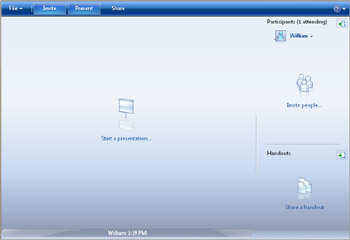
Figure 5-11: Using Windows Shared View
When you start a presentation, meeting participants will be able to view elements on your screen. If you want to limit the presentation to a specific application, you can choose a single running application to share for the presentation. For example, if you have a document open in Microsoft Office PowerPoint, you can select PowerPoint and then click Present to begin using PowerPoint to conduct your presentation. During the collaboration session, other users could take control of PowerPoint as well to add notes, share their slides, etc. Generally, only one person at a time can control the shared application. An additional option for presentations is to select Desktop as the program to share. If you select Desktop and then click Present, participants can see all running applications and items on your desktop.
When you share handouts, a selected file is copied to each participant’s computer. One participant at a time can then make changes to the copy of the handout, and those changes will be made to all participants’ handouts. The original file will not be changed, however.
Joining a Windows Shared View Session
You can join a Windows Shared View session by completing these steps:
-
Start Windows Shared View.
-
Click Join A Session Near Me in the main window.
-
Click the session to join.
-
In the Password field, enter a password for the session.
-
Click the Join A Session button.
Once you join a Windows Shared View session, you can begin participating. As with other participants, you can start a presentation, share a handout, and invite others to join the session. When you want to leave the session, click File and then select Leave Session.
Setting Your Participant Status
When you join a session, you are listed as one of the participants. If you need to work on something else or step away from your computer, you can change your participant status to let other participants know you are busy or away. To set a busy, away, or be right back status, click your name under the Participants heading, and then select the Busy, Be Right Back, or Away option. Your status is then updated in the Participants list.
When you are free or you return to your computer, you can change your status back to available. To do this, click your name under the Participants heading, and then select the Available option. Your name in the Participants list will then reflect a normal (available) status.
Sending Notes to Participants
From within Windows Shared View, you can easily send a note to a participant. To send a note to a participant, follow these steps:
-
Right-click the participant’s name, and then select Send A Note.
-
In the Send A Note dialog box, type the text of the note.
-
Click Send.
The recipient sees the note in a You Received A Note dialog box. To reply to the note, the recipient can:
-
Click Reply.
-
In the Send A Note dialog box, type the text of the note.
-
Click Send.
Leaving a Session and Sharing Stored Files
Windows Shared View creates copies of shared files on each participant’s computer. Any one participant can make changes to a shared copy of a file, and these changes are then made on all shared copies of the file on other participants’ computers. The original file remains untouched in its original location.
When you leave a Windows Shared View session by clicking File and then selecting Leave Session, copies of shared files on your computer are not saved. If you want to save the copies of the shared files, you must do so before leaving the session. To save the copies of the shared files on your computer, follow these steps:
-
Click File, and then select Save Shared Files.
-
Use the Browse For Folder dialog box to select the save location.
-
Click OK.
The shared files are then saved to the designated location.


