Introducing Parental Controls
Introducing Parental Controls
Computer and Internet safety are major concerns. Many parents don’t want their children to play certain types of games or access certain types of materials on the Internet. To help with this issue, Windows Vista includes parental controls. Parental controls help keep your family safe whether they are using the computer to play games or browsing the Web.
Getting Started with Parental Controls
The term parental controls is somewhat of a misnomer. Children and young adults use computers at home, in school, at the library, and elsewhere, and keeping them safe in all of these environments is what parental controls are all about. If you don’t want children and young adults to play certain types of games or access certain types of materials on the Internet, you can use parental controls to help control their access to the computer and to mature content.
You can set parental controls for standard user accounts on the local computer only. You cannot set parental controls for administrators, and you cannot set parental controls for domain user accounts. Any user designated as an administrator on the local computer can configure parental controls and view activity reports for users subject to parental controls.
You can access parental controls by completing the following steps:
-
Click Start, and then click Control Panel.
-
In a workgroup setting, click Set Up Parental Controls under the User Accounts And Family Safety heading. In a domain setting, click Set Up Parental Controls under the User Accounts heading.
-
On the main Parental Controls page, shown in Figure 9-4, you can now set up parental controls.
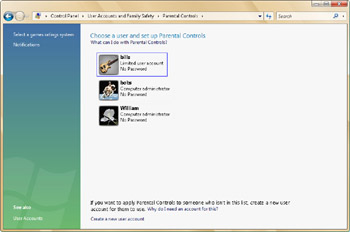
Figure 9-4: Accessing parental controls
Parental controls are configured using general settings for the computer as a whole as well as specific settings for individual users. General computer settings:
-
Control whether activity reports are active for specific users and how often you are reminded to read activity reports.
-
Determine whether an icon is displayed in the system tray when parental controls are running.
-
Determine the games rating system to use on the computer.
Individual user settings:
-
Control allowed Web sites and allowed types of content.
-
Set time limits for when the computer can be used.
-
Determine the types of games that can be played according to rating, content, or title.
-
Block specific programs by name.
Selecting a Games Rating System
Games rating systems, such as those used by the Entertainment Software Ratings Board (ESRB), are meant to help protect children and young adults from specific types of mature content in computer games and on the Internet. You can learn more about the available rating systems and configure a default rating system to use by following these steps:
-
Click Start, and then click Control Panel.
-
In Control Panel, click Set Up Parental Controls under the User Accounts And Family Safety category heading.
-
In the left panel of the main Parental Controls page, click Select A Games Rating System.
-
As Figure 9-5 shows, you can now review the games rating systems available. The default rating system used might depend on the country or region settings for the computer.
Tip When you click one of the links provided, the home page for the designated organization appears in Microsoft Internet Explorer. If you have questions about a rating system, the organization’s Web site can answer them.
-
If you want to change the default rating system, click the rating system you want to use, and then click OK. Otherwise, click the Back button to go back to the Parental Controls page in Control Panel.
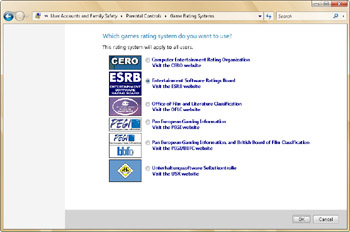
Figure 9-5: Viewing and setting the games rating system to use
Configuring Notifications for Parental Controls
By default, when you configure parental controls, you are reminded weekly to read activity reports, and users subject to parental controls see an icon in the system tray when parental controls are running. If you want to change the way notification is handled, follow these steps:
-
Click Start, and then click Control Panel.
-
In Control Panel, click Set Up Parental Controls under the User Accounts And Family Safety category heading.
-
In the left panel of the main Parental Controls page, click Notifications.
-
As Figure 9-6 shows, you can now specify how often you would like to be reminded to read activity reports. You can specify that you want to be notified weekly, every two weeks, monthly, or never.
-
If you want to hide the parental controls icon rather than display it in the system tray, clear the Display An Icon In The System Tray When Parental Controls Are Running check box.
-
Click OK.
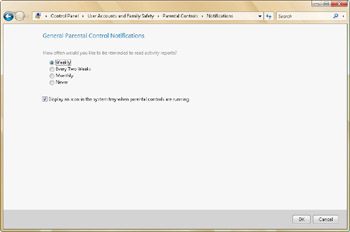
Figure 9-6: Setting general notifications
Configuring Parental Controls for User Accounts
Any standard user account can be configured to use parental controls. Parental controls can be used to control allowed Web sites and allowed types of content, set time limits for when the
computer can be used, determine the types of games that can be played, and block specific programs by name. Parental controls can also be used to collect information about computer usage.
You can enable and configure parental controls by following these steps:
-
Click Start, and then click Control Panel.
-
In Control Panel, click Set Up Parental Controls under the User Accounts And Family Safety category heading.
-
On the Parental Controls page, click the user account for which you are configuring parental controls.
Note Only local administrators can set and manage parental controls. You cannot configure parental controls for local administrators.
-
To turn on parental controls and enforce settings, select On, Enforce Current Settings, as shown in Figure 9-7.
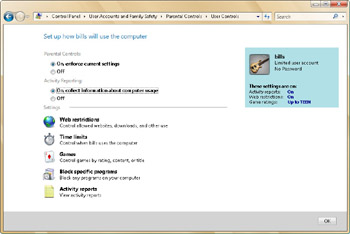
Figure 9-7: Enabling and configuring parental controls -
To turn on activity reporting, select On, Collect Information About Computer Usage.
-
Web Restrictions determine allowed Web sites and allowed types of content. If you want to enforce Web Restrictions, click Web Restrictions. On the Web Restrictions page, shown in Figure 9-8, you can specify which parts of the Internet the user can access:
-
Enable blocking by setting Do You Want To Block Some Web Content to Yes.
-
Under Filter Web Content, choose a Web restriction level, and then select the content that you want to block.
-
Click OK when you have finished.
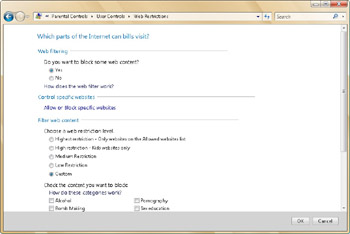
Figure 9-8: Setting Web restrictions
-
Time Limits specify the times when the computer can be used. If you want to enforce Time Limits, click Time Limits on the User Controls page. On the Time Limits page, shown in Figure 9-9, you can specify what times you allow and what times you block:
-
Click and drag over allowed hours to change them to blocked hours.
-
Click and drag over blocked hours to change them to allowed hours.
-
Click OK when you have finished.
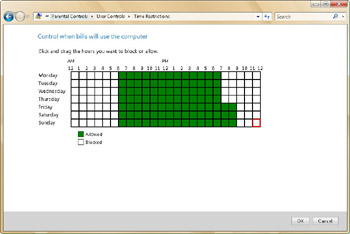
Figure 9-9: Setting time limits
-
-
Game Controls determine the types of games that can be played. If you want to control the types of games that can be played, click Games on the User Controls page. On the Game Controls page, shown in Figure 9-10, you can specify which types of games the user can play:
-
Block all game play by setting Can <…> Play Games? to No.
-
Block or allow games by rating and content types by clicking Set Game Ratings, choosing which game ratings are okay for the user to play, and then clicking OK.
-
Block or allow specific games by clicking Block Or Allow Specific Games, choosing allowed or blocked games, and then clicking OK.
-
Click OK when you have finished.
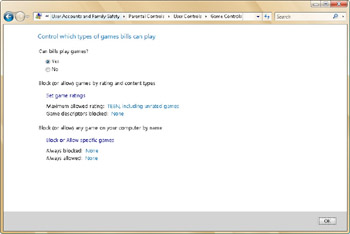
Figure 9-10: Setting game controls
-
-
Application Restrictions determine which programs can be run by the user. If you want to control application usage, click Block Specific Programs on the User Controls page. On the Application Restrictions page, shown in Figure 9-11, you can specify which types of applications can be run:
-
Allow all programs to be run by selecting <…> Can Use All Programs.
-
Restrict all programs except those specifically allowed by selecting <…> Can Only Use The Programs I Allow In This List.
-
Set allowed programs using the options provided. If a program you want to allow isn’t listed, click Browse, and then use the Open dialog box to select that program for use.
-
Click OK when you have finished.
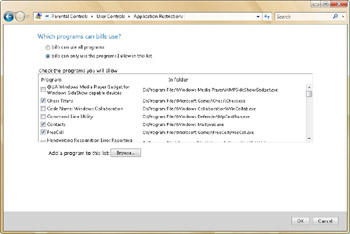
Figure 9-11: Setting application restrictions
-
-
On the User Controls page, click OK to save the settings.
-
Viewing and Using Activity Reports
An activity report for a user’s account provides complete details about the user’s computer and instant messaging usage and also provides details about general system modifications related to the account. Computer usage details include the following:
-
The top 10 Web sites visited in the reporting period
-
The most recent 10 Web sites blocked
-
File downloads
-
Logon times
-
Applications run and games played
-
E-mail messages sent and received
-
Media played in media players
-
Instant messaging
Instant messaging details include:
-
Conversation initiation
-
Link exchanges
-
Webcam usage
-
Audio usage
-
Game play
-
File exchanges
-
SMS messages
-
Contact list changes
General system details specify:
-
Whether anyone made changes to parental controls for the account and, if so, who made those changes, how many changes he made, and when those changes were made.
-
Whether general changes were made to the account and, if so, what changes were made.
-
Whether system clock changes were made, such as in an attempt to circumvent time controls.
-
Whether, for whom, and how many failed logon attempts were recorded in the security event logs.
You can turn on activity reports for a standard user by following these steps:
-
Click Start, and then click Control Panel.
-
In Control Panel, click Set Up Parental Controls under the User Accounts And Family Safety category heading.
-
On the Parental Controls page, click the user account for which you are configuring activity reports.
-
Turn on activity reporting by selecting On, Collect Information About Computer Usage.
-
Click OK to save the settings.
To view activity reports for a user, follow these steps:
-
Click Start, and then click Control Panel.
-
In Control Panel, click Set Up Parental Controls under the User Accounts And Family Safety category heading.
-
On the Parental Controls page, click the user account you want to work with.
-
Select Activity Reports to access the Activity Viewer page, shown in Figure 9-12.
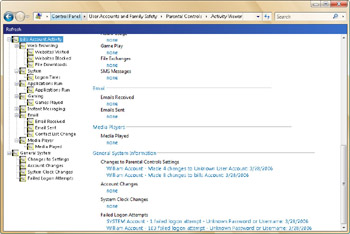
Figure 9-12: Viewing activity reports
By default, Activity Viewer provides summary details for all categories of information tracked. Using the options provided in the left pane, you can access detailed information for each category, which typically includes the date and time of the activity as well as other important details. For example, if you want to see a detailed list of Web sites visited, you can expand Account Activity, expand Web Browsing, and then select Websites Visited.


