Working with Your Computer’s Programs
Working with Your Computer’s Programs
In earlier versions of Windows, you used the Add Or Remove Programs utility to add new programs, change or remove programs, add or remove Windows components, and set program access and defaults. In Windows Vista, these functions are provided by separate features that don’t always work as they have in the past.
When you want to work with programs and updates, you’ll use the Programs category in Control Panel, which provides tasks for:
-
Viewing, adding, removing, and repairing installed programs.
-
Viewing and checking for installed updates.
-
Configuring Default Programs.
-
Setting Advanced Options for Windows features.
To access the Programs category, click Start and then click Control Panel. In Control Panel, click the link for the Programs category heading.
Viewing, Adding, Removing, and Repairing Installed Programs
Windows Vista considers any program you’ve installed on a computer or made available for a network installation to be an installed program. The operating system provides separate features for viewing, adding, removing, and repairing installed programs.
You can view, add, remove, or repair installed programs by following these steps:
-
In Control Panel, click Programs.
-
Under Installed Programs, click View Installed Programs.
The Installed Programs page is displayed (see Figure 6-4) with a list of programs you’ve installed.
-
In the Name list, right-click the program you want to work with, and then select Remove to uninstall the program, Change to modify the program, or Repair to repair the program.
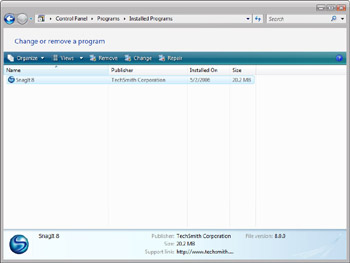
Figure 6-4: Working with installed programs
Viewing and Checking for Installed Updates
Windows Update allows a computer to connect automatically to the Microsoft Windows Update Web site or a designated update server to obtain any necessary operating system updates. This allows the computer to automatically download and install critical updates, security updates, update rollups, and service packs.
As in earlier versions of Windows, you must enable Windows Update for the feature to work. Once the feature is enabled, you can work with installed updates by using the options in the Programs category of Control Panel. To view, change, or remove installed updates, follow these steps:
-
In Control Panel, click Programs.
-
Under Installed Updates, click View Installed Updates.
The Installed Updates page is displayed with a list of updates that have been installed.
-
In the Name list, right-click the update you want to work with, and then select Remove to uninstall the update or Change to modify the update.
To check for updates by follow these steps:
-
In Control Panel, click System And Maintenance.
-
Under Windows Update, click Check For Updates.
Configuring Default Programs
Default programs and their related settings have important roles on your computer. They determine which programs are used with which types of files and how Windows handles files on CDs, DVDs, and portable devices. To configure default programs and settings, click Programs in Control Panel, and then click Default Programs. You can then configure default programs and settings using the Default Programs page, shown in Figure 6-5.
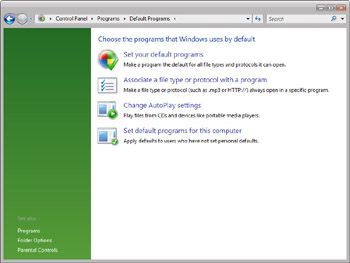
Figure 6-5: Configuring default programs and related settings
Program defaults allow you to specify which program should be used for certain activities, such as Web browsing or sending e-mail, and which programs are accessible from the Start menu, desktop, and other locations.
| Note |
Unlike earlier versions of Windows, Windows Vista makes it easy to set personal defaults as well as global defaults for programs, and those defaults apply not only to the specific file types the programs can use, such as .htm and .html files, but also to the specific protocols the programs can use, such as http:// and https://. |
When working with personal and global default programs, keep the following in mind:
-
Personal default programs apply to the currently logged on user and make a program the default for all file types and protocols it can open. To set personal defaults, click the Programs in Control Panel, click Default Programs, and then click Set Your Default Programs. Afterward, follow the prompts.
-
Global default programs apply to all users who haven’t set personal defaults and make a program the default for all file types and protocols it can open. To set global defaults, click Programs in Control Panel, click Default Programs, and then click Set Default Programs For This Computer. Afterward, follow the prompts.
In Windows Vista, AutoPlay options make it easy to specify how Windows handles files on CDs, DVDs, and portable devices. As Figure 6-6 shows, you can configure separate AutoPlay options for each type of CD, DVD, and media your computer can handle.
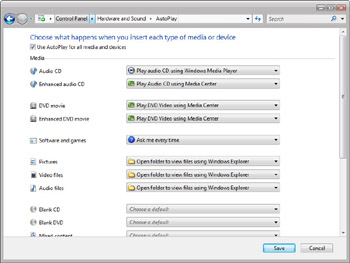
Figure 6-6: Configuring default programs and related settings
You can configure AutoPlay options by following these steps:
-
Click Programs in Control Panel.
-
Click Default Programs, and then click Change AutoPlay Settings.
-
Use the Media selection list for the type of media for which you want to set the default AutoPlay option. Repeat as necessary.
-
Click Save to save your settings.
Setting Advanced Options for Windows Features
In earlier versions of Windows, you used the Add/Remove Windows Components option of the Add Or Remove Programs utility to add or remove the Windows components a computer used. In Windows Vista, operating system components are considered Windows features that can be turned on or off rather than added or removed.
You can turn on or off Windows features by following these steps:
-
Click Programs in Control Panel.
-
Click Turn On Or Off Windows Features.
-
Use the Windows Features dialog box, shown in Figure 6-7, to turn Windows features on or off.
-
Click OK.
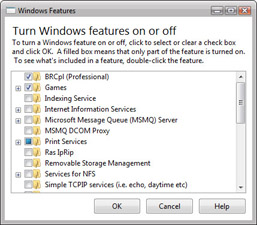
Figure 6-7: Turning Windows features on or off


