Introducing Windows Defender
Introducing Windows Defender
All versions of Windows Vista include Windows Defender. Windows Defender is an antispyware program that protects your computer from harmful and unwanted software. Like all antispyware software, Windows Defender is best used with antivirus software. Together, an antispyware program and an antivirus program can protect your computer from most types of malicious software.
Getting to Know Windows Defender
Similar to antivirus software, Windows Defender has two operating modes:
-
Real-time protection
-
Scanning
By default, Windows Defender is configured to use real-time protection and to supplement this with daily scans. When operating in real-time protection mode, Windows Defender runs in the background and works to detect spyware that is trying to install itself. When operating in scanning mode, Windows Defender tries to locate spyware that has secretly installed itself on your computer. Both real-time protection and scanning are absolutely essential to ensure that a computer is protected from spyware. Real-time protection can safeguard the computer from known spyware. Scanning can detect spyware that is already installed on the computer or that might have slipped past the real-time protection feature.
Windows Defender recognizes spyware by the way it tries to install itself, the files it tries to create or modify, the registry keys it modifies or creates, or any combination of these items collectively referred to as the spyware’s signature. Spyware can sometimes slip by real-time protection if the spyware’s signature isn’t recognized, as might happen if the spyware was recently released or recently modified to bypass detection.
Like antivirus software, Windows Defender uses definition files to maintain up-to-date information about spyware signatures. Microsoft creates new signatures for Windows Defender to counter new spyware and malicious software programs and makes these new signatures available for download. Windows Defender includes an automatic update feature that checks for updates periodically, and you can manually check for updates as well.
One of the key components in Windows Defender is Software Explorer. As described in the “Navigating Your Computer’s Startup, Running, and Network-Connected Programs” section in Chapter 6, Software Explorer tracks the status of all programs currently running on the computer. You can use Software Explorer to terminate a program, to block incoming connections to a program, and to disable or remove a program. Windows Defender uses Software Explorer to help detect the activities of malicious programs.
Starting and Using Windows Defender
To access Windows Defender, click Start, and then click Control Panel. In Control Panel, click Security, and then click Windows Defender. If Windows Defender is turned off, you’ll see a warning prompt instead. Click Turn On And Open Windows Defender to enable Windows Defender.
The Windows Defender home page provides an overview of the current status. You’ll see three color-coded statuses:
-
Green (Normal) If Windows Defender’s definitions are up-to-date and there is no known unwanted or harmful software installed on the computer, you’ll see a green (normal) status indicator similar to the one shown in Figure 13-18.
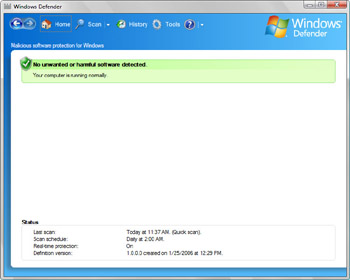
Figure 13-18: Viewing status in Windows Defender -
Orange (Warning) If the Windows Defender definitions are out of date and there is no known unwanted or harmful software installed on the computer, you’ll see an orange (warning) status indicator telling you that the Windows Defender definitions need to be updated. You’ll be able to retrieve updates over the Internet from the Microsoft Web site and install them automatically by clicking the Check For Update button provided as part of the warning.
-
Red (Danger) If the security of your computer is possibly compromised or there is known unwanted or harmful software installed on the computer, you’ll see a red (danger) status indicator telling you to take action to protect your computer. You’ll be able to start a scan or to quarantine discovered spyware by using the options provided.
The toolbar at the top of the window provides access to the main features in Windows Defender. From left to right, the toolbar has these buttons:
-
Forward/Back The Forward and Back buttons on the far left of the toolbar allow you to navigate locations you’ve already visited. Similar to when you are browsing the Web, the locations you’ve visited are stored in a history, and you can browse the history by using the Forward and Back buttons.
-
Home Displays the Windows Defender home page, shown in Figure 13-18.
-
Scan Starts a quick scan of your computer and displays the Scanning Your Computer page, which shows the progress of the scan.
-
Scan Options Displays an options list that allows you to specify the type of scan as Quick Scan, Full Scan, or Custom Scan. See the “Scanning the Computer for Spyware” section later in this chapter for more information.
-
History Displays the History page. This page contains a summary of all Windows Defender activity according to programs detected and actions taken. Quick access links are provided for Allowed Items and Quarantined Items.
-
Tools Displays the All Settings And Tools page. This page allows you to configure general settings, display quarantined items, access Software Explorer, view allowed items, and more.
-
Windows Defender Help Displays help documentation for Windows Defender.
-
Windows Defender Help Options Displays an options list that allows you to display additional help items, such as the Windows Help And Support Index.
The Status section in the lower portion of the Home page provides details about the general status of Windows Defender:
-
Last Scan Shows the date and time of the last scan and the type of scan, such as Quick Scan or Full Scan.
-
Scan Schedule Shows the schedule for automatic scans, such as Daily at 2:00 AM.
-
Real-time Protection Shows the status of real-time protection, such as On.
-
Definition Version Shows the version, time, and date of the most recent definitions file.
When you work with Windows Defender, the main actions you’ll want to perform include:
-
Configuring general settings.
-
Scanning the computer for spyware.
-
Checking for updates.
-
Viewing or restoring quarantined items.
-
Viewing or changing software programs that you allow.
-
Turning Windows Defender off or on.
Configuring General Settings
General settings allow you to choose how you want Windows Defender to run. You can configure general settings by following these steps:
-
Open Windows Defender.
-
Click Tools, and then click Options.
-
On the Options page, shown in Figure 13-19, the following options sections are provided:
-
Automatic Scanning Used to manage automatic scanning and automatic updating options. To have Windows Defender scan automatically, you must select the Automatically Scan My Computer (Recommended) check box and then set the scan frequency, time of day, and type of scan. If you want Windows Defender to check for updates before scanning, select Check For Updated Definitions Before Scanning.
-
Default Actions Used to set the default action to take based on the alert level of a detected spyware program. Spyware with a high alert level is considered to be the most dangerous and to have the highest probability of doing damage to a computer. Spyware with a medium alert level is considered to be moderately dangerous and to have a moderate probability of doing damage to a computer or performing nuisance/malicious actions. Spyware with a low alert level is considered a low danger and is primarily a nuisance. If you enable Apply Actions On Detected Items After Scanning under Automatic Scanning, Windows Defender performs the recommended action after completing an automatic scan. Items marked Ignore are ignored. Items marked Remove are removed and quarantined. Items marked Signature Default are handled according to the default setting in the signature associated with the spyware. In most cases, Signature Default means that high and moderate alert items are removed.
-
Real-Time Protection Options Used to turn on real-time protection. Real-time protection uses a number of security agents to determine which areas of the operating system and which components receive real-time protection. Each of these security agents can be enabled or disabled individually using the check boxes provided. If you want to receive alerts related to real-time protection, you can enable the notification options provided.
-
Advanced Options Used to configure advanced techniques for detecting spyware. These options allow you to scan inside archives to detect suspicious files. Enabling these options is particularly important for detecting new spyware, hidden spyware, and software performing possibly malicious actions.
-
Administrator Options Used to specify whether Windows Defender is turned on or off. If you clear the Use Windows Defender check box, Windows Defender won’t provide protection against spyware. Also used to specify whether normal users can perform scans and remove potentially unwanted software. By default, users who do not have administrator rights can perform scans and remove potentially unwanted software. This is the recommended configuration.
-
Click Save to save any changes you’ve made to the configuration.
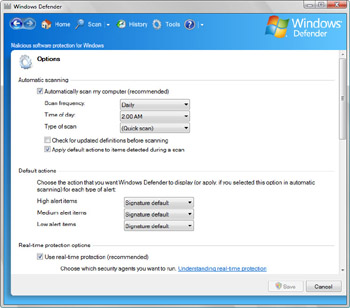
Figure 13-19: Configuring general settings in Windows Defender
-
Scanning the Computer for Spyware
Windows Defender can be used to perform quick scans, full scans, and custom scans. Quick scans and full scans are easy to initiate:
-
For a quick scan, Windows Defender checks areas of memory, the registry, and the file system known to be used by spyware for any unwanted or potentially harmful software. You can start a quick scan by clicking the Scan button on the toolbar.
-
For a full scan, Windows Defender performs a thorough check of all areas of memory, the registry, and the file system for any unwanted or potentially harmful software. You can start a full scan by clicking the Scan Options button on the toolbar and selecting Full Scan.
Windows Defender shows the progress of the scan by reporting:
-
The start time of the scan.
-
The total amount of time spent scanning the computer so far (the elapsed time).
-
The location or item currently being examined.
-
The total number of files scanned.
When the scan is complete, Windows Defender provides scan statistics, as shown in Figure 13-20.
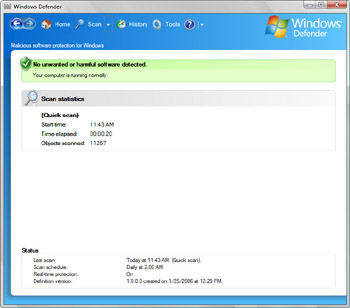
Figure 13-20: Performing a scan using Windows Defender
For a custom scan, Windows Defender checks selected areas of the file system for any unwanted or potentially harmful software. You start a custom scan by following these steps:
-
Open Windows Defender.
-
Click the Scan Options button, and then select Custom Scan.
-
On the Select Scan Options page, click Select.
-
Select the drives and folders to scan, as shown in Figure 13-21, and then click OK.
-
In Windows Defender, click Scan Now to start the scan.
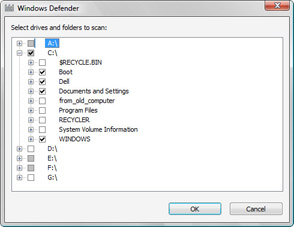
Figure 13-21: Selecting the drives and folders to scan
Checking for Updates
Out-of-date spyware definitions can put your computer at risk. By default, Windows Defender automatically checks for updated spyware definitions prior to performing an automatic scan. If the computer has access to the Internet or an update server, Windows Defender updates the spyware definitions. If the computer doesn’t have access to the Internet or an update server, Windows Defender cannot update the spyware definitions.
You can manually update spyware definitions at any time by following these steps:
-
Click Start, and then click Control Panel.
-
In Control Panel, click Security, and then click Check For New Definitions under Windows Defender.
Tip In Windows Defender, you can also check for updates by clicking the Windows Defender Help Options button, selecting About Windows Defender, and then clicking Check For Updates.
Viewing or Restoring Quarantined Items
Quarantined items are items that have been disabled and moved to a protected location on the computer because Windows Defender suspects that they are harmful or potentially unwanted software. You can access and work with quarantined items by completing the steps:
-
Open Windows Defender.
-
Click Tools, and then click Quarantined Items.
-
If you click a quarantined item, you can remove or restore the item.
-
Select Remove to permanently remove the item from the computer.
-
Select Restore to restore the item to its original location so that it can be used and mark it as an allowed item. See the next section, “Viewing or Changing Software Programs That You Allow,” for more information.
-
If you want to remove all quarantined items, click Remove All.
-
Viewing or Changing Software Programs That You Allow
Sometimes, you’ll install programs that perform actions that Windows Defender considers to be potentially harmful or malicious. In this case, Windows Defender will either quarantine the program automatically, such as for a high threat item, or alert you about the program, such as for a moderate threat item. If you are sure that a quarantined program is safe, you can restore it, and Windows Defender will mark the program as an allowed item. Or if you receive a warning about a program that you know to be safe, you can mark the item as allowed.
You can view or change currently allowed items by following these steps:
-
Open Windows Defender.
-
Click Tools, and then click Allowed Items.
On the Allowed Items page, allowed items are listed by name with an alert level and a recommendation for how the program should be handled.
-
You can remove an item from the Allowed Items list by clicking it and then selecting Remove.
Turning Windows Defender Off or On
You can turn Windows Defender off or on by following these steps:
-
Open Windows Defender.
-
Click Tools, and then click Options.
-
Scroll down to the bottom of the Options page.
-
You can now:
-
Clear the Use Windows Defender check box to disable and turn off Windows Defender.
-
Select the Use Windows Defender check box to enable and turn on Windows Defender.
-
Click Save.
-


