Improving System Stability and Recovery
Improving System Stability and Recovery
Windows Vista is more stable and reliable than Windows XP. Not only does the operating system include fixes for known crashes and hangs, but it also:
-
Prevents many common causes of hangs and crashes.
-
Provides for automatic recovery in the case of failure.
-
Recovers frozen applications and releases resources automatically.
Preventing Common Causes of Hangs and Crashes
Windows Vista prevents many common causes of hangs and crashes by addressing performance issues and including more reliable drivers. Windows Vista uses memory more efficiently and provides new process scheduling mechanisms that can adjust system performance to better meet the needs of applications and system components. Optimized memory usage ensures that background processes have less performance impact. Improved input/output (I/O) cancellation for device drivers ensures that the operating system can recover gracefully from blocking calls and that there are fewer blocking disk I/O operations. Overall, these improvements provide a more responsive environment, even over Windows XP on the same computer hardware.
With earlier versions of Windows, application crashes and hangs were difficult for developers to troubleshoot because error reporting provided limited or no information. Windows Vista resolves this problem by providing better guidance on what causes unresponsive conditions and ensuring that error reporting has the additional information needed to identify and resolve issues. To reduce downtime and restarts required for application installations and updates, Windows Vista can use the update process to mark in-use files for update and then automatically replace the files the next time the application is started. In some cases, Windows Vista can save the application’s data, close the application, update the in-use files, and then restart the application—as is possible with Windows Update.
Recovering Automatically from Failure
Windows Vista includes features to automatically recover from many common types of failures, including failed services and corrupted system files. Unlike earlier versions of Windows, in Windows Vista, every service has a recovery policy, as shown in Figure 14-10. If a service fails, Windows Vista will try to restart it automatically. Windows Vista automatically handles both service and nonservice dependencies as well, and it automatically starts any necessary dependent services and system components prior to attempting to start a failed service.
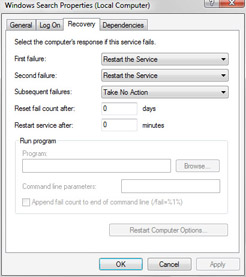
Figure 14-10: All services have recovery policy.
In earlier versions of Windows, corrupted system files were one of the most common causes of startup failure. Sometimes administrators could successfully replace corrupted files by using the System Repair feature or the Recovery Console. At other times the system could be recovered only by attempting to repair the installation or reinstalling the operating system.
Windows Vista includes the Startup Repair Tool (StR) to automatically fix many common problems and to enable both users and administrators to rapidly diagnose and resolve startup issues. Once started, StR performs diagnostics and attempts to determine the cause of the startup failure by analyzing startup logs and error reports. Then StR attempts to fix the problem automatically. If StR is unable to resolve the problem, it restores the system to the last known working state and then provides diagnostic information and support options to make further troubleshooting easier for the user or administrator.
Similar to the Recovery Console that is used with Windows XP, StR is included on the Windows Vista installation disc and can be preinstalled on computers. By preinstalling StR on computers, you make it available as an option on the Windows Advanced Startup Options menu. If you don’t preinstall StR and the system fails to start up, you can still run it from the Windows Vista installation disc. If the system fails to start and you haven’t preinstalled StR, follow these steps to launch StR:
-
Insert the Windows Vista installation disc, and then restart the computer.
-
Click View System Recovery Options (Advanced).
-
Type the name and password for an account on the computer.
-
Click Startup Repair in the list of recovery tools.
-
Follow the Startup Repair prompts to recover the system.
Recovering Frozen Applications and Releasing Resources Automatically
Few things are as frustrating as unresponsive applications or running out of memory. In earlier versions of Windows, an application crash or hang is marked as not responding, and it is up to the user to exit and then restart the application. The same is true for conditions that cause the computer to run out of memory. Earlier versions of Windows warned you that you were running low on virtual memory, but they did not take corrective action.
Windows Vista attempts to resolve the issue of unresponsive applications by using Restart Manager. Restart Manager can shut down and restart unresponsive applications automatically. This means that you typically don’t have to intervene, log out, or restart the computer to try to resolve issues with frozen applications.
Windows Vista attempts to resolve issues related to running out of virtual memory by providing Resource Exhaustion Detection And Recovery. Resource Exhaustion Detection and Recovery constantly monitors the system-wide virtual memory commit limit automatically and warns you when you are running low on virtual memory. At the same time, it also identifies the processes consuming the largest amount of memory. You can close any or all of these high-resource-consuming applications directly from the Close Programs To Prevent Information Loss dialog box provided. The resource exhaustion warning is also logged in the System event log, where it can be analyzed later by administrators.


