Diagnosing and Resolving Problems
Diagnosing and Resolving Problems
Built-in diagnostics are your front line of defense for ensuring that computers run smoothly. If you can detect potential problems before they occur or current problems as they occur, you can limit downtime and help to maximize productivity. Earlier versions of Windows included some diagnostics features, but for the most part, those features were not automated or designed to self-correct problems.
Windows Vista introduces an extensive diagnostics architecture that is both automated and self-correcting. Because of this new architecture, Windows Vista can detect many types of hardware, memory, and network problems and either resolve them automatically or help users through the process of resolving them. Windows Vista supplements the diagnostics components with problem reporting and assistance features. In this section, you’ll learn about the following features:
-
Hardware diagnostics
-
Performance diagnostics
-
Memory diagnostics
-
Network diagnostics
-
Problem reporting
-
User Assistance
-
Remote Assistance
 |
If you’re an IT manager looking for ways to make a good business case to upper management for moving your desktops to Vista, you might be feeling a bit hard pressed. Sure, the new deployment tools are great, but only if your business needs to deploy Vista. And while the new Aero Glass GUI is definitely more than just eye-candy, you might need to upgrade your desktop systems to get the hardware that supports it. How can you make a convincing case then for upgrading or migrating to Vista?
Diagnostics could be the key. With its new built-in diagnostics capabilities, Vista is more reliable than ever and is less likely to crash or hang or lose application data than any previous version of Windows. And system crashes or data loss mean lost productivity to your business, so these new reliability features can improve your bottom line. Vista also has advanced self-healing capabilities to help your system maintain its health and an increased level of artificial intelligence that can help you troubleshoot when things go wrong. Therefore, over time, moving to Vista should save your business money and your staff and help desk from frustration—despite the up-front cost and effort of doing a desktop upgrade or migration.
Mitch Tulloch
Author and MVP—For more information, see http://www.mtit.com.
|
Introducing Built-In Diagnostics
Windows Vista has multiple enhancements for diagnosing and resolving problems. To proactively and automatically identify potential problems, Windows Vista includes built-in diagnostics that can automatically detect and diagnose common support problems. In Active Directory domains, administrators can configure built-in diagnostics by using Group Policy settings.
The Windows Vista built-in diagnostics can automatically identify and help users resolve the following problems:
-
Hardware error conditions
-
Failing disks
-
Degraded performance
-
Failure to shut down properly
-
Memory problems
-
Problems related to installing drivers and applications
-
Problems related to using drivers and applications
In most cases, the built-in diagnostics prompt users to make them aware of any problems as they occur and then help to guide users through resolving the problem.
Understanding Hardware, Performance, and Memory Diagnostics
Hardware, memory, and performance diagnostics are the heart of the Windows Vista self-correcting architecture. Hardware diagnostics can detect error conditions and either repair the problem automatically or guide the user through a recovery process. With potential disk failures, hardware diagnostics guide users through the backup procedure to minimize downtime and data loss.
Performance problems addressed by built-in diagnostics include slow application startup, slow boot, and network-related delays. If a computer is experiencing degraded performance, performance diagnostics can detect the problem and tune performance automatically. For advanced performance issues, Windows Vista provides an improved Performance console that offers more detailed information and additional performance counters that can help administrators more quickly identify performance issues.
Memory problems addressed by built-in diagnostics include both memory leaks and failing memory. Memory diagnostics work with the new Microsoft Online Crash Analysis tool to detect system crashes possibly caused by failing memory and then prompt the user to schedule a memory test the next time the computer is restarted. Three different types of memory testing can be performed.
If you suspect that a computer has a memory problem that is not being automatically detected, you can run Windows Memory Diagnostics manually by completing the following steps:
-
Click Start, point to All Programs, and then click Accessories.
-
Right-click Command Prompt, and then select Run As Administrator.
-
At the command prompt, type mdsched.exe.
-
As shown in Figure 14-2, you can choose to restart the computer and run the tool immediately or schedule the tool to run at the next restart.
-
If you choose to run the tool at the next restart, Windows Memory Diagnostics runs automatically after the computer restart, allowing you to choose the type of testing to perform.
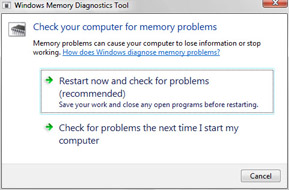
Figure 14-2: The Windows Memory Diagnostics Tool
Understanding Network Diagnostics
As discussed in Chapter 12, “Networking Your Computer,” Windows Vista includes a separate architecture for diagnosing and resolving networking issues called the Network Diagnostics Framework. The related Windows Networks Diagnostics Tool offers step-by-step advice on resolving network connectivity problems.
If you suspect that a computer has a networking or connectivity problem, you can open the Windows Networks Diagnostics Tool by following these steps:
-
Click Start, and then click Control Panel.
-
In Control Panel, under the Network And Internet heading, click View Network Status And Tasks.
-
If there is a known problem or you suspect a problem, click Diagnose Internet Connection in the left pane to begin diagnosing it.
Introducing Problem Reporting and Assistance
The built-in diagnostics track each instance of a program or driver failing to install or becoming nonresponsive and displays a “Check For Solutions” balloon message as these instances occur. If you click the balloon, Windows Vista opens the Problem Reports And Solutions dialog box, shown in Figure 14-3, allowing you to check on the Internet for solutions to selected problems. You can view a list of current problems at any time by following these steps:
-
Click Start, and then click Control Panel.
-
In Control Panel, click System And Maintenance and then click Problem Reports And Solutions.
-
In the Problem Reports And Solutions dialog box, click See Problems To Check in the left pane.
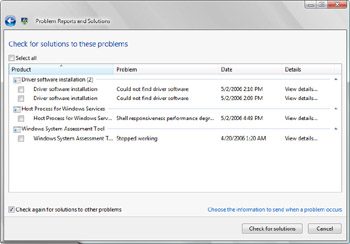
Figure 14-3: The Problem Reports And Solutions dialog box
In addition to the built-in diagnostics features, users can get additional help and support with:
-
User Assistance The Windows Vista version of help files, User Assistance provides answers to questions about the operating system and can be extended with custom content that provides answers to questions about the organization’s network and custom applications.
-
Remote Assistance Originally included in Microsoft Windows XP, Remote Assistance enables Help Desk staff to resolve problems by remotely viewing and controlling a computer’s desktop.
You access User Assistance documentation through Windows Help And Support. Click Start, and then select Help And Support. You can then use the Windows Help And Support console, shown in Figure 14-4, to look for answers to any questions you might have about Windows Vista. Any custom content created by your organization can be made available for searching as extensions to the standard User Assistance documentation.
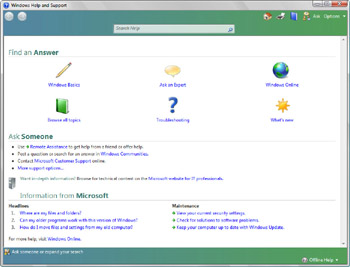
Figure 14-4: The Windows Help And Support console
In Windows Vista, Remote Assistance has been enhanced so that it is faster, uses less bandwidth, and can function through Network Address Translation (NAT) firewalls. Remote Assistance also now has built-in diagnostic tools that Help Desk staff can run using a single click. Remote Assistance has been modified in other important ways as well. To allow for escalation and easier troubleshooting, two different support staff can connect to a remote computer simultaneously. When troubleshooting requires restarting the computer, Remote Assistance sessions are reestablished automatically after the computer being diagnosed restarts.
When you are working with the Windows Help And Support console, you can get help using Remote Assistance at any time by following these steps:
-
Click the Help And Support Home button on the toolbar, and then click Remote Assistance under Ask Someone.
-
In the Remote Assistance Wizard, shown in Figure 14-5, click Invite Someone You Trust To Help You, and then click Use E-Mail To Send An Invitation.
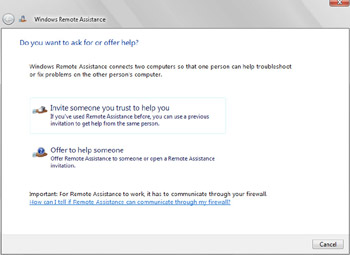
Figure 14-5: The Remote Assistance WizardTip If the computer isn't configured to use Remote Assistance, follow the prompt and click the Click Here To Open System Properties link. On the Remote tab of the System Properties dialog box, select the Remote Assistance Invitations Can Be Sent From This Computer check box and then click OK. Afterward, repeat Step 2 in the Remote Assistance Wizard.
-
When prompted, enter and confirm a secure password for connecting to the computer. This password is used by the person you are inviting and is valid only for the Remote Assistance session.
-
When you click Next, Windows Vista starts your default mail program and creates an email message with the invitation. In the To field, type the e-mail address of the person you are inviting, and then click Send.
By default, computers running Windows Vista are configured so that Remote Assistance is not enabled. As a result, Windows Vista computers cannot receive or send Remote Assistance invitations by default.
To view or change Remote Assistance settings, follow these steps:
-
Click Start, and then click Control Panel.
-
In Control Panel, click System And Maintenance.
-
On the System And Maintenance page, click Allow Remote Access under System.
-
You can use the System Properties dialog box, shown in Figure 14-6, to configure Remote Assistance.
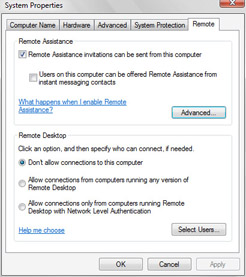
Figure 14-6: Configuring Remote Assistance


