Using BitLocker Drive Encryption
Using BitLocker Drive Encryption
BitLocker Drive Encryption is designed to protect computers from attackers who have physical access to a computer. Without BitLocker Drive Encryption, an attacker could start the computer with a boot disk and then reset the administrator password to gain full control of the computer. Or the attacker could access the computer’s hard disk directly by using a different operating system to bypass file permissions. BitLocker Drive Encryption prevents this by entering recovery mode at startup if there are any offline changes to boot files, operating system files, or encrypted volumes. In this way, BitLocker Drive Encryption dramatically reduces the risk of an attacker gaining access to confidential data by using offline attacks.
Introducing BitLocker Drive Encryption
BitLocker Drive Encryption is the feature in Windows Vista that makes use of a computer’s TPM. BitLocker Drive Encryption can use a TPM to validate the integrity of a computer’s boot manager and boot files at startup, and to guarantee that a computer’s hard disk has not been tampered with while the operating system was offline. BitLocker Drive Encryption also stores measurements of core operating system files in the TPM.
Every time the computer is started, Windows Vista validates the boot files, the operating system files, and any encrypted volumes to ensure they have not been modified while the computer was offline. If the files have been modified, Windows Vista alerts the user and refuses to release the key required to access Windows. The computer then goes into a recovery mode, prompting the user to provide a recovery key before allowing access to the boot volume. Recovery mode is also used if a disk drive is transferred to another system.
BitLocker Drive Encryption can be used in both TPM and non-TPM computers:
-
If a computer has a TPM, BitLocker Drive Encryption uses the TPM to provide enhanced protection for your data and to assure early boot file integrity. This helps protect the data on your computer from unauthorized viewing by encrypting the entire Windows volume and by safeguarding the boot files from tampering.
-
If a computer doesn’t have a TPM or its TPM isn’t compatible with Windows Vista, Bit-Locker Drive Encryption can be used to encrypt entire volumes and in this way protect the volumes from tampering. This configuration, however, doesn’t allow the added security of early boot file integrity validation.
On computers with a compatible TPM, BitLocker Drive Encryption can use one of two TPM modes:
-
TPM-only In this mode, only the TPM is used for validation. When the computer starts up, the TPM is used to validate the boot files, the operating system files, and any encrypted volumes. Because the user doesn’t need to provide an additional startup key, this mode is transparent to the user and the user logon experience is unchanged. However, if the TPM is missing or the integrity of files or volumes has changed, BitLocker will enter recovery mode and require a recovery key or password to regain access to the boot volume.
-
Startup key In this mode, both the TPM and a startup key are used for validation. When the computer starts up, the TPM is used to validate the boot files, the operating system files, and any encrypted volumes. The user must have a startup key to log on to the computer. A startup key can be either physical, such as a USB flash drive with a machine-readable key written to it, or personal, such as a personal identification number (PIN) set by the user. If the user doesn’t have the startup key or is unable to provide the correct startup key, BitLocker will enter recovery mode. As before, BitLocker will also enter recovery mode if the TPM is missing or the integrity of boot files or encrypted volumes has changed.
On computers without a TPM or on computers that have incompatible TPMs, BitLocker Drive Encryption uses USB Flash Drive Key mode. As the name implies, this mode requires a USB flash drive containing a startup key. The user inserts a USB flash drive in the computer before turning it on. The key stored on the flash drive unlocks the computer. If the user doesn’t have the startup key or is unable to provide the correct startup key, BitLocker will enter recovery mode. BitLocker will also enter recovery mode if the integrity of encrypted volumes has changed.
Preparing a Computer for BitLocker Drive Encryption
Before you can use BitLocker Drive Encryption, you must prepare the computer. On a computer with a compatible TPM, you must create a BitLocker Drive Encryption partition on your hard drive and then initialize the TPM as discussed in the “Initializing a TPM for First Use” section earlier in this chapter. On a computer without a compatible TPM, you need only to create a BitLocker Drive Encryption partition on your hard drive.
The way you create the BitLocker Drive Encryption partition depends on whether the computer has an operating system installed. If the computer doesn’t have an operating system installed, follow the procedure discussed “Creating the BitLocker Drive Encryption Partition on a Computer with No Operating System.” If the computer has an operating system installed, follow the procedure discussed in the “Creating the BitLocker Drive Encryption Partition on a Computer with an Operating System” section later in this chapter.
| Note |
Enterprise computers shipped with Windows Vista installed might already have a BitLocker Drive Encryption partition. These computers might also have the TPM turned on. Check with the computer manufacturer. |
Creating the BitLocker Drive Encryption Partition on a Computer with No Operating System
BitLocker Drive Encryption requires a separate partition on the computer’s hard disk that must be at least 450 megabytes (MB) and set as the active partition. This section describes how to create the BitLocker Drive Encryption partition on a computer with no operating system and a single hard drive.
| Note |
Due to changes in the operating system, some of the steps in this procedure might change. Do not attempt this procedure without first performing it on a test computer. In this procedure, you will start the computer from the installation media and then create two partitions on the computer. The first partition is the primary partition for the operating system and your data. The second partition is a smaller partition for BitLocker Drive Encryption. |
| Caution |
Do not perform this procedure on a computer with an operating system. Performing this procedure will erase all data on your hard disk. You must back up any data before beginning this procedure. If you have a drive that already has the operating system installed on a single partition, don’t perform this procedure. Instead, you will need to repartition the drive as discussed in the next section, “Creating the BitLocker Drive Encryption Partition on a Computer with an Operating System.” |
You can partition a drive with no operating system for BitLocker Drive Encryption by following these steps:
-
Start the computer with the installation media in the computer’s CD-ROM or DVD-ROM drive.
-
When prompted, press any key to boot from the installation media.
-
When Windows has finished loading the Setup environment, you’ll see the Installation Windows dialog box. In the Installation Windows dialog box, select System Recovery Options.
-
Clear any operating systems listed in the System Recovery Options, and then click Next.
-
Click Command Line Window.
-
In the command-line window, type diskpart.
-
Select the hard disk for use by typing select disk 0.
-
Erase the existing partition table by typing clean.
-
Create a primary partition by typing create partition primary.
-
Designate the partition as drive C by typing assign letter=c.
-
Format the partition by typing format.
-
Shrink the partition by 450 MB at the end by typing shrink minimum=450.
-
Create a primary partition in the space remaining after the Shrink command by typing create partition primary.
-
Set the new partition as active by typing active.
-
Designate the partition as drive D by typing assign letter=d. If drive D is already in use, you might need to use a different drive letter.
-
Format the partition by typing format.
-
Quit the DiskPart application by typing exit.
-
Close the Command Prompt window by typing exit.
-
If possible, return to the main installation screen by clicking Close. Restart the computer and then press any key to boot from the installation media when prompted.
-
Click Install Now, and proceed with the installation process. Install Windows Vista on drive C.
-
If the computer has a TPM, you will need to initialize it as described in the “Initializing a TPM for First Use” section earlier in this chapter.
Creating the BitLocker Drive Encryption Partition on a Computer with an Operating System
BitLocker Drive Encryption requires a separate partition on the computer’s hard disk that must be at least 450 MB and set as the active partition. This section describes how to create the BitLocker Drive Encryption partition on a computer with an operating system and a single hard drive.
| Caution |
Due to changes in the operating system, some of the steps in this procedure might change. Do not attempt this procedure without first performing it on a test computer. After testing and before performing this procedure, back up your computer and all data. In this procedure, you will start the computer from the installation media. You will then shrink the current partition to create a partition for BitLocker Drive Encryption. Afterward, you will copy key boot files from the encrypted C partition to the active D partition. |
You can create an additional partition on a drive with an operating system by following these steps:
-
Start the computer with the installation media in the computer’s CD-ROM or DVD-ROM drive.
-
When prompted, press any key to boot from the installation media.
-
When Windows has finished loading the Setup environment, you’ll see the Installation dialog box. In the Installation Windows dialog box, select System Recovery Options.
-
Clear any operating system in the System Recovery Options and click Next.
-
Click Command Line Window.
-
In the command line window, type diskpart.
-
Select the hard disk for use by typing select disk 0.
-
Select the current partition by typing select partition 1.
-
Shrink the current partition by 450 MB at the end by typing shrink minimum=450.
-
Create a primary partition in the space remaining after the Shrink command by typing create partition primary.
-
Set the new partition as active by typing active.
-
Designate the partition as drive D by typing assign letter=d.
Note If drive D is already in use, you might need to use a different drive letter. Throughout the rest of this procedure, you’ll then need to provide this drive letter whenever drive d is referenced.
-
Format the partition by typing format.
-
Quit the DiskPart application by typing exit.
-
Make new boot sectors at the beginning of the new partition. If you have the Bootsect tool, type x:\boot\bootsect /nt60 ALL. If you have the Fixntfs tool, type x:\boot\ fixntfs –LH –ALL.
-
Remove the read-only, system, and hidden attributes from the boot manager files by typing attrib –r –s –h c:\bootmgr.
-
Copy the boot manager files to the system drive by typing xcopy C:\bootmgr d:\.
-
Restore the read-only, system, and hidden attributes to the boot manager files on both drives by typing the following commands:
-
attrib +r +h +s c:\bootmgr
-
attrib +r +h +s d:\bootmgr
-
attrib +r +h +s d:\boot
-
Make a copy of the boot files on drive C by typing xcopy d:\boot c:\boot\ /cherky. Be sure to type a space between the backslash (\) and slash (/). If you have an Extensible Firmware Interface (EFI) system, also type xcopy d:\efi c:\efi\ /cherky to copy additional files.
-
Copy the boot manager files to the C drive by typing xcopy x:\bootmgr c:\. If you have an EFI system, also type xcopy x:\bootmgr.efi c:\ to copy additional files.
-
Close the Command Prompt window by typing exit.
-
Return to the main installation screen by clicking Close.
-
Remove the installation media, and then restart the computer.
-
If the computer has a TPM, you will need to initialize it, as described in the “Initializing a TPM for First Use” section earlier in this chapter.
-
Configuring and Enabling BitLocker Drive Encryption for a TPM
After you’ve partitioned the computer’s hard drive for BitLocker Drive Encryption (if necessary), the next step to configure your computer to use BitLocker Drive Encryption is to enable the feature on the operating system.
-
Log on to the computer as an administrator.
-
Click Start, click Control Panel, click Security, and then click BitLocker Drive Encryption.
-
For the system volume, click Turn On BitLocker. This starts the Turn On BitLocker Drive Encryption wizard, shown in Figure 11-2.
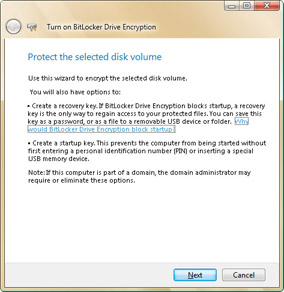
Figure 11-2: The Turn On BitLocker Drive Encryption wizard -
Read the welcome message, and then click Next.
-
On the Save The Recovery Key As A Password page, shown in Figure 11-3, the BitLocker Drive Encryption wizard provides options for you to display, print, or save the 48-digit recovery password.
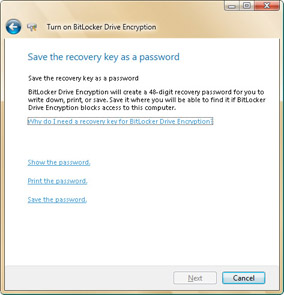
Figure 11-3: The Save The Recovery Key As A Password pageTip You will need the recovery password to unlock the secured data on the volume if BitLocker Drive Encryption enters a locked state. This recovery password is unique to this particular BitLocker encryption. You cannot use it to recover encrypted data from any other BitLocker encryption session.
-
Click Print The Password to print the password. Be sure to store the printed password in a secure location.
-
Click Save The Password. In the Save BitLocker Drive Encryption Password As dialog box, type a file name for the password, and then click Save. The password is saved by default in the Documents folder in your user profile.
-
Click Next. The Save The Recovery Key On A USB Device page is displayed, as shown in Figure 11-4. If you want to save the recovery password to a USB memory device, insert the device and select the corresponding drive in the list provided, and then click Save Key.
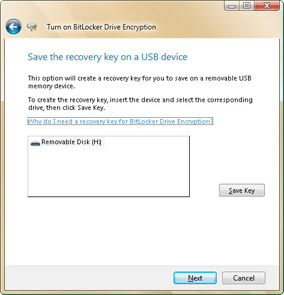
Figure 11-4: The Save The Recovery Key On A USB Device page -
Click Next. The Save The Recovery Key To A Folder page is displayed. If you want to save the recovery password to a folder on another computer or a network share, click Save, and then use the Browse For Folder dialog box to specify the save location.
-
Click Next. If you are on a TPM-equipped computer, you will see the Create A PIN For Added Security page. You have the option of creating a PIN for added security. If desired, enter and confirm a PIN, and then click Set PIN. The PIN will then be required to start the computer. Click Next.
-
On the Create A Startup Key For Added Security page, displayed in Figure 11-5, you have the option of creating a startup key. When using a startup key, keep the following in mind:
-
On a TPM-equipped computer, creating a startup key is optional. If you want to require a startup key to start up the computer, insert a USB memory device and select the corresponding drive in the list provided, and then click Save Key.
-
On a non-TPM-equipped computer, creating a startup key is required. Insert a USB memory device and select the corresponding drive in the list provided, and then click Save Key.
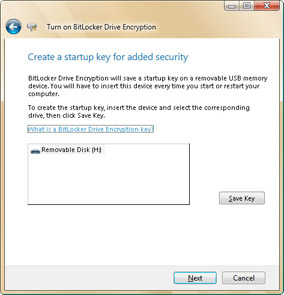
Figure 11-5: The Create A Startup Key For Added Security pageNote The startup key is different from the recovery key. If you create a startup key, this key will then be required to start the computer. The recovery key is required to unlock the computer if BitLocker enters recovery mode, as would happen if BitLocker suspects that the computer has been tampered with while offline.
-
Click Next. On the Encrypt The Selected Disk Volume page, shown in Figure 11-6, click Encrypt to encrypt the selected disk volume. An Encryption In Progress status bar is displayed. You can monitor the ongoing completion status of the disk volume encryption by moving the pointer over the BitLocker Drive Encryption icon on the toolbar at the bottom of your screen. Volume encryption takes approximately one minute per gigabyte (GB) to complete.
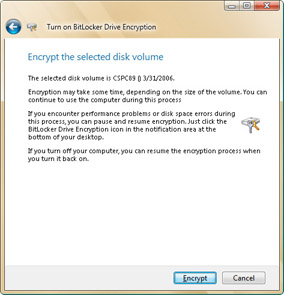
Figure 11-6: The Encrypt The Selected Disk Volume page
-
When the encryption process is complete, you will have encrypted the entire volume and created a recovery key unique to this volume. If you created a PIN or startup key, you will be required to use the PIN or startup key to start the computer. Otherwise, you will see no change to the computer unless the TPM changes or cannot be accessed, or if someone tries to modify the disk while the operating system is offline. In this case, the computer will enter recovery mode, and you will need to enter the recovery key to unlock the computer.
Recovering Data Protected by BitLocker Drive Encryption
If you’ve configured BitLocker Drive Encryption and the computer enters recovery mode, you will need to unlock the computer. To unlock the computer by using a startup or recovery key stored on a USB memory drive, follow these steps:
-
Turn on your computer. The computer starts the BitLocker Drive Encryption Recovery console.
-
When you are prompted, insert the portable USB memory drive that contains the startup or recovery key, and then press Enter.
-
The computer will unlock and restart automatically. You will not need to enter the recovery key manually.
To unlock the computer by typing your recovery key, follow these steps:
-
Turn on your computer. The computer starts the BitLocker Drive Encryption Recovery console.
-
Type the recovery password, and then press Enter.
-
The computer will unlock and restart automatically.
Tip In some situations, the computer might become locked. For example, the computer might become locked if you tried to enter the recovery key but were unsuccessful. You can press Esc twice to exit the recovery prompt and turn off your computer. The computer might also become locked if an error related to the TPM occurs or if a boot file is modified. In this case, the computer halts very early in the boot process, before the operating system starts. At this point, the locked computer cannot accept standard keyboard numbers, so you must use the function keys to enter the recovery key password. In this context, the function keys F1 through F9 represent the digits 1 through 9, and the F10 function key represents 0.


