Accessing the Ease of Access Features in Control Panel
Accessing the Ease of Access Features in Control Panel
In Windows XP, you must go to three different places to manage accessibility settings. Some of the controls are located in the Accessibility Wizard, some in the Accessibility Utility Manager, and still others in the Accessibility Options utility in Control Panel. Windows Vista streamlines this myriad of programs and options. Instead of three separate programs, you can find all of the accessibility settings in one place, in the Ease Of Access Center.
To access the Ease Of Access Center, click Start and then click Control Panel. In Control Panel, click the link for the Ease Of Access category heading and then click Ease Of Access Center. As Figure 8-1 shows, the Ease Of Access Center has three main headings:
-
Quick Access You use the Quick Access options to turn common accessibility features on or off. These features include the Filter Keys, Sticky Keys, and High Contrast functions and the Narrator, Magnifier, and On-Screen Keyboard utilities. By default, Windows Vista uses the Narrator feature to read these options aloud and automatically highlights each option in turn. When an option is highlighted, you can press the Spacebar to select it.
-
Not Sure Where To Start? When you click Answer Questions That Windows Can Use To Recommend Settings, Windows Vista starts a recommendation wizard similar to, but more intuitive than, the Accessibility Wizard in Windows XP. The five questions in this recommendation wizard are designed to help Windows Vista determine and suggest the best accessibility options for you to use.
-
Explore All Available Settings You can use the additional options provided to quickly find related settings that might improve accessibility.
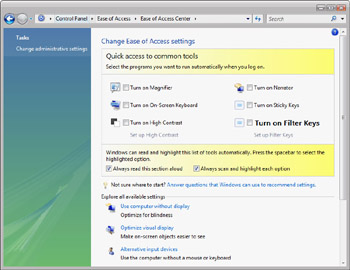
Figure 8-1: The Ease Of Access Center in Control Panel
Using Magnifier
Magnifier is a utility that enlarges part of the screen in a separate window to make it easier for those with limited vision to work with a computer. By default, the Magnifier window is docked at the top of the screen and displays the area around the cursor, the text you are editing, or the focus of the keyboard. You can resize the Magnifier window by moving the mouse pointer over the edge of the window and then dragging the window border. If you move the mouse pointer over the Magnifier window, you can click and drag the window to make it float.
The configuration options for Magnifier have changed considerably in Windows Vista. You can now specify whether the Magnifier window should float or be docked, and you can specify the docked position. To turn on and configure Magnifier, follow these steps:
-
Click Start, and then click Control Panel.
-
In Control Panel, click the Ease Of Access category link, and then select the Ease Of Access Center link.
-
Select the Turn On Magnifier check box. The Microsoft Screen Magnify dialog box is displayed, as shown in Figure 8-2.
-
Once you enable Magnifier, the program is started each time you log on. If you want the Magnifier window to be minimized at startup, select Minimize On Startup.
-
Use the Scale Factor list to set the magnification level of the Magnifier window. The default scale is 2x, or twice normal, and you can select a value as high as 16x.
-
If you want the Magnifier window to float rather than be docked, clear the Docked check box. You can also set the dock position as Top, Bottom, Left, or Right.
-
When you have finished configuring your settings, click Exit.
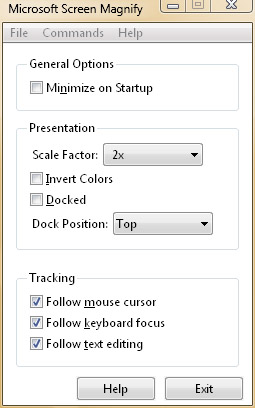
Figure 8-2: Configuring Magnifier
 |
While the accessibility tools are mainly designed to help users who have some form of visual or motor impairment, users without such impairments can sometimes benefit from using them as well. One notable example of this is the Magnifier. The intended use for this tool is enabling visually-impaired users to zoom in on any screen area where the mouse pointer is hovering. All the Magnifier does in this case, however, is increase the size of pixels on your desktop, so the result can look blocky and a bit blurry to the ordinary eye.
However, if you have XAML graphic files created by Windows Presentation Foundation (WPF) applications, you can use the Magnifier to actually zoom in on the graphic and see details in the Magnifier that aren’t visible on your desktop because they’re too small to be displayed. An architect or engineer might find the Magnifier useful like this to inspect details in a large graphic that must be scaled down to make fit the desktop. This kind of magnification effect is possible because the Vista desktop works differently than the desktop in previous versions of Windows. Specifically, instead of having applications render to the screen, the new Vista Desktop Window Manager (DWM) lets applications render directly to in-memory buffers. That means applications can render more detail than can actually be displayed on the screen and, for supported applications, the Magnifier can be used to make this extra detail visible. Note that you require full Aero support to make this work, so hardware that doesn’t support the Aero experience can’t use the Magnifier in this way. For more information about Windows Presentation Foundation and XAML, see http://msdn.microsoft.com/windowsvista/about/.
Mitch Tulloch
Author and MVP—For more information, see http://www.mtit.com.
|
Using the On-Screen Keyboard
The On-Screen Keyboard utility is designed to assist mobility-impaired users, allowing them to use a mouse or an alternative input device for typing. Similar to Input Panel, characters typed on the On-Screen Keyboard are inserted into the current application.
By default, the keyboard is configured to type characters when you click the keys. You can also configure the keyboard to use hovering to select characters or to accept input from a joystick. With hovering, you move the pointer over a character for a specified period of time, such as 1 second, to select that character. With a joystick, you move the joystick and then click the joystick button when over a character to select that character. As Figure 8-3 shows, the On-Screen Keyboard utility in Windows Vista has a slightly different look from Windows XP, but the functionality is the same.
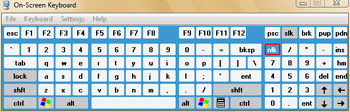
Figure 8-3: The On-Screen Keyboard
To turn on the On-Screen Keyboard, click Start, and then click Control Panel. In Control Panel, click the Ease Of Access category link, select the Ease Of Access Center link, and then select the Turn On On-Screen Keyboard check box. Once you enable the On-Screen Keyboard, the program is started each time you log on and is displayed on top of all other windows by default.
Using Narrator
Narrator is a text-to-speech program that reads aloud what is displayed on the screen as you navigate the keyboard. You can use the program to read aloud menu commands, dialog box options, and characters typed.
To turn on Narrator, click Start, and then click Control Panel. In Control Panel, click the Ease Of Access category link, select the Ease Of Access Center link, and then select the Turn On Narrator check box. Once you enable Narrator, the program is started each time you log on.
As Figure 8-4 shows, the Microsoft Narrator dialog box options have changed considerably in Windows Vista:
-
The default voice is Microsoft Anna, which is a more natural sounding voice than the voice of Microsoft Sam. By clicking the Voice Settings button, you can modify the voice options.
-
By default, Narrator echoes user keystrokes, announces both system messages and scroll notifications, and automatically monitors screen elements. You can use the Preferences menu options to toggle these options on or off.
-
By selecting Preferences and then clicking Background Message Settings, you can configure whether and when background messages are discarded if they have not been presented to the user.
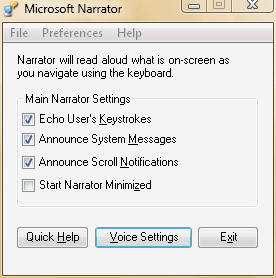
Figure 8-4: Using Microsoft Narrator
Using Sticky Keys, Filter Keys, and High Contrast
For those who have difficulty pressing keys on keyboards or reading on-screen text, Windows Vista includes several other useful accessibility features. These features include:
-
Sticky Keys The Sticky Keys feature lets you press key combinations, such as Ctrl+Alt+Delete, one key at a time. The default settings for Sticky Keys are the same as in earlier versions of Windows. You can turn on Sticky Keys by selecting Turn On Sticky Keys in the Ease Of Access Center in Control Panel or by pressing the Shift key five times. Modifier keys are locked and selected automatically if you press them twice in a row. You can turn off Sticky Keys by pressing two keys at once.
-
Filter Keys The Filter Keys feature lets you automatically filter unintentional keystrokes. When this feature is enabled, you must press and hold a key for a specific length of time before it is accepted or repeated. You can turn on Filter Keys by selecting Turn On Filter Keys in the Ease Of Access Center in Control Panel or by pressing and holding the Shift key for 8 seconds.
-
High Contrast The High Contrast feature configures the appearance of the user interface to use high contrast between the colors for text and interface elements. You can turn on High Contrast by selecting Turn On High Contrast in the Ease Of Access Center in Control Panel. To configure the color scheme used, click the Setup High Contrast link in the Ease of Access Center.


