Talking to Your Computer and Getting It to Listen by Using SpeechRecognition
Talking to Your Computer and Getting It to Listen by Using Speech Recognition
With the speech recognition software included in Windows Vista, you can dictate documents and e-mail messages and use your voice to control programs and browse the Web. Not only does this allow you to create documents quickly and perform common tasks, it can also reduce the risk of repetitive stress injuries.
Getting Started with Speech Recognition
Speech recognition allows you to control your computer by speaking. When you talk, the software uses context-sensitive controls to determine whether to convert your voice to text or whether you have given a control command. Text is entered into the document you are working with. Control commands are used to activate menus and to select options.
| Tip |
Speech recognition works best when you use a high-quality microphone, such as a universal serial bus (USB) headset microphone or an array microphone. Although many highquality microphones include noise cancellation technology, the environment in which you use the microphone should be relatively quiet, meaning that you probably wouldn’t want to use speech recognition in a noisy call center. |
Before you can use speech recognition, you must ensure that your computer has a sound card and that the sound card is properly configured. You must then connect a microphone to the sound card’s microphone jack. Speaking into the microphone is what triggers the software.
Speech recognition software is easy to use and reliable. The software is designed to provide the best possible accuracy and the most complete end-to-end speech recognition solution available. The software accomplishes this by:
-
Improving the user interfaces to provide a simple yet more efficient way to dictate text, make changes, and correct mistakes.
-
Including an interactive tutorial that teaches you about the software while you are training the computer to understand your voice.
-
Improving accuracy by having the software learn as you use it and by prompting for clarification when you give a command that can be interpreted in multiple ways.
Primarily, speech recognition is intended for people who frequently use word processing applications, e-mail applications, and Web browsers. By using speech recognition with these programs, you can use spoken words to enter text and perform commands, thereby significantly reducing the use of the keyboard and mouse.
Speech recognition dictation works only in applications that support the Text Services Framework. Applications that support this framework include:
-
Microsoft Office Word
-
Microsoft Office Outlook
-
Microsoft Internet Explorer
-
Nearly all applications included with Windows Vista
Dictation won’t work in applications that don’t support the Text Services Framework, such as Microsoft Office PowerPoint, Microsoft Office Excel, WordPerfect, or Eudora.
Configuring Speech Recognition for First Use
Before you can use speech recognition for dictation and handling commands, you must configure the software for first use. To do this, follow these steps:
-
Click Start, point to All Programs, and then click Accessories.
-
Click Ease Of Access, and then click Speech Recognition. This starts the Set Up Speech Recognition Wizard (see Figure 8-5).
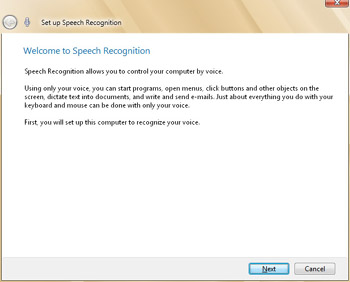
Figure 8-5: The Welcome To Speech Recognition page -
On the Welcome To Speech Recognition page, shown in Figure 8-5, read the introductory text, and then click Next.
-
On the Select Microphone page, shown in Figure 8-6, select the type of microphone you are using.
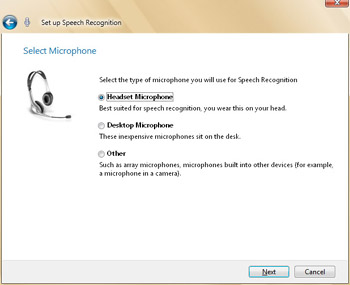
Figure 8-6: The Select Microphone page -
On the Set Up Your Microphone page, follow the instructions for setting up and positioning your microphone. The directions differ, depending on the type of microphone you are using. Click Next to continue.
-
On the Adjust The Microphone Volume page, shown in Figure 8-7, follow the instructions and read the sample text aloud. You won’t be able to proceed until you’ve adjusted the microphone volume to the proper level while reading the sample text. Click Next to continue.
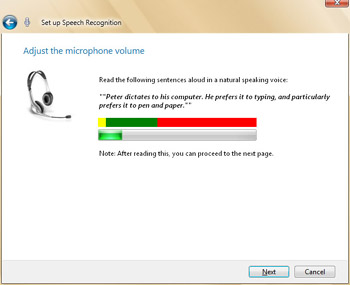
Figure 8-7: The Adjust The Microphone Volume page -
The next page confirms that your microphone is now set up for use. Click Next.
-
On the Improve Speech Recognition Accuracy page, shown in Figure 8-8, specify whether the speech recognition software should scan your documents and e-mail messages to learn the words and phrases you use, and then click Next.
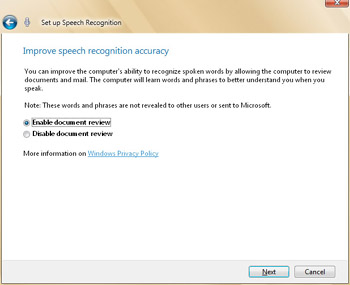
Figure 8-8: The Improve Speech Recognition Accuracy page -
The next page is used to print a reference sheet with a list of speech commands. You can view the reference sheet by clicking the View Reference Sheet button. Click Next to continue.
-
The Run Speech Recognition At Startup check box is automatically selected on the Run Speech Recognition Every Time I Start Computer page. Clear this check box if desired. Click Next to continue.
-
Click Start Tutorial to take the speech tutorials and practice using the most common commands. The tutorial also trains the computer to recognize your voice.
Using Speech Recognition for Dictation
The most common way you’ll use speech recognition is for dictating a document. This process involves:
-
Starting your word processing application.
-
Opening an existing document or creating a new document.
-
Dictating the body of the document.
-
Saving the document and exiting your word processing application.
You can use speech recognition to perform these tasks in Microsoft Office Word or WordPad by following these steps:
-
If speech recognition is not running, start it. Click Start, point to All Programs, and then click Accessories. Click Ease Of Access, and then click Speech Recognition.
-
Say “Start Listening.”
-
Say “Open Word” or “Open WordPad” as appropriate.
-
Start dictating. Use the spoken-word commands for punctuation marks and special characters as necessary. For example, to insert a comma, you say “comma.” To end a sentence with a period, you say “period.”
-
To correct mistakes, say “correct” and the word that the computer typed by mistake. Select the correct word from the list offered, or say the correct word again. For example, if the computer misrecognized rode as strode, say “correct rode,” and then select the right word from the list or say the word “strode” again.
-
To save the document, say “File,” say “Save As,” and then say the name of the document, such as “Quarterly Report.” Complete the operation by saying “Save.”


