Updating Windows Vista Computers: What’s Changed
Updating Windows Vista Computers: What’s Changed
Maintaining Windows Vista is a critically important area of support. If the operating system is not properly maintained and updated with appropriate security patches, updates, hot fixes, and service packs, the operating system will not function as expected and your computer will be more vulnerable to attack. Like both Windows 2000 and Windows XP, Windows Vista includes a feature for automatically updating the operating system. Unlike the default update feature in Windows 2000 and Windows XP, the update feature in Windows Vista, called Windows Update, has been enhanced in many ways and has been extended to cover the operating system, programs that ship with the operating system such as Microsoft Internet Explorer, and hardware device drivers.
Introducing Windows Update Improvements
Windows Vista significantly streamlines the update process by:
-
Requiring computers to be restarted less frequently.
-
Simplifying the process of deploying updates.
-
Using bandwidth more efficiently.
-
Providing separate tracking for both successful and unsuccessful updates.
Windows Vista reduces the number of restarts required after updates by allowing installation of a new version of an updated file even if the old file is currently in use by an application or a system component. Windows Vista simply marks the in-use file for update and then automatically replaces the file the next time the application is started. With some applications and components, Windows Vista can save the application’s data, close the application, update the file, and then restart the application. As a result, the update process has less impact on users.
Windows Update can act as a Windows Server Update Services (WSUS) client as well. WSUS is a new version of Software Update Services (SUS). Administrators can use WSUS to manage automatic updates on an enterprise-wide basis. WSUS allows administrators to more easily review new updates that are available and then deploy any updates that are needed by using designated update servers. Not only does this allow central management of the update process, it also simplifies the process of deploying updates, saving time and reducing the costs associated with maintaining the operating system.
Windows Update runs as a separate, stand-alone application. Regardless of whether updates are provided by an internal update server or obtained directly from Microsoft, Windows Update provides a single interface for managing the update process and working with updates. This means that users do not have to learn how to use two separate tools, and Windows Update can now take advantage of its configuration environment to reduce the bandwidth required to maintain updates.
Using Background Intelligent Transfer Service (BITS), Windows Update can now obtain updates from trusted peers across a local area network (LAN) as well as from an update server or from Microsoft directly. Once a peer has a copy of an update, other computers on the local network can automatically detect this and download the update directly from the peer, meaning that a required update might need to be transferred across the wide area network (WAN) only once instead of dozens or hundreds of times.
Additionally, Windows Vista has a new download manager for updates. The download manager’s history log provides separate tracking for both successful and unsuccessful updates, making it easier to determine when there are update problems that need to be resolved.
Configuring Windows Update
Windows Vista organizes updates into two broad categories:
-
Security and standard updates Includes critical updates, security updates, update rollups, and service packs for the operating system and programs that ship with the operating system.
-
Drivers and other optional updates Includes updates to drivers that are provided with the operating system and recommended updates.
By default, Windows Vista is configured to automatically install security and standard updates only. New updates are installed daily at 3:00 A.M. As with earlier versions of Windows, you can modify this configuration to:
-
Change the frequency and the time that new updates install.
-
Download updates and let the user choose whether to install them.
-
Check for updates but let the user choose whether to download and install them.
-
Never check for updates.
You can also install drivers and other optional updates.
To configure how Windows Update works, follow these steps:
-
Click Start, and then click Control Panel.
-
In Control Panel, click System And Maintenance.
-
On the System And Maintenance page, click Windows Update.
-
In the left panel, click Change Settings. This displays the Settings page, shown in Figure 14-7.
-
Specify whether and how updates should occur. In the recommended configuration, Install Updates Automatically is selected.
-
If you’ve enabled updates and want to also install drivers and optional updates, select the Include Recommended Updates check box.
-
Click OK.
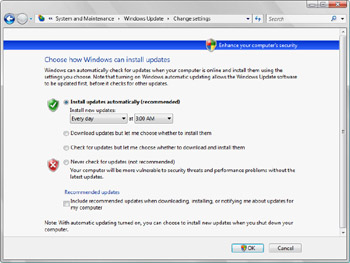
Figure 14-7: Configuring Windows Update
Checking for Updates
Windows Vista provides more information about how Windows Update is being used than earlier versions of Windows. You can quickly:
-
Determine the last time the computer or a user checked for updates.
-
Determine the last time updates were installed.
-
Manually check for updates.
To determine Windows Update usage or manually check for updates, follow these steps:
-
Click Start, and then click Control Panel.
-
In Control Panel, click System And Maintenance.
-
On the System And Maintenance page, click Windows Update. As shown in Figure 14-8, statistics are provided regarding the most recent check for updates, the last time updates were installed, and the current update configuration.
-
If you want to manually check for updates, click the Check For Updates button.
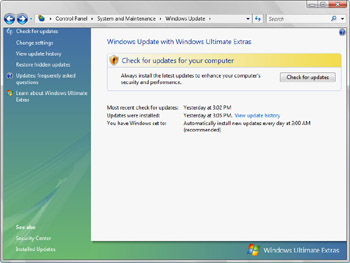
Figure 14-8: Checking for updates
Viewing Update History and Installed Updates
As mentioned earlier, the Windows Update download manager provides separate tracking for both successful and unsuccessful updates by using an update history log. This log can be accessed by following these steps:
-
Click Start, and then click Control Panel.
-
In Control Panel, click System And Maintenance.
-
On the System And Maintenance page, click Windows Update.
-
In the left panel, click View Update History. This displays the History page, shown in Figure 14-9.
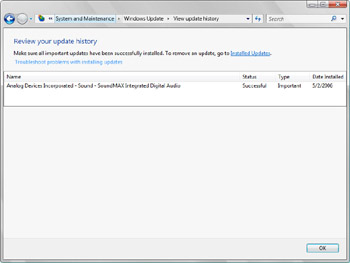
Figure 14-9: Viewing the update history
On the History page, updates listed with a Successful status were downloaded and installed. Updates listed with an Unsuccessful status were downloaded but installation failed. To remove an update while accessing the History page, click Installed Updates. Right-click the update that you don’t want, and then select Remove.


