Using Windows Explorer: What’s Changed
Using Windows Explorer: What’s Changed
In earlier versions of Windows, the many different faces of Windows Explorer from Control Panel to My Computer to My Network Places weren’t tightly integrated and seemed more like different tools than different faces of the same tool. In Windows Vista, Windows Explorer behaves more like a console or browser shell, and the many “faces” Windows Explorer has to offer are all tightly integrated.
When you start working with the new Windows Explorer, shown in Figure 3-4, you’ll notice many important changes, including:
-
A new Address bar to replace the old Address bar.
-
A Quick Search box.
-
New view panes to replace the Explorer bars.
-
The addition of virtual folders to save search results.
-
More options for working with file properties and the addition of metadata for indexing and search.
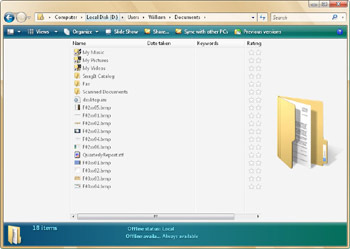
Figure 3-4: Using Windows Explorer
These new aspects of Windows Explorer are examined in the sections that follow.
Navigating the Windows Explorer Address Bar
The Address bar, shown in Figure 3-5, appears at the top of Windows Explorer and displays your current location as a series of links separated by arrows. This allows you to see your current location on the computer, on the network or on the Internet in relation to the locations you’ve navigated.

Figure 3-5: The Address bar in Windows Explorer
| Note |
The term location is used rather than folder because folders aren’t the only types of resources you can navigate in Windows Explorer. For example, you can navigate virtual folders in addition to standard folders. You can also navigate Control Panel categories and network devices. |
In the example shown in Figure 3-5, the folder path is:
Computer, Local Disk (D:), Users, William
From left to right, the Address bar has these key features:
-
Forward/Back buttons
-
Recent Pages button
-
Location History drop-down button
-
Address path
-
Refresh button
The Forward and Back buttons on the far left of the Address bar allow you to navigate locations you’ve already visited. Similar to when you are browsing the Web, the locations you’ve visited are stored in a history, and you can browse the history using the Forward and Back buttons.
The Recent Pages button is located to the immediate right of the Forward and Back buttons. When you click this button, a drop-down list of recently accessed pages is displayed, allowing you to quickly access a recent page.
To the right of the Forward and Back buttons is a down arrow; this is the Location History button. Clicking this button shows a drop-down list containing a history of the locations you’ve visited; you can select any entry to access that location. Pressing Ctrl+H allows you to display a history of resources you’ve accessed. By default, Windows organizes the history by day of the week, allowing you, for example, to quickly locate a file or system tool page that you accessed on a particular day of the week.
Like the Address bar, the Address path has several key components:
-
Location Indicator icon
-
Location path
-
Path Selection list button
On the far left of the Address path is the Location Indicator icon. The Location Indicator icon depicts the type of resource you are currently accessing. You’ll see different icons for disk drives, folders, virtual folders, and so on. Clicking the Location Indicator icon shows the actual path or location, such as D:\Users. If you click the Refresh button to the right of the Address path, Windows Explorer shows the link path again.
You can navigate each link in the location path in several different ways:
-
You can access a folder anywhere along the path that is displayed in the Address bar by clicking the link for that folder. Following this example, you could open the Users folder by clicking the Users link.
-
You can access a subfolder of any folder displayed in the Address bar by clicking the arrow to the right of the folder. This displays a list of all folders in the selected folder. To access one of these folders, you click the desired folder in the list.
At the far right of the Address path is the Path Selection button. Clicking this button shows the base locations available (such as Desktop and Control Panel) as well as recent paths that you’ve accessed, listed according to their actual path or location.
The base locations are important because they allow you to access quickly key locations and management areas on the computer. Clicking the arrow to the right of the Location Indicator icon is the easiest way to access and navigate base locations. This icon and its related arrow button are on the far left of the Address path. The base locations available are as follows:
-
Current User Accesses the currently logged on user’s personal folder in Windows Explorer. Based on your selection, the taskbar is updated to include additional tasks, such as: Share, which allows you to share the personal folder or a selected item, and Previous Versions, which allows you to browse previous versions of files stored in the personal folder or a selected folder.
-
Computer Accesses the base page for the computer in Windows Explorer. This page lists the hard disk drives and devices with removable storage on the computer. The taskbar is updated to include two tasks: Change Or Remove A Program, which opens Control Panel, Programs, Installed Programs; and Change A Setting, which opens Control Panel.
-
Control Panel Accesses Control Panel in Windows Explorer. As with any Control Panel view, you can list the Control Panel categories by clicking the arrow button to the right of the Control Panel link in the Address path. Click the category you want to access in the list.
-
Desktop Accesses the desktop in Windows Explorer. Based on your selection, the taskbar is updated to include additional tasks, such as: Open, which opens a selected item; Share, which allows you to share the selected item; and Previous Versions, which allows you to access previous versions of files.
-
Network Accesses the base page for the computers and devices on your network. Network Center and Connect To A Network icons on the taskbar provide quick access to these features.
-
Public Access the base page for publicly shared files and folders. A Share Settings icon on the taskbar provides quick access to configure network file and printer sharing.
-
Recycle Bin Accesses the Recycle Bin in Windows Explorer. The Empty The Recycle Bin task on the taskbar allows you to permanently delete any items placed in the Recycle Bin. The Restore All Items task on the taskbar allows you to restore all of the deleted items placed in the Recycle Bin.
Working with the Windows Explorer Quick Search Box
Working with the Start menu Search box is discussed in Chapter 2, in the “Using the Search Box on the Start Menu” section. The Quick Search box in Windows Explorer works much like the Search box on the Start menu. However, there are some important differences.
With the Quick Search box, you must click in the Search box prior to typing your search text. Because of this, searches are performed using the following technique:
-
Click in the Search box, and then enter the search text.
-
To start the search, click the Search button (which is to the right of the Search box and depicts a magnifying glass) or press Enter.
By default, Windows Explorer searches for the search text in the current folder location and in subfolders of the current location only. Windows Search Service matches the search text to words that appear in the title of any file or folder, the properties of any file or folder, and the contents of text-based documents.
| Tip |
Windows Search Service does not search the entire computer by default (unless of course you are searching from the Computer page). To search the entire computer or the Internet, click the arrow button to the right of the Search box, and then select Search The Computer or Search The Internet as appropriate. |
 |
Okay, so Windows Vista has this amazing search feature, but it’s not working the way you expect it to—either the search is extremely slow or it just doesn’t return the results you’re look for—and you’re wondering why. First of all, it’s important to point out that Windows Search Service probably isn’t to blame for the lack (or wealth) of results. Windows Search Service indexes only the documents contained in the %SystemDrive%\Users folders, and it can be a very slow process to search nonindexed resources. You can index additional folders on a computer using the Indexing And Search Options utility in Control Panel.
Indexing frequently searched folders will speed up the search process, but it won’t resolve the problem of Windows Search Service returning too much data. To get more meaningful results, you’ll need to use filters. Filters can be added by clicking the arrow button to the right of the Search box and then selecting Advanced Filter Pane. With the Advanced Filter Pane displayed, you can easily filter results based on the kind of document you’re looking for. By default, Windows Search Service searches all documents types. If you’re searching for e-mails, documents, or pictures, you can narrow the search and the results by clicking the related Show Results For buttons. If you’re looking for a different kind of file, click the More Kinds button to display other types of files for which you want to show results. For more information about fine-tuning searching and indexing, refer to the Microsoft Windows Vista Administrator’s Pocket Consultant (Microsoft Press, 2006).
William Stanek
Author, MVP, and series editor for the Microsoft Press Administrator’s Pocket Consultants
|
Working with the Windows Explorer View Panes, Views, and Organize Options
In Windows Vista, Windows Explorer no longer uses the Explorer bar. Instead, Windows Explorer uses view panes. View panes and the new Views and Organize options replace the classic menus that were previously available. Because of this, when you are working with folders and files, the taskbar displays View Panes, and Views and Organize buttons.
You configure and access View Panes using the Views and Organize buttons on the taskbar, shown in Figure 3-6. Depending on the location you are working with or the selected item, the taskbar might display additional tasks that you can perform, such as Open, Print, Share, or Previous Versions.

Figure 3-6: The taskbar in Windows Explorer
The view panes being used control Windows Explorer’s layout. You can configure view panes using the options displayed when you click Organize and then click Layout. The following view panes are available:
-
Navigation Pane Provides quick access to common locations and common types of files that you might be looking for. When selected, the Navigation Pane appears on the left in Windows Explorer.
-
Preview Pane Provides an overview of the selected resource, such as the name, type of resource, size or number of items contained within, and last modification date. There are different previews for most base locations, including Current User, Computer, Network, and Recycle Bin. There are different previews for folders, virtual folders, and files. When selected, the Preview Pane appears at the bottom of Windows Explorer.
-
Reading Pane Provides an easy way to determine the contents of a file or folder without having to open the file or folder. With files, the Reading Pane displays the contents of a selected image or document file (provided the image or document browser for that specific image or document is configured and available). You can use this feature to read text or document files without opening them. With folders, the Reading Pane displays an icon that represents the type of folder and the type of contents. You can use this feature to determine whether a folder contains music, documents files, pictures, or videos. When selected, the Reading Pane appears on the right in Windows Explorer.
-
Search Pane Provides additional options for the Quick Search feature, allowing you to show results only for specific types of files and to select the start folder for a search.
Note Depending on the location you are working with, some view pane options might not be available. To add or remove a view pane, click the View Pane button, and then click the view pane that you want to add or remove.
The taskbar’s Views button allows you to change the view of items in the folder. You can use Tiles view and Details view to get more information about items. Or use the Extra Large Icons, Large Icons, or Medium Icons views to display minimal information about items. The Organize button allows you to perform common tasks for arranging and editing the folder itself or selected items, such as Rename, Cut, Copy, Delete, and Select All.
Using Virtual Folders to Save Search Results
In addition to standard folders that can contain files and other folders, Windows Vista uses virtual folders. Virtual folders function like regular folders. Users dynamically define these virtual folders, which contain a list of files or folders that match specific search or filter criteria. For example, you can base the contents of a virtual folder on certain keywords, ratings, or document authors.
Using the Searches Folder
Within a user’s profile folder is a folder named Searches (see Figure 3-7). Searches contains the default virtual folders available for the user and includes:
-
Attachments A list of files originally received as attachments to e-mail messages.
-
Favorite Music A list of recently played or frequently played music files.
-
Lasts 7 Days E-mail A list of e-mail messages received within the last 7 days.
-
Last 30 Days Documents A list of documents created or modified within the past 30 days.
-
Last 30 Days Pictures And Videos A list of pictures and videos created or modified within the past 30 days.
-
Shared By Me A list of files that you’ve shared on your computer.
-
Unread E-Mail A list of unread e-mail messages.
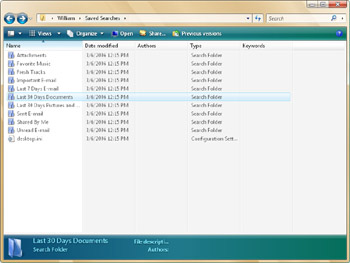
Figure 3-7: The Searches folder
Creating Virtual Folders
Virtual folders are stored as files with the .search file extension. For example, the Attachments virtual folder is actually a file named Attachments.search that contains the search details. If you find that you are frequently using the same search or filter criteria to find files and folders, you can create virtual folders to save your search results. To do this, perform a search using the search text and options and filters to get the set of results you want, and then save the search results as a virtual folder.
To save search results as a virtual folder, follow these steps:
-
Enter your search text in the Search box, setting any filters and options as necessary to get the desired results.
-
Right-click an open area in the main viewing area of Windows Explorer, and then select Save Search on the shortcut menu.
-
In the Save As dialog box, type a name for the search file. You must end the file name with the .search extension, such as 2006Reports.search.
Like the default virtual folders, virtual folders you create are stored by default in your Searches folder. You can find the files again later by accessing Searches and then accessing your virtual folder.
Managing File Properties and Metadata for Indexing and Searching
In Windows Vista, all files can have properties associated with them. The standard properties can be extended to include additional information referred to as metadata. Many types of document and picture files have metadata such as author, subject, categories, and keywords that can be used by Windows Search Service when indexing and searching files. The type of file determines the standard properties.
As with file contents, Windows Search Service indexes file properties to display search results of indexed folders faster. Because of this, you typically can search for any properties or metadata that you’ve added to a file.
Viewing and Configuring File Properties and Metadata
To view and configure a file’s properties and metadata, follow these steps:
-
Right-click the file, and then select Properties.
-
In the Properties dialog box, click the Details tab, as shown in Figure 3-8.
-
Click a property’s entry to select it for editing, and then type the property value. Separate multiple values with a semicolon.
-
Click OK.
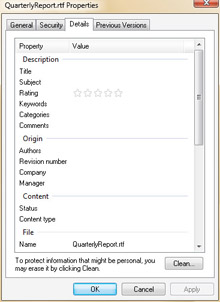
Figure 3-8: The Properties dialog boxNote Most types of picture files have a Tags property. Windows Photo Gallery uses the Tags property to add keywords to pictures. When you tag a picture in Windows Photo Gallery, the keyword you specify is added as a tag.
Editing and Cleaning File Properties and Metadata
Although additional properties and metadata can be useful, there are times when you won’t want this information to be saved with a file. For example, if you are publishing a file to a Web site or sending a file to someone as an attachment, you might not want this additional information to be associated with the file. Why? The additional information might be personal. It might also contain information about your organization that shouldn’t be passed along to individuals outside the organization.
To clear out properties or metadata from a file, follow these steps:
-
Right-click the file, and then select Properties.
-
In the Properties dialog box, click the Details tab, as shown previously in Figure 3-8.
-
Click Remove Properties And Personal Information.
-
In the Remove Properties dialog box, select the individual properties to remove or select the Select All Properties check box.
-
Click OK.
Tip By default, Windows Explorer cleans properties from the original file you are working with. If you want to create a new copy of the file with the properties remove instead, select the Create A New Copy With The Properties Removed check box before clicking OK.


