Handling User Account Control
Handling User Account Control
Applications written for Windows Vista use User Account Control to reduce the attack surface of the operating system. They do this by reducing the basic privileges granted to applications and by helping to prevent unauthorized applications from running without the user’s consent. User Account Control makes it harder for malicious software to take over a computer by ensuring that existing security measures are not unintentionally disabled by standard users running in administrator mode. By helping to ensure that users do not accidentally change settings, User Account Control reduces the cost of managing computers and provides a more consistent environment that should also make troubleshooting easier. User Account Control also helps to control access to sensitive files and data by securing the Documents folder so that other users cannot change, read, or delete files created by other users of the same computer.
Applications that have been certified as compliant with the new Windows Vista architecture will have the Windows Vista–Compliant logo. Although the logo indicates that the program has been written to take advantage of User Account Control, it doesn’t mean that the program will run only in standard user mode. Compliant applications run in the mode appropriate for the functions that they perform and elevate privileges to perform tasks as necessary. Administrators can modify the way User Account Control works as required.
Understanding and Setting Run Levels
In Windows Vista, an application can indicate the specific permission level it needs to function so that it will perform only authorized functions, making the code less vulnerable to exploits by malicious users or malicious software. A new feature in Windows Vista, called Windows Vista Trust Manager, can use this information prior to installing an application to determine whether to allow the application to be installed. If the application’s required permissions are determined to pose no risk, the application can be installed without generating security alerts. However, if the application’s installer writes to sensitive areas or performs tasks that could potentially harm the computer, Windows Vista displays security alerts describing the potential dangers of installing the application and asking for confirmation before proceeding.
Application Manifests and Run Levels are used to help track required privileges. Application Manifests allow administrators to define the application’s desired security credentials and to specify when to prompt users for administrator authorization to elevate privileges. If privileges other than those for standard users are required, the manifest should contain runLevel designations. These runLevel designations identify the specific tasks that the application needs to elevate with an “administrator” token.
With User Account Control and Admin Approval Mode, you are prompted for consent prior to performing any task that requires elevated permission, and the Windows Security dialog box allows you to run the application on a one-time basis using elevated credentials. In the Windows Security dialog box, click Allow to start the application using an administrator account, or click an account, type the account’s password, and then click Submit to start the application using a standard account.
Another way to use elevation is to mark an application or process to always run using elevated credentials without prompting the user for consent. To do this, follow these steps:
-
Log on to the computer as a member of the local Administrators group.
-
By using the Start menu, locate the program that you want to run always using elevated credentials.
-
Right-click the application’s shortcut icon, and then click Properties.
-
In the Properties dialog box, select the Compatibility tab, as shown in Figure 9-2.
-
Under Privilege Level, select the Run This Program As An Administrator check box.
-
Click OK.
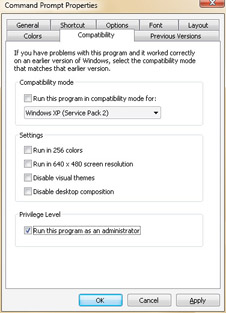
Figure 9-2: Marking an application to always run elevatedNote If the Run This Program As An Administrator option is unavailable, it means that the application is blocked from always running elevated, the application does not require administrative credentials to run, or you are not logged on as an administrator.
Modifying User Account Control and Admin Approval Mode
Administrators can change the way User Account Control and Admin Approval Mode work in several different ways. They can:
-
Disable running all users as standard users.
-
Disable prompting for credentials to install applications.
-
Change the elevation prompt behavior.
Each of these tasks is configured through Group Policy and can be configured on a percomputer basis through Local Group Policy or on a per-domain, per-site, or per-organizational-unit basis through Active Directory Group Policy. The sections that follow focus on configuring the related settings by using Local Group Policy.
Disabling Admin Approval Mode
By default, Windows Vista uses Admin Approval Mode to run programs for all users, including administrators, as standard users. This approach serves to better safeguard the computer from malicious software by ensuring that any time programs need administrator privileges, they must prompt the user for approval. To bypass the safety and security settings, you can modify this behavior so that administrators run programs as administrators and standard users run programs as standard users.
You can use the following procedure to disable Admin Approval Mode:
-
Log on to the computer as a member of the local Administrators group.
-
Click Start, point to All Programs, Accessories, and then click Run.
-
Type secpol.msc in the Open text box, and then click OK.
-
In the console tree, under Security Settings, expand Local Policies, and then select Security Options.
-
Double-click User Account Control: Run All Administrators In Admin Approval Mode.
-
Click Disabled, as shown in Figure 9-3, and then click OK.
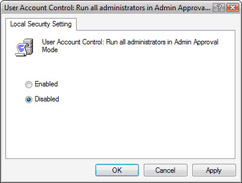
Figure 9-3: Disabling Admin Approval Mode
Disabling Credential Prompting for Application Installation
By default, Windows Vista prompts users for consent or credentials prior to installing applications using elevated permissions. If you don’t want users to have access to this prompt, you can disable User Account Control: Detect Application Installations And Prompt For Elevation under Security Options, and in this way block users from using this feature to install applications as administrators. This doesn’t, however, block users from using other techniques to install applications as administrators.
You can use the following procedure to disable the User Account Control: Detect Application Installations And Prompt For Elevation feature:
-
Log on to the computer as a member of the local Administrators group.
-
Click Start, point to All Programs, Accessories, and then click Run.
-
Type secpol.msc in the Open text box, and then click OK.
-
In the console tree, under Security Settings, expand Local Policies, and then select Security Options.
-
Double-click User Account Control: Detect Application Installations And Prompt For Elevation.
-
Click Disabled, and then click OK.
Changing the Elevation Prompt Behavior
By default, Windows Vista handles security prompts for standard users and administrator users in different ways. Standard users are prompted for credentials. Administrators are prompted for consent. Using Group Policy, you can change this behavior in several ways:
-
If you don’t want standard users to have access to this prompt, you can specify that users shouldn’t see the elevation prompt, and in this way block users from using this feature to run applications with elevated privileges. However, this doesn’t block users from using other techniques to run applications as administrators.
-
If you want to require administrators to enter credentials, you can specify that administrators should be prompted for credentials rather than consent.
-
If you don’t want administrators to have access to this prompt, you can specify that administrators shouldn’t see the elevation prompt, and in this way block administrators from using this feature to run applications with elevated privileges. This doesn’t, however, block administrators from using other techniques to run applications with elevated permissions.
You can use the following procedure to configure the elevation prompt for standard users:
-
Log on to the computer as a member of the local Administrators group.
-
Click Start, point to All Programs, Accessories, and then click Run.
-
Type secpol.msc in the Open text box, and then click OK.
-
In the console tree, under Security Settings, expand Local Policies, and then select Security Options.
-
Double-click User Account Control: Behavior Of The Elevation Prompt For Standard Users.
-
You can now:
-
Block the elevation prompt by selecting No Prompt in the drop-down list.
-
Enable the elevation prompt by selecting Prompt For Credentials in the dropdown list. (The default setting is Prompt For Credentials.)
-
Click OK.
-
You can use the following procedure to configure the elevation prompt for administrators:
-
Log on to the computer as a member of the local Administrators group.
-
Click Start, point to All Programs, Accessories, and then click Run.
-
Type secpol.msc in the Open text box, and then click OK.
-
In the console tree, under Security Settings, expand Local Policies, and then select Security Options.
-
Double-click User Account Control: Behavior Of The Elevation Prompt For Administrators In Admin Approval Mode.
-
You can now:
-
Block the elevation prompt by selecting No Prompt in the drop-down list.
-
Enable the elevation prompt to use consent by selecting Prompt For Consent in the drop-down list. (The default setting is Prompt For Consent.)
-
Require the elevation prompt to obtain credentials by selecting Prompt For Credentials in the drop-down list.
-
Click OK.
-


