Getting to Know Windows Firewall
Getting to Know Windows Firewall
Windows Vista includes two versions of its firewall:
-
Windows Firewall The basic version of Windows Firewall is similar to the version in Microsoft Windows XP Service Pack 2 (SP2) and Microsoft Windows Server 2003 Service Pack 1 (SP1). Windows Firewall is a stateful firewall that helps protect the computer against network-based attacks and other security threats. Using the basic firewall, you can define allowed types of network traffic and specify programs that are allowed to access the network.
-
Windows Firewall With Advanced Security The advanced version of Windows Firewall features a new management console and supports both incoming and outgoing traffic. This allows you to define separate incoming and outgoing rules for specific programs or ports. Additionally, you can configure connection security, which requires authentication.
Using Windows Firewall
Windows Firewall is installed and enabled by default for all dial-up, network, IEEE 1394 (FireWire), and wireless connections on a computer. Windows Firewall protects the computer by preventing unauthorized users and programs from gaining access. It does this by blocking incoming network connections, except for specifically allowed programs, services, and ports.
| Note |
Windows Firewall does not control outgoing connections. Only Windows Firewall With Advanced Security controls outgoing connections. Because of this, Windows Firewall allows any program running on your computer to connect to the network. |
To access Windows Firewall, click Start, and then click Control Panel. In Control Panel, click Security, and then click Windows Firewall. As Figure 13-5 shows, Windows Firewall has three main configurations tabs:
-
General Configures general firewall settings, including whether the firewall is turned on and whether all programs are blocked when connected to public networks in less secure locations.
-
Exceptions Specifies programs and services that are allowed to access the network, such as Remote Assistance and File and Printer Sharing.
-
Advanced Configures protected connections, security logging, and allowed types of control messages.
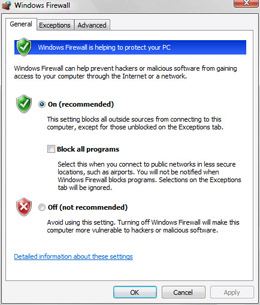
Figure 13-5: The Windows Firewall dialog box
The sections that follow discuss the options on these tabs. In most cases, you will be able to configure Windows Firewall options only when you are logged on as a local computer administrator. When a computer is a member of a domain, additional Group Policy restrictions might be in place, preventing any user from changing Windows Firewall settings locally.
Enabling and Using Windows Firewall
Unless you have installed a third-party firewall, you’ll usually want Windows Firewall to be turned on. When you connect to a public network in less secure locations or want to isolate the computer, you might also want to block incoming connections to all programs (even those listed as exceptions).
You can turn on Windows Firewall and optionally block all programs by following these steps:
-
Click Start, and then click Control Panel.
-
In Control Panel, click Security, and then click Windows Firewall.
-
On the General tab, select On (Recommended).
-
If you want to isolate the computer by blocking incoming connections to all programs, select the Block All Programs check box.
-
Click OK.
Configuring Firewall Exceptions
By default, Windows Firewall blocks incoming network connections, except for specifically allowed programs, services, and ports. The only program or service granted permission to make an incoming connection by default is Remote Assistance. If you want to allow additional programs or services to establish connections to the computer, you can configure these programs or services as exceptions by following these steps:
-
Click Start, and then click Control Panel.
-
In Control Panel, click Security, and then click Windows Firewall.
-
On the Exceptions tab, shown in Figure 13-6, common programs and services for which exceptions are needed can be easily allowed or disallowed. Selecting one of these options allows the program and typically opens a related port.
-
If you don’t see the specific program that you want to allow, click Add Program, and then use the Add A Program dialog box to select the program to allow.
-
If you need to allow a specific TCP or User Datagram Protocol (UDP) port to be used for incoming connections, click Add Port, and then use the Add A Port dialog box to specify the port to allow.
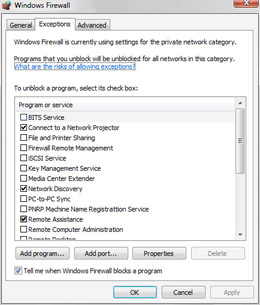
Figure 13-6: Configuring exceptions in the Windows Firewall dialog box
As part of its standard configuration, Windows Firewall notifies you when it blocks a program. In Windows Vista, you can turn notification off by clearing the Tell Me When Windows Firewall Blocks A Program check box on the Exceptions tab. You can block incoming connections for all programs, even those listed as exceptions, by selecting the Block All Programs check box on the General tab. Blocking all connections to the computer enhances security, and this is particularly important when you are using a mobile PC on a public network.
Configuring Protected Connections
All connections used by a computer running Windows Vista are protected with Windows Firewall automatically. In some cases, you might not want a connection to use Windows Firewall. In this case, you could turn off Windows Firewall only for that connection by following these steps:
-
Click Start, and then click Control Panel.
-
In Control Panel, click Security, and then click Windows Firewall.
-
On the Advanced tab, under Network Connections, clear the check box for the connection that shouldn’t use Windows Firewall.
-
Click OK.
Configuring Security Logging
You can track incoming connections to a computer by enabling security logging. When logging is enabled, the security log is created as a standard text file and stored in the %System-Root%\ folder as pfirewall.log.
To enable security logging, follow these steps:
-
Click Start, and then click Control Panel.
-
In Control Panel, click Security, and then click Windows Firewall.
-
On the Advanced tab, click Settings under Security Logging.
-
In the Log Settings dialog box, shown in Figure 13-7, select the Log Successful Connections check box, and then click OK.
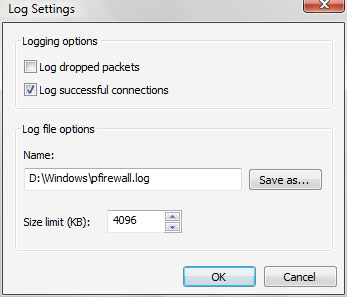
Figure 13-7: Enabling security logging
Configuring Allowed Types of Control Messages
Internet Control Message Protocol (ICMP) allows computers connecting to your computer to share error and status messages. Some of these control messages are used for routine troubleshooting. For example, if you enable Allow Incoming Echo Request messages, someone on another computer can ping your computer. However, many control messages can be abused or used to reveal vulnerabilities. Because of this, you should use control messages only when there is a specific requirement to do so, such as when a program running on the computer requires the control message.
To configure allowed types of control messages, follow these steps:
-
Click Start, and then click Control Panel.
-
In Control Panel, click Security, and then click Windows Firewall.
-
On the Advanced tab, click Settings under ICMP.
-
In the ICMP Settings dialog box, shown in Figure 13-8, select the allowed types of control messages, and then click OK.
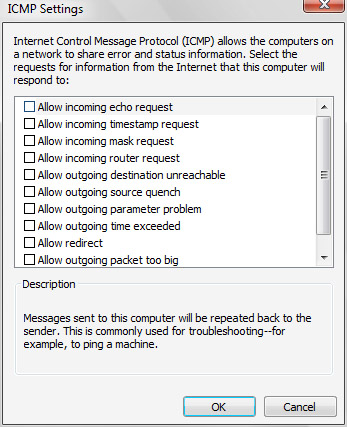
Figure 13-8: Configuring allowed types of control messages
Using Windows Firewall With Advanced Security
Windows Firewall With Advanced Security is a new feature in Windows Vista. It extends and enhances the Windows Firewall basic protection features.
Getting to Know Windows Firewall With Advanced Security
Windows Firewall and Windows Firewall With Advanced Security are integrated. If you change a basic setting in Windows Firewall, the setting you’ve configured is reflected in Windows Firewall With Advanced Security. You cannot, however, use Windows Firewall to configure any of the enhanced settings in Windows Firewall With Advanced Security.
Windows Firewall With Advanced Security extends the features found in Windows Firewall, allows you to manage some features previously configurable only through Group Policy, and provides many entirely new features. Using Windows Firewall With Advanced Security, you can:
-
Configure separate domain, private network, and public network profiles for the firewall.
-
Block or allow inbound connections.
-
Block or allow outbound connections.
-
Use both firewall filtering and Internet Protocol Security (IPSec) protection settings.
-
Precisely control the users and computers to which rules are applied.
Using the Windows Firewall With Advanced Security snap-in instead of the preconfigured management console found on the Administrative Tools menu, administrators can configure settings for the new Windows Firewall on remote computers, which is something you cannot do with Windows Firewall without using a remote desktop connection. For command-line configuration, you can use the commands in the netsh advfirewall context to configure all basic and advanced settings. This context is not available for computers running Windows XP with SP2 or Windows Server 2003 with SP1.
For Group Policy–based configuration of Windows Firewall With Advanced Security, you can use the policy settings under Computer Configuration\Windows Settings\Security Settings\ Windows Firewall With Advanced Security. Windows Firewall With Advanced Security will apply Group Policy settings configured under Computer Configuration\Administrative Templates\Network\Windows Firewall. Computers running Windows XP with SP2 or Windows Server 2003 with SP1 will ignore the Group Policy settings for Windows Firewall With Advanced Security.
 |
In my opinion, the biggest improvement to Windows Firewall in Windows Vista is the least exciting: full Group Policy configurability. Finally, enterprises can take advantage of all Windows Firewall features to protect their thousands of client computers without training the entire staff on how to use a firewall.
With Group Policy, enterprises are able to configure rules for approved applications and even block outgoing communications from unapproved applications. Configuring even the most fine-grained firewall rule will be easy—for example, enterprises can configure an rule that allows management tools to communicate only with a set of IP addresses used for the management server, greatly reducing the potential exposure. When mobile clients leave the enterprise network, the Group Policy settings can further restrict the Windows Firewall security to completely disable features (such as File and Printer Sharing) that might be used on the internal network but, if used, would expose the computer to attack on public networks.
If a feature can’t be managed, enterprises can’t use it effectively. Now, Windows Firewall is perfect for the enterprise.
Tony Northrup
Author, MCSE, and MVP—For more information, see http://www.northrup.org.
|
Starting and Using Windows Firewall With Advanced Security
As shown in Figure 13-9, you can manage Windows Firewall With Advanced Security through a special management console that can be accessed by clicking Start, pointing to All Programs, Administrative Tools, and then clicking Windows Firewall With Advanced Security. If the Administrative Tools menu isn’t accessible, you can access the console by clicking Start and then clicking Control Panel. In Control Panel, click System And Maintenance, click Administrative Tools, and then click Windows Firewall With Advanced Security.
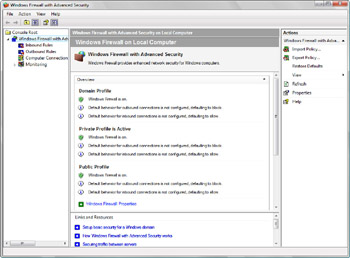
Figure 13-9: Windows Firewall With Advanced Security
| Tip |
You will be able to manage Windows Firewall With Advanced Security only when you have appropriate permissions. In a workgroup, you will need to be logged on as a local computer administrator or run the program as an administrator. In a domain, your user account must be a member of the Administrators or Network Operators group, or you must be able to run the program with the credentials of a user account that is a member of either group. To run Windows Firewall With Advanced Security as an administrator, right-click the menu item or shortcut, and then select Run As Administrator. |
Windows Firewall With Advanced Security has the following nodes:
-
Inbound Rules Lists the set of defined rules for incoming traffic. Inbound rules either explicitly allow or explicitly block incoming traffic that matches the criteria of the rule. Inbound rules include the basic inbound rules configurable in Windows Firewall, an extended list of rules configurable only through Windows Firewall With Advanced Security, and any inbound rules that you’ve defined.
-
Outbound Rules Lists the set of defined rules for outgoing traffic. Outbound rules either explicitly allow or explicitly block outgoing traffic that matches the criteria of the rule. Outbound rules are configurable only through Windows Firewall With Advanced Security. If you’ve defined additional outbound rules, these are listed as well.
-
Computer Connection Security Lists the set of rules that you’ve defined for protected traffic, according to the authentication rule type, requirements, and method used.
-
Monitoring Displays information about current firewall rules, connection security rules, and security associations.
When you select the Windows Firewall With Advanced Security node in the console tree, the following panes are displayed:
-
Overview Displays the current state of the firewall for the domain, private, and public profiles, including which profile is active.
-
Getting Started Provides basic information about the functions of the firewall and provides links to nodes in the console tree.
-
Links and Resources Provides links to additional information about common procedures and topics for the firewall.
Configuring Windows Firewall With Advanced Security involves:
-
Setting firewall profile properties as appropriate.
-
Setting any necessary inbound rules.
-
Setting any necessary outbound rules.
-
Defining any necessary computer connection security rules.
Each of these tasks is discussed in the sections that follow.
Setting Firewall Profile Properties
Windows Firewall With Advanced Security uses separate profiles to define the firewall configuration based on the environment in which the computer is located. Unlike previous versions of Windows, Windows Vista defines three types of profiles:
-
Domain You use the Domain profile when a computer is a member of a domain and is attached to its corporate domain.
-
Private You use the private profile when a computer is not connected to its corporate domain and is instead connected to a different private network. For example, when you use your laptop on another company’s network, the computer uses the Private profile.
-
Public You use the Public profile when a computer is not connected to its corporate domain or another private network. For example, when you use your laptop at a coffee shop, the computer uses the Public profile if you connect to a public access point.
Each profile has separate settings, as follows:
-
Firewall states Specify whether the firewall is on and how connections are handled.
-
Behavior settings Specify who is allowed to configure settings, notification about blocking, and response types.
-
Logging settings Specify whether logging is used.
-
IPSec settings Specify the settings used by IPSec to establish secured connections.
Setting a Profile’s Firewall State Firewall state settings specify whether the firewall is on and how it handles connections. You can configure the firewall state for a profile by following these steps:
-
Open Windows Firewall With Advanced Security.
-
Select the Windows Firewall With Advanced Security node.
-
On the Overview panel, click Windows Firewall Properties.
-
In the Windows Firewall With Advanced Security On Local Computer dialog box, select the Domain Profile, Private Profile, or Public Profile tab as appropriate, as shown in Figure 13-10.
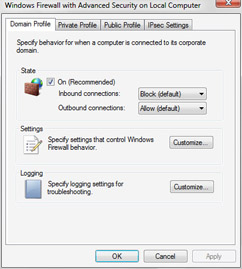
Figure 13-10: Setting the firewall state -
To enable the firewall state for the profile, select the On (Recommended) check box.
-
To configure the global default setting for inbound connections, click the Inbound Connections list, and then:
-
Select Block (Default) to block all programs not specifically listed as Inbound Allowed rules.
-
Select Block All Connections to block all programs including those specifically listed as Inbound Allowed rules.
-
Select Allow to allow all programs to connect to the computer. This setting is not recommended in most instances.
-
To configure the global default setting for outbound connections, click the Outbound Connections list, and then:
-
Select Block to block all programs not specifically listed as Outbound Allowed rules.
-
Select Allow (Default) to allow all programs to access the network.
-
-
Click OK.
-
Setting a Profile’s Behavior Behavior settings specify notification about blocking, response types, and who is allowed to configure settings. You can configure the firewall behavior settings for the Domain, Private, or Public profile by following these steps:
-
Open Windows Firewall With Advanced Security.
-
Select the Windows Firewall With Advanced Security node.
-
On the Overview panel, click Windows Firewall Properties.
-
In the Windows Firewall With Advanced Security On Local Computer dialog box, select the Domain Profile, Private Profile, or Public Profile tab as appropriate.
-
Click Customize in the Settings section.
-
Use the options provided in the Customize Settings dialog box, shown in Figure 13-11, to configure the firewall behavior.
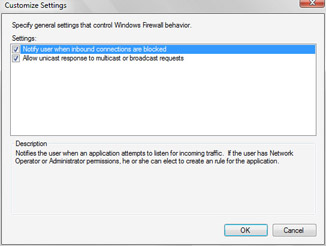
Figure 13-11: Setting the firewall behavior
Setting a Profile’s Logging Options Logging settings specify whether logging is used. You can configure logging for the Domain, Private, or Public profile by following these steps:
-
Open Windows Firewall With Advanced Security.
-
Select the Windows Firewall With Advanced Security node.
-
On the Overview panel, click Windows Firewall Properties.
-
In the Windows Firewall With Advanced Security On Local Computer dialog box, select the Domain Profile, Private Profile, or Public Profile tab as appropriate.
-
Click Customize in the Logging section.
-
In the Customize Logging Options dialog box, shown in Figure 13-12, select the Log Successful Connections check box, and then click OK.
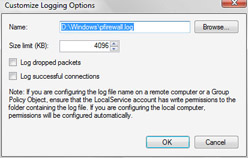
Figure 13-12: Setting the logging options
Setting a Profile’s IPSec Options IPSec settings specify settings used by IPSec to establish secured connections. You can configure IPSec options for a profile by following these steps:
-
Open Windows Firewall With Advanced Security.
-
Select the Windows Firewall With Advanced Security node.
-
On the Overview panel, click Windows Firewall Properties.
-
In the Windows Firewall With Advanced Security On Local Computer dialog box, select the IPSec Settings tab.
-
Click Customize in the Internet Protocol Security (IPsec) section.
-
In the Customize IPsec Settings dialog box, shown in Figure 13-13, use the options provided to set integrity, privacy, and authentication options for IPSec, and then click OK.
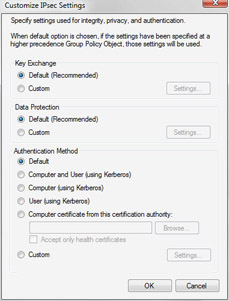
Figure 13-13: Setting IPSec options
Setting Inbound Rules
The default configuration for all firewall profiles is to block all inbound connections to a computer unless there are specific inbound rules that allow incoming connections. In the Windows Firewall With Advanced Security console, you can view currently defined inbound rules by selecting the Inbound Rules node, as shown in Figure 13-14.
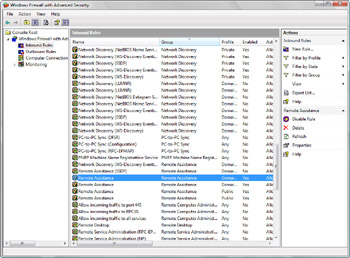
Figure 13-14: Viewing the currently defined inbound rules
Defined inbound rules are not necessarily enabled. In fact, only a select few inbound rules are enabled by default, and these inbound rules are for Remote Assistance. Windows Firewall With Advanced Security has one inbound rule for the TCP ports used by Remote Assistance and one rule for the User Datagram Protocol (UDP) ports used by Remote Assistance. There are two separate inbound rules because of the way Windows Firewall With Advanced Security allows you to precisely control the scope and use of an rule.
With inbound rules, you can:
-
Set an inbound rule for all programs or a specific program.
-
Set an action to allow all inbound connections, to allow only secure inbound connections, or to block all inbound connections.
-
Specify computers and users that are allowed connections based on the rule, and allow an rule to override block rules.
-
Assign the rule to be used with all protocols and port numbers, a specific protocol on any port number, or a specific protocol type and port number.
-
Set the scope so that the rule applies to all local IP addresses, specific local IP addresses, all remote IP addresses, or specific remote IP addresses.
To configure a currently defined inbound rule, follow these steps:
-
Open Windows Firewall With Advanced Security.
-
Select the Inbound Rules node.
-
Double-click the inbound rule that you want to configure.
-
In the Properties dialog box, shown in Figure 13-15, you can configure settings on the following tabs:
-
General Enables the rule, sets the rule’s name, and the rule’s action (allow, allow secured, or block).
-
Users And Computers If the rule’s action is to allow secured connections, you can set the computer or user accounts or groups that are authorized to make secure connections.
-
Protocols and Ports Sets the rule’s IP protocol, source and destination TCP or UDP ports, and Internet Control Message Protocol (ICMP) or ICMPv6 settings.
-
Programs And Services Sets the programs and services to which the rule applies.
-
Scope Sets the rule’s permitted source and destination addresses.
-
Advanced Sets the profiles, types of interfaces, and services to which the rule applies.
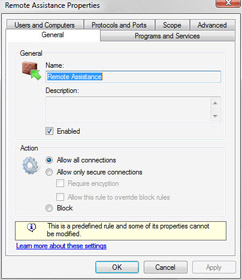
Figure 13-15: Configuring inbound rules
-
If you want to enable the inbound rule, select the Enabled check box on the General tab, and then click OK.
-
To define a new inbound rule, follow these steps:
-
Open Windows Firewall With Advanced Security.
-
Select the Inbound Rules node.
-
In the Actions panel, click New Rule to start the New Inbound Rule Wizard.
-
Follow the prompts to define the inbound rule. Click Finish to close the wizard.
-
If you want the inbound rule to be enabled, right-click it in the console list, and then select Enable Rule.
Setting Outbound Rules
The default configuration for all firewall profiles is to allow all outbound connections unless there is a specific outbound rule. In the Windows Firewall With Advanced Security console, you can view currently defined outbound rules by selecting the Outbound Rules node, as shown in Figure 13-16.
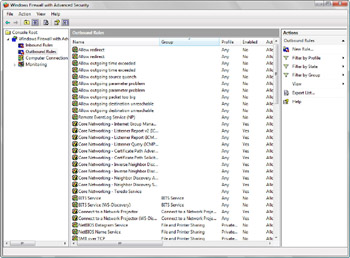
Figure 13-16: Viewing the currently defined outbound rules
Defined outbound rules are not necessarily enabled. In fact, only one outbound rule is enabled by default, and this outbound rule allows Internet Group Management Protocol (IGMP) to be used if you’ve otherwise blocked outbound connections.
Outbound rules can be configured in almost the same way as inbound rules. With outbound rules, you can:
-
Set an outbound rule for all programs or a specific program.
-
Set an action to allow all outbound connections, to allow only secure outbound connections, or to block all outbound connections. You cannot allow an rule to override a block rule, however.
-
Specify computers that are allowed connections based on the rule. You cannot configure authorized user rules, however.
-
Assign the rule to be used with all protocols and port numbers, a specific protocol on any port number, or a specific protocol type and port number.
-
Set the scope so that the rule applies to all local IP addresses, specific local IP addresses, all remote IP addresses, or specific remote IP addresses.
To configure a currently defined outbound rule, follow these steps:
-
Open Windows Firewall With Advanced Security.
-
Select the Outbound Rules node.
-
Double-click the outbound rule that you want to configure.
-
In the Properties dialog box, you can configure settings on the following tabs:
-
General Enables the rule and sets the rule’s name, and the rule’s action (allow, allow secured, or block).
-
Computers If the rule’s action is to allow secured connections, you can set the computer accounts that are authorized to make secure connections.
-
Protocols and Ports Sets the rule’s IP protocol, source and destination TCP or UDP ports, and ICMP or ICMPv6 settings.
-
Programs And Services Sets the programs and services to which the rule applies.
-
Scope Sets the rule’s permitted source and destination addresses.
-
Advanced Sets the profiles, types of interfaces, and services to which the rule applies.
-
If you want the outbound rule to be enabled, select the Enabled check box on the General tab, and then click OK.
-
To define a new outbound rule, follow these steps:
-
Open Windows Firewall With Advanced Security.
-
Select the Outbound Rules node.
-
Under Actions, click New Rule to start the New Outbound Rule Wizard.
-
Follow the prompts to define the outbound rule. Click Finish to close the wizard.
-
If you want the outbound rule to be enabled, right-click it in the console list, and then select Enable Rule.
Defining Computer Connection Security Rules
Internet Protocol Security (IPSec) provides a set of rules for securing IP traffic. In Windows XP and Windows Server 2003, you configure Windows Firewall and IPSec separately. Because both firewall filter settings and IPSec rules can block or allow incoming traffic, it is possible to create contradictory or overlapping firewall filters and IPSec rules. Windows Firewall With Advanced Security provides a single, simplified interface for managing both firewall filters and IPSec rules by using the graphical user interface (GUI) console and the command line.
Windows Firewall With Advanced Security uses authentication rules to define IPSec policies. No authentication rules are defined by default. To create a new authentication rule, follow these steps:
-
In Windows Firewall With Advanced Security, select the Computer Connection Security node.
-
Right-click the Computer Connection Security node in the console tree, and then click New Rule. This starts the New Connection Security Rule Wizard.
-
On the Rule Type page, shown in Figure 13-17, you can specify the type of authentication rule to create. The options are as follows:
-
Isolation Used to isolate computers by restricting connections based on domain membership or health status. You must specify when you want authentication to occur (for example, for incoming or outgoing traffic), whether you want to require or only request secure connections, the authentication method for protected traffic, and a name for the rule. Isolating computers based on their health status uses the Network Access Protection (NAP) policy, as discussed in the “Getting Started with Network Access Protection” section in Chapter 10.
-
Authentication Rule Used to specify computers that do not have to authenticate or secure traffic according to their IP addresses. You must specify the exempt computers and a name for the rule.
-
Server To Server Used to designate that authenticated connections should be used between specific computers, typically servers. You must specify the set of endpoints that will use authenticated connections by IP address, when you want authentication to occur, the authentication method for protected traffic, and a name for the rule.
-
Tunnel Used to specify authenticated connections that are tunneled, typically used when sending packets across the Internet between two secure gateway computers. You must specify the tunnel endpoints by IP address, the authentication method, and a name for the rule.
-
Custom Used to create a rule that does not specify a defined authentication behavior. You can select this option when you want to configure a rule manually. You must specify a name for the rule.
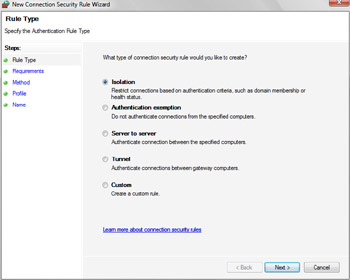
Figure 13-17: The Rule Type page
-
After you’ve configured the rule, click Finish to create and enable the rule.
-
To disable a rule, right-click the rule, and then select Disable Rule. To configure properties for the rule, right-click the name of the rule, and then click Properties. In the Properties dialog box for a rule, you can configure settings on the following tabs:
-
General Used to set the rule’s name and description and to enable the rule.
-
Computers Used to specify the computers, by IP address, for which authenticated connections are used.
-
Authentication Used to specify when you want authentication for connections to occur, such as for incoming or outgoing traffic; whether you want to require or only request authentication; and the authentication method to use.
-
Advanced Used to set the profiles and types of interfaces to which the rule applies and the IPSec tunneling behavior.


