Navigating Control Panel: What’s Changed
Navigating Control Panel: What’s Changed
Clicking the Start button on the taskbar and then clicking Control Panel displays Control Panel. You can also display Control Panel in any Windows Explorer view by clicking the leftmost option button in the Address bar and then selecting Control Panel. As with Windows XP, Control Panel in Windows Vista has two views:
-
Category Control Panel, or simply Control Panel, is the default view and provides access to system utilities by category and task.
-
Classic Control Panel is an alternative view that provides the look and functionality of Control Panel in Windows 2000 and earlier versions of Windows.
With Windows Vista, Microsoft finally got the marriage of category, task, and utility access right in the default Control Panel view—so much so, in fact, that you might want to say goodbye to Classic Control Panel forever. Here’s how the Category Control Panel works now:
-
Control Panel opens as a console in which 10 categories of utilities are listed. Each category includes a top-level link, and under this link are several of the most frequently performed tasks for the category.
-
Clicking a category link provides a list of utilities in that category. Each utility listed within a category includes a link to open the utility, and under this link are several of the most frequently performed tasks for the utility.
-
In Category Control Panel view, all utilities and tasks run with a single click. When you’re browsing a category, the left pane of the console includes a link to take you to the Control Panel Home page, links for each category, and links for recently performed tasks. It’s all very efficient, and very easy to use.
Figure 2-6 shows the Control Panel Home page. From any category page, you can access the home page by clicking the Control Panel Home link in the upper-left corner of the Control Panel console.
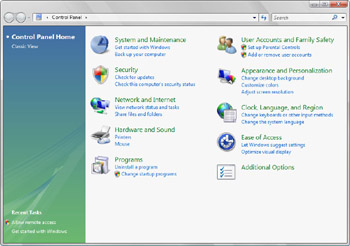
Figure 2-6: Control Panel
Because menu options and Control Panel options open with a single click by default, you might want to change the computer to use single-click to open items. This should avoid confusion over when you need to single-click or double-click.
To configure single-clicking for opening items, follow these steps:
-
Click the Start button, and then click Control Panel.
-
In Control Panel, click Appearance And Personalization.
-
Under Folder Options, click Specify Single- Or Double-Click To Open.
-
In the Folder Options dialog box, select Single-Click To Open An Item (Point To Select), and then click OK.
Once you have everything set to open with a single click, you’ll find that working with Control Panel and Windows Explorer is much more intuitive.


