Using Windows Calendar
Using Windows Calendar
Windows Calendar is a separate program for managing appointments and tasks. If you’ve worked previously with the calendar feature of Microsoft Outlook, you are probably familiar with how calendaring works. Windows Calendar offers similar features for tracking appointments and to-do tasks.
Getting Started with Windows Calendar
Most versions of Windows Vista include Windows Calendar. You can start Windows Calendar by clicking Start, pointing to All Programs, and then clicking Windows Calendar.
You can use Windows Calendar to manage appointments and tasks using both personal and shared calendars. While the ability to share calendars isn’t new—the feature is included in Microsoft Outlook—what is new is the ability to easily create multiple calendars for different people or different purposes and then easily publish these calendars to share them with others.
Windows Calendar can be used at home and at work:
-
At home, you can use Windows Calendar to help you keep track of appointments and tasks that you need to complete. You can create calendars for your spouse and children to help track their appointments and tasks as well.
-
At work, you can use Windows Calendar to help you keep track of appointments and tasks for yourself and your entire team. You can create calendars for your team members and coworkers to help track their appointments and tasks.
Because calendars and their respective appointments and tasks are color-coded (see Figure 5-5), you can quickly and easily differentiate between one person’s appointments and tasks and another’s. Windows Calendar also makes it easy for you to access any available calendars and for you to allow others to access your calendars. If you want to access someone else’s calendar, you can ask that person to publish the calendar so that you can subscribe to it. If you want others to be able to access your calendar, you can publish your calendar as a shared calendar.
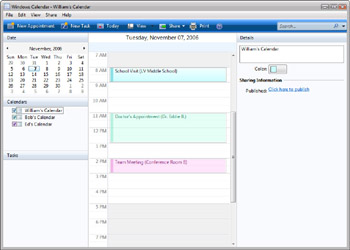
Figure 5-5: Using color-coding in Windows Calendar to differentiate between one person’s appointments and tasks and another’s
Searching for Appointments and Tasks
Like the Start menu and Windows Explorer, Windows Calendar also has a Search box. You can use the Search box to quickly search for appointments and tasks containing the text you’ve entered. The Search feature matches complete or partial words in the appointment and task details of all the calendars you’ve created as well as in all the calendars to which you’ve subscribed.
You can search calendars by completing the following steps:
-
Click in the Search box.
-
Type your search text.
Matches are returned as you type.
| Tip |
If you double-click an item in the search results, Windows Calendar displays the related calendar view and the item details. To clear the search results, click the Close button in the Search Results pane. |
Performing Key Calendar Tasks
You can use the toolbar in the main Calendar window (see Figure 5-6) to navigate the calendar, change views, and perform essential tasks. From left to right, the buttons on the toolbar are:
-
New Appointment Creates a new (blank) appointment in the selected calendar.
-
New Task Creates a new (blank) task in the selected calendar.
-
New Calendar Creates a new (blank) calendar.
-
Today Shows the current date. Clicking this button accesses the current date in the calendar.
-
View Provides options that set the calendar to the Day, Work Week, Week, or Month view. Also has options for displaying or hiding the Navigation pane and the Details pane.
-
Share Allows you to manage the sharing options for a selected calendar.
-
Print Prints appoints on the selected calendar according to the options you select for print style and print range.

Figure 5-6: The Windows Calendar main toolbar
Creating and Using Appointments
Windows Calendar can help you track appointments for yourself and any calendars to which you’ve subscribed. All appointments can have a title and location associated with them. On the calendar, the title is shown first, followed by the location in parentheses (see Figure 5-7). When you create an appointment, you can specify start and end times or you can specify that an appointment runs all day. Windows Calendar also allows you to:
-
Specify whether appointments repeat daily, weekly, monthly, or yearly.
-
Add reminders to appointments so that you are notified a specified amount of time prior to an appointment.
-
List and invite attendees based on your configured contacts and contact groups.
Invitations are sent by e-mail to attendees.
-
Add notes to an appointment in the form of a reference URL or text.
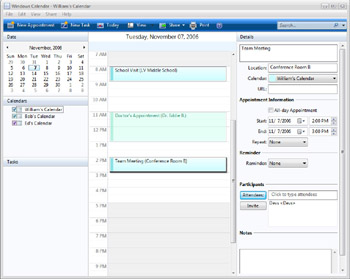
Figure 5-7: Working with appointments in Windows Calendar
You can create an appointment by following these steps:
-
Start Windows Calendar. Under the Calendars section, select the calendar you want to work with.
-
In the Day or Week view, right-click the date and time the appointment starts, and then select New Appointment.
-
If you prefer to work in the Month view, right-click the date on which the appointment occurs, and then select New Appointment.
-
Press Ctrl+D to view the appointment details, or click the Details button in the Day, Week, or Month view on the right.
-
In the text box provided at the top of the Details view, type a title for the appointment.
-
In the Location text box, type the location for the appointment.
-
Use the Appointment Information options to see the start and end times for the appointment. If the appointment should repeat, also set the repeat options.
-
If you want to be reminded prior to the appointment, use the Reminder list options to set the reminder.
-
If you want to specify participants, such as for a meeting, click the Attendees button. You can then select the contacts, contact groups, or both that should be listed as attendees.
-
If you want to send invitations to attendees, click Invite. You will then be able to send an e-mail message to the attendees using your default e-mail program, such as Windows Mail.
-
If you want to add notes to the appointment in the form of a reference URL or text, type this information in the boxes provided under the Notes heading.
Any appointments created on your personal calendar or on calendars to which you’ve subscribed are displayed in the Day, Week, and Month views. If the Details view is hidden, double-clicking an appointment displays the Details view for the appointment. If the Details view is open, clicking an appointment displays the Details view for the appointment.
| Tip |
When you are working with multiple calendars, be sure to use color-coding to help you distinguish between calendars. If you click a calendar under the Calendars heading, you can specify the color to associate with the calendar. |
Creating and Using Tasks
Windows Calendar can help you track the to-do tasks for yourself and any calendars to which you’ve subscribed. In Windows Calendar, tasks are listed under the Tasks heading, as shown in Figure 5-8. Tasks have two basic states:
-
Open An open task is one that has not yet been completed.
-
Completed A completed task is one that has been finished.
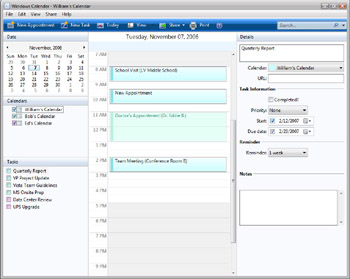
Figure 5-8: Working with tasks in Windows Calendar
When you create a task, you can specify a priority to indicate the task’s relative importance. Windows Calendar also allows you to:
-
Specify a date when you expect work on the task to start.
-
Specify a due date for when the task must be completed.
-
Add reminders so that you are notified a specified amount of time prior to a task’s expected start date. The reminder will also notify you of when the task is due.
-
Add notes to the task in the form of a reference URL or text.
You can create a task by following these steps:
-
Start Windows Calendar. Under the Calendars section, select the calendar you want to work with.
-
Click the New Task button on the toolbar.
-
Press Ctrl+D to view the task details, or click the Details button in the Day, Week, or Month view on the right.
-
If you want to add notes to the task in the form of a reference URL or text, type this information in the boxes provided under the Notes heading.
-
In the text box provided at the top of the Details view, type a title for the task.
-
If desired, use the Priority list to set the task’s relative priority.
-
Use the Start options to set the task’s expected start date.
-
Use the Due Date options to specify the date when the task must be completed.
-
If you want to be reminded prior to the task’s expected start date, use the Reminder list options to set the reminder.
Any tasks created on your personal calendar or calendars to which you’ve subscribed are displayed under the Tasks heading. If the Details view is hidden, clicking a task and then pressing Ctrl+D displays the Details view for the task. If the Details view is open, clicking a task displays the Details view for the task.
You can mark a task as completed by using the check box provided under the Tasks heading. In the Details view, you can also mark a task completed by selecting the Completed check box under Task Information.
| Tip |
Windows Calendar allows you to forward tasks via e-mail. To do this, right-click the task, and then select Forward. |
Creating and Using Multiple Calendars
You might find that you need multiple calendars. For example, you might want one calendar for tracking office meetings and appointments, and another calendar for tracking personal meetings and your kids’ appointments. Windows Calendar makes it easy to create and work with multiple calendars. If you want to create a new calendar, all you need to do is click File, New, Calendar or right-click an open area under the Calendars headings and select New, Calendar. A New Calendar entry is then added under the Calendars heading. The entry is selected and highlighted so that you can set the name of the new calendar by typing the calendar name and then pressing Enter.
When you are creating appointments and tasks in Windows Calendar, the calendar you’ve selected under the Calendars heading is the default. Tasks and appointments are created by default in the selected calendar. Calendars have two key properties that you can manage: a title and an associated color. You can edit calendar details by clicking a calendar under the Calendars heading and displaying the Details view. If the Details view is hidden, clicking a calendar and then pressing Ctrl+D displays the Details view for the calendar. If the Details view is open, clicking a calendar displays the Details view for the calendar.
Publishing and Subscribing to Calendars
Windows Calendar is designed to make sharing calendars easy. Any calendars you’ve created can be published to a folder on a Web server so that they can be accessed and subscribed to by other users. To share a calendar, follow these steps:
-
In Windows Calendar, click the calendar you want to work with under the Calendars heading.
-
If the Details view is hidden, press Ctrl+D to display it.
-
Under the Sharing Information heading, select Click Here To Publish.
-
Use the Publish Calendar dialog box to publish the calendar and associated information to a designated folder on a Web server, as shown in Figure 5-9.
-
Click Publish.
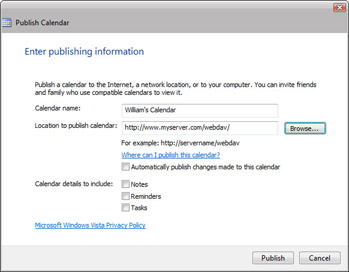
Figure 5-9: Entering the publishing information for the calendarNote Windows Calendar uses Web Distributed Authoring and Versioning (WebDAV) to upload, download, view, and edit calendar data on the designated Web server. If you do not have adequate permissions to access the Web server and publish data via WebDAV, the publish operation will fail. Both Internet Information Services (IIS) 6 and IIS 7 support WebDAV. Be sure to obtain the appropriate URL from your network administrator before you attempt to publish your calendar.
To subscribe to a previously published calendar, follow these steps:
-
In Windows Calendar, click the Share button on the toolbar and then click Subscribe. This displays the Subscribe To A Calendar dialog box, shown in Figure 5-10.
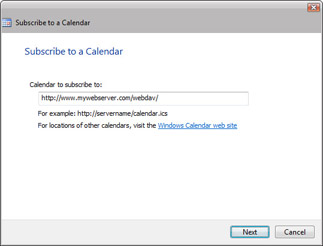
Figure 5-10: Subscribing to a published calendar -
In the Calendar To Subscribe To text box, type the URL path to the folder in which the calendar is published, such as http://www.myserver.com/webdav/.
-
Click Next, and then follow the prompts.
Note WebDAV permissions determine whether you can subscribe to the calendar. If you do not have adequate permissions to access the Web server and subscribe to the calendar via WebDAV, the subscribe operation will fail.


