Centrally Managing Computer Configuration
Centrally Managing Computer Configuration
To help reduce the total cost of ownership (TCO), Windows Vista is more configurable than its predecessors, and more of its configuration settings can be managed by using Group Policy. Because Group Policy can be managed locally and on an enterprise-wide basis, this makes it easier to centrally manage computer configurations.
Introducing the Group Policy Management Console
Windows Vista is the first version of Windows to include the Group Policy Management Console (GPMC), which provides an extended management interface for working with Group Policy. Previously, GPMC was available only as a separate download and was not included with the operating system.
Figure 14-1 shows the Group Policy Management Console. You can access GPMC by clicking Group Policy Management on the Administrative Tools menu. Before you can use GPMC, you must log on to the computer using a domain user account.
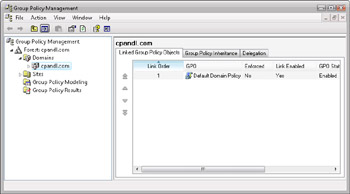
Figure 14-1: The Group Policy Management Console
| Tip |
If the Administrative Tools menu isn’t available on the All Programs menu or the Start menu, you can display it by using the Task Bar And Start Menu Properties dialog box. Right-click an open area of the taskbar, and select Properties. In the Task Bar And Start Menu Properties dialog box, click the Start Menu tab, and then click the Customize button. In the Customize Start Menu dialog box, scroll down through the list of options until you find System Administrative Tools, and then select Display On The All Programs Menu And The Start Menu option. Click OK twice. |
Using GPMC, you can access Group Policy information throughout the enterprise. If you log on to a computer using a domain user account, you can use GPMC to manage Group Policy in multiple Active Directory forests and domains. You add forests and domains that you want to manage by name. You can then manage the additional forests and domains as you do the local forest or domain. GPMC also allows you to import and export Group Policy settings and to back up and restore Group Policy settings.
Introducing Important Group Policy Changes
All versions of Windows since Windows 2000 support Group Policy. Group Policy settings on a local computer are stored in a Local Group Policy Object (LGPO). Unlike earlier versions of Windows in which there was only one local GPO, Windows Vista can be configured to support multiple local GPOs, enabling administrators to specify different policies for different users on a single computer. In a shared-use environment, such as a library or a school, this feature improves security and manageability.
Group Policy settings for sites, domains, and organizational units are stored in Active Directory Group Policy Objects (GPOs). Active Directory Group Policy settings can be loosely divided into two classes: registry-based settings and non-registry-based settings. Any time you make a change to a registry-based policy setting, the change is made in the GPO and applied to a related value in the registry. Any time you make a change to a non-registry-based policy setting, the change is made only in the GPO.
In Active Directory Group Policy, Administrative Templates are used to store registry-based policy settings. While earlier versions of Windows that support Group Policy use ADM files with a proprietary markup language to store registry-based policy settings, Windows Vista uses a standards-based Extensible Markup Language (XML) file format called ADMX. Unlike ADM files, which are stored in the GPO to which they relate, ADMX files are not stored with the GPOs with which they are associated by default. Instead, ADMX files are stored in a central location that the administrator creates. The ADMX files are accessible by anyone with permissions to create or edit GPOs. Central storage of ADMX files makes them easier to work with and manage.
| Note |
A complete discussion of GPMC, GPOs, and ADMX is beyond the scope of this book. For more information, refer to the Microsoft Windows Vista Administrator’s Pocket Consultant (Microsoft Press, 2006). |


