Getting Around the Windows Vista Desktop
Getting Around the Windows Vista Desktop
At first glance, the Windows Vista desktop is similar to the Windows XP desktop. The core aspects of the desktop haven’t changed much, but there are a few changes that should be noted. Beyond this, the primary new features for the desktop are Windows Sidebar and the mini-applications (called gadgets) that you can add to the sidebar or to the desktop itself. Figure 3-1 shows the Windows Vista desktop with the sidebar.
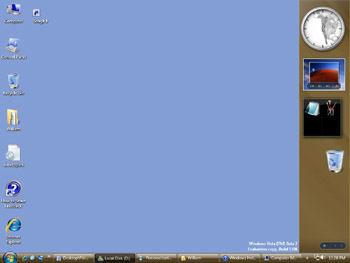
Figure 3-1: The desktop, with Windows Sidebar and gadgets
Working with the Desktop
When you open programs or folders, they appear on the desktop. You can arrange open programs and folders on the desktop by right-clicking an empty area of the taskbar and then selecting an appropriate option. Options available include Cascade Windows, Show Windows Stacked, and Show Windows Side By Side. If you click Show The Desktop, Windows minimizes all open windows and displays the desktop. Clicking Show Open Windows restores the minimized windows to their previous states.
You can put files, folders, and shortcuts on the desktop. Any file or folder you save on the desktop appears on the desktop. Any file or folder you drag from a Windows Explorer window to the desktop stays on the desktop. You can add a shortcut to a file or folder to the desktop by rightclicking the file or folder, pointing to Send To, and then selecting Desktop (Create Shortcut).
By default, the only item on the desktop is the Recycle Bin. You can add or remove common desktop icons by right-clicking an empty area of the desktop and then selecting Personalize. In the Desktop Icon Settings dialog box, you can then add or remove Computer, Control Panel, Internet Explorer, Network, Recycle Bin, and User’s Files icons by selecting or clearing the related option. You can use these icons as follows:
-
Computer Double-clicking the Computer icon opens a window where you can access hard disk drives and devices with removable storage. Right-clicking the Computer icon and selecting Manage opens the Computer Management console. Right-clicking the Computer icon and selecting Map Network Drive allows you to connect to shared network folders.
-
Control Panel Double-clicking the Control Panel icon opens Control Panel, which provides access to system configuration and management tools.
-
Internet Explorer Double-clicking the Internet Explorer icon opens the Internet Explorer window with your default home page. Right-clicking the Internet Explorer icon and then selecting Start Without Add-Ons starts Internet Explorer without using browser extensions or other add-ons.
-
Network Double-clicking the Network icon opens a window where you can access the computers and devices on your network.
-
Recycle Bin Double-clicking the Recycle Bin icon opens a window where you can view files and folders you’ve marked for deletion. By selecting Empty The Recycle Bin, you can permanently delete all the items in the Recycle Bin.
-
User’s Files Double-clicking the User’s Files folder opens your personal folder.
Tip If you no longer want an icon or a shortcut on the desktop, right-click it, and then select Delete. When prompted, confirm the action by clicking Yes.
Working with Windows Sidebar
Windows Sidebar is a view pane that you can add to the left or right side of the Windows Vista desktop. The sidebar is used to display and work with gadgets that are installed on the computer. Windows Sidebar and gadgets are not displayed by default on the desktop. You manage the sidebar’s basic configuration through the Sidebar Properties utility in Control Panel. To display and configure Windows Sidebar, follow these steps:
-
Click Start, click Control Panel, click Appearance And Personalization, and then click Windows Sidebar.
-
In the Windows Sidebar Properties dialog box, shown in Figure 3-2, select Start Sidebar When Windows Starts.
-
Optionally specify whether the sidebar appears on top of other windows, whether the sidebar should start when Windows starts, and whether the sidebar appears on the left or right side of the desktop.
-
Click OK. The sidebar appears the next time you log on.
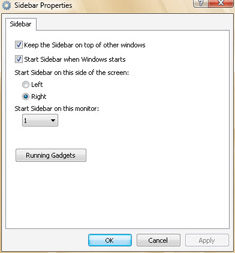
Figure 3-2: The Sidebar Properties dialog box
Working with Windows Gadgets
Windows Vista comes with several basic sidebar gadgets, including:
-
Calculator Displays a calculator with standard arithmetic functions. By default, the calculator’s background color is gray. If you right-click the Calculator gadget and select Settings, you can use the buttons provided to change the color, and then click OK to save the changes.
-
Clock Displays an analog clock with hour and minute hands. Moving the mouse pointer over the clock shows the digital time, date, and time zone. The time zone used can be different from that used by the computer clock. Based on the time zone used, the background for the analog clock shows a map of the continent or region on the world map. By default, the analog clock shows a bright gray background during the day and a dark gray background at night. To change the time zone or modify other options, right-click the Clock gadget, and then select Settings.
-
CPU Meter Displays the current percentage utilization of the computer’s CPU and memory. Similar to a tachometer in a car, the CPU and memory gauges show high utilization in yellow and red.
-
Feed Viewer Displays the data from a selected Really Simple Syndication (RSS) feed that has been configured in Internet Explorer. RSS feeds can contain news headlines, lists, and other information. After you add an RSS feed to Internet Explorer, you can begin viewing the feed in the Feed Viewer gadget. Right-click the gadget, and then select Settings. Select the feed in the RSS feed list, and then click OK.
-
Recycle Bin Displays the Recycle Bin. If you right-click the Recycle Bin gadget and select Settings, you can choose a different icon, such as a plastic cup, an aluminum trashcan, a tin cup, or a wooden cup.
-
Slide Show Displays pictures from a selected folder as a continuous slide show where pictures rotate at a specified interval. Moving the mouse pointer over a picture in the slide show causes the navigation buttons to appear. You can navigate through the pictures using the Previous, Pause and Next buttons. By default, pictures in the %UserProfile%\Pictures folder are used for the slide show. By right-clicking the Slide Show gadget and selecting Settings, you can modify the Directory setting to use any preferred folder. You can also modify the transition and slide show speed settings.
-
Weather Displays a window pane with a background image that depicts the local weather and shows the current temperature. The weather data is from MSN.com and is based on the location you’ve entered in the location settings. To configure the location, right-click the Weather gadget and then select Settings. In the Location field, enter your current location, click Search, and then select the closest match for your location. Click OK to save the changes.
To add gadgets to Windows Sidebar, follow these steps:
-
Click the + button at the top of the sidebar.
-
In the Add Gadgets dialog box, shown in Figure 3-3, double-click each of the gadgets you want to add to the sidebar. To find additional gadgets, click Get More Gadgets Online. The sidebar launches the Microsoft Gadgets site ( http://microsoftgadgets.com/), where you can download custom gadgets or find instruction on how to build your own gadgets.
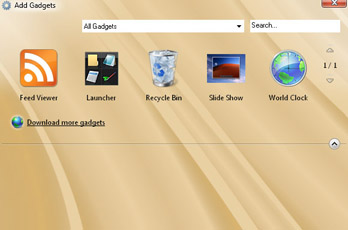
Figure 3-3: The Add Gadgets dialog box
When you have finished adding gadgets, click the Close button.
You can work with gadgets in a variety of ways:
-
Gadgets can be detached from the sidebar and moved around the desktop by right-clicking the gadget and selecting Detach From Sidebar. Once you’ve detached the gadget, you can click and drag to move it to different locations on the desktop. To put the gadget back on the sidebar, right-click the gadget and select Attach To Sidebar.
-
When gadgets are detached, they can be displayed on top of all other windows by right-clicking the gadget and selecting Always On Top. Once you’ve moved the gadget to the top, right-clicking the gadget and selecting Always On Top a second time clears the setting and makes the gadget work like any other window that can be brought to the front when in use or moved to the back when not in use.


