Upgrading Computers and Migrating to New Computers
Upgrading Computers and Migrating to New Computers
Deciding whether to perform an in-place upgrade or to migrate to new computers is a key decision when you are deploying Windows Vista—or any new operating system, for that matter. The following sections will help you make this important decision and also introduce the enhanced migration tools included in Windows Vista.
Deciding Whether to Upgrade or to Migrate
Typically, you’ll upgrade computers when the underlying hardware meets or exceeds the minimum requirements for physical memory, processing power, and graphics capabilities, and you’ll migrate users to new computers when the underlying hardware doesn’t meet the minimum requirements. Requirements for memory and graphics are measured in megabytes (MB) and gigabytes (GB); requirements for processors are measured in gigahertz (GHz).
Windows Vista requires a minimum of 512 MB of RAM; a 1.5 GHz Pentium 4, AMD Athlon, or higher processor; and a graphics processor with 64 MB of memory that supports DirectX 9. You’ll get better performance if the computer meets or exceeds the recommended requirements of at least 1 GB of RAM; a 3.0 GHz Pentium 4, AMD Athlon, or higher processor; and a graphics processor with 256 MB or more of graphics memory that supports DirectX 9.
Because Windows Vista uses more disk space than its predecessors, the hard disk drive on a computer is also an important consideration. While a base installation of Windows XP uses about 2 GB of disk space, a base installation of Windows Vista uses 4 GB or more of disk space. Various features in Windows Vista, such as protection points that include previous versions of files and folders that have been modified, can quickly increase the size of the installation to 6 GB or more.
Upgrading to Windows Vista is vastly different from upgrading to earlier versions of Windows. When you upgrade a computer to Windows Vista from an earlier version of Windows, Setup essentially performs a clean installation of the operating system followed by a migration of user settings, documents, and applications. This occurs for several reasons, but primarily because Windows Vista uses an entirely new boot environment and also has an entirely new way of storing personal settings and data. These changes are so far-reaching that earlier versions of Windows are now considered to be legacy operating systems.
At startup, computers running Windows Vista enter a preboot environment prior to the loading of the operating system. The preboot environment uses Windows Boot Manager to control the boot experience and to control which boot applications are run. Windows Boot Loader, the standard boot application for Windows Vista, is responsible for accessing entries in the Boot Configuration Data (BCD) store. The BCD store abstracts the underlying firmware, making it easier for Windows Vista to work with new firmware models, and also making it possible for the Startup Repair Tool (StR) to be launched in the preboot environment.
Windows Vista stores user data in the Users folder rather than in the Documents And Settings folder. With the Users folder, each user that logs on to the system has a personal folder, and that personal folder contains additional folders for documents, pictures, music, and so on. If you’ve upgraded to Windows Vista from an earlier version of Windows, the user’s personal folder will also contain shortcuts to the folders and settings used by that earlier version.
Migrating to Windows Vista is also different from migrating to earlier versions of Windows— although not as substantially changed as the new upgrade process. For small migrations, Windows Vista includes Windows Easy Transfer. This migration tool is an enhanced version of the Files And Settings Transfer Wizard included in Windows 2000 and Windows XP. For large migrations, Windows Vista includes version 3.0 of the User State Migration Tool (USMT). This migration tool is an enhanced version of the same tool included in Windows 2000 and Windows XP.
Whether you are performing an upgrade or an actual migration, Windows Vista is designed to make this process as seamless as possible. Users who have their environments configured exactly the way they like them should find that after an in-place upgrade or a migration, the settings are essentially the same. However, Windows Vista:
-
Allows administrators to redirect individual personal folders in much the same way as personal folders can be collectively redirected by using Group Policy. If you right-click a user’s standard personal folder (Contacts, Documents, Desktop, Links, Favorites, Music, Videos), you can specify an alternative location for that folder on the local computer or on a shared network folder.
-
Uses a new shared folder architecture that allows users to mark files or folders as public and assign various levels of access to these files and folders based on user and group accounts. Public files and folders are stored in the Users\Public folder. Windows Vista has Public Desktop, Public Documents, Public Music, Public Pictures, and Public Videos folders. Some applications create additional public folders as well. Some application and user settings are automatically configured as public. For example, the Public Desktop folder might include shortcuts to programs that are accessible to all users on a computer.
Tip Through local settings and Group Policy settings, you can modify and restrict the new sharing architecture. On a per-folder basis, you can also configure Windows Vista computers to use classic folder sharing rather than the new sharing architecture. With classic folder sharing, you have the same folder sharing options as with Windows XP.
Introducing the User State Migration Tool
The User State Migration Tool (USMT) version 3.0 combines the best features of USMT version 2.6 and the Files And Settings Transfer Wizard to provide an improved migration framework. Using the latest version of USMT, you can migrate user accounts during large deployments of Windows Vista. USMT captures user accounts and related user state data, including documents, desktop settings, and application settings, from an old computer and helps you move them to a new Windows Vista installation. Because USMT 3.0 includes better procedures for identifying user state data that needs to be migrated and allows for improved automation of the migration process through scripting, USMT 3.0 can help you improve and simplify your migrations.
Getting Started with the User State Migration Tool
USMT is designed to be used by administrators who are performing large-scale automated deployments. If you are upgrading your operating system instead of migrating, you do not need to use USMT. If you are migrating only the user states of a few computers, you do not need to use USMT either and should instead use Windows Easy Transfer.
USMT works by saving user state data to a server and then restoring it to a desktop after installation. You automate the migration by using the two USMT command-line tools:
-
ScanState Used to collect user accounts, files, and settings
-
LoadState Used to restore user accounts, files, and settings
To migrate user state data, you run ScanState on the source computer to collect user accounts, files, and settings. ScanState creates a data store, called USMT3.MIG, that holds all of the collected information. ScanState does not make any modifications to the source computer—its only job is to collect the necessary information and store that information on a specified server. After you install the new computer, you run LoadState on that computer to restore the user state from the data store.
By default, USMT 3.0 compresses user state data and stores it as image files. This improves performance by reducing network bandwidth usage and storage requirements. When you run LoadState, the entire compressed image is transferred to the destination computer even if you migrate a subset of the data store. USMT then uncompresses all of the files and applies the specified files and settings. Because the compressed store cannot be modified, LoadState does not scan the store, and this reduces the run time for loading state data.
With USMT 3.0, computers running the following operating systems can be source computers:
-
Microsoft Windows 2000 Professional with Service Pack 4 (SP4)
-
Microsoft Windows XP Home
-
Microsoft Windows XP Professional
-
Microsoft Windows XP Professional x64 Edition
-
Microsoft Windows Vista
Table 15-1 provides an overview of the types of user state data that are and aren’t migrated by USMT 3.0. By default, USMT will also migrate settings for some applications, including most Microsoft Office applications and Adobe Acrobat Reader version 5.0 or later. With Microsoft Office Outlook, e-mail settings, contacts, and messages are all migrated. In most cases, you’ll want to install all applications on the destination computer before restoring the user state to ensure that migrated application settings are preserved.
|
Migrated Data |
Nonmigrated Data |
|---|---|
|
Accessibility options |
Applications |
|
Command prompt settings |
Drivers |
|
Desktop and classic desktop |
DLLs |
|
Dial-up connections |
Executables |
|
Favorites |
Hardware-related settings |
|
Folder options |
Passwords |
|
Fonts |
Synchronization files |
|
Microsoft Internet Explorer settings |
Encrypting File System (EFS) certificates |
|
Microsoft Outlook Express store | |
|
Mouse and keyboard settings | |
|
My Documents folder | |
|
My Music | |
|
My Pictures folder | |
|
My Received Files | |
|
My Videos | |
|
Phone and modem options | |
|
Quick Launch settings | |
|
Regional options | |
|
Screen saver selection | |
|
Sounds settings | |
|
Taskbar settings |
Using the User State Migration Tool
At a high level, working with the User State Migration Tool involves the following steps:
-
Modifying the required migration rule files.
-
Creating and modifying a Config.xml file by using the ScanState /genconfig option.
-
Running ScanState on all source computers by specifying /config:config.xml and specifying the other desired .xml files by using the /i option.
-
Running LoadState on destination computers, specifying the desired .xml files by using the /i option.
You use migration rule (.xml) files to specify what user accounts, files, and settings should be migrated and how those user accounts, files, and settings should migrated. Three default .xml files are provided: MigApp.xml, MigSys.xml, and MigUser.xml. You must edit these files so that they reflect the desired configuration before running ScanState.
| Tip |
When migrating to Windows Vista, you must edit only MigUser.xml and MigApp.xml. By default, when the destination computer is running Windows Vista, USMT 3.0 uses the Component Manifests for Windows Vista to migrate the operating system settings. On computers running Windows Vista, these manifests are a set of .man files located in the %SystemRoot%\installedRepository folder. USMT 3.0 also supports migrating from Windows 2000 to Windows XP. When you migrate to Windows XP, you must edit MigApp.xml, MigSys.xml, and MigUser.xml. |
After you modify the migration rule files, you must create a Config.xml file by using the / genconfig option and then modify this file. You can then run ScanState on all source computers by specifying /config:config.xml and the other desired .xml files using the /i option to create the data store on the server. To make sure that EFS certificates are migrated to computers running Windows Vista, you must specify the /copyraw option on the ScanState command line.
After you’ve created the data store and installed the new computers, you can run LoadState on the new computers and specify the desired .xml files by using the /i option. If you want to migrate the entire store, specify the same set of .xml files that you specified on the ScanState command line. If you want to migrate only a portion of the store, modify the .xml files as necessary and then specify the modified files on the LoadState command line.
| Note |
When running LoadState, you do not have to specify /config:config.xml. You have to specify the Config.xml file only when you’ve modified Config.xml so that it reflects a subset of the data store. |
On Windows Vista, you will need to run ScanState and LoadState in elevated mode from an administrative account to ensure that all user accounts, files, and settings are migrated. If you do not do this, only the logged-on user profile will be included for migration. To run ScanState or LoadState in elevated mode, click Start, point to All Programs, Accessories, right-click Command Prompt, and then click Run As Administrator. Then run ScanState, LoadState, or both by using this command prompt.
In USMT 3.0, options for both ScanState and Load State have changed. Table 15-2 provides a summary of the new and modified options for these commands. To see the full list of options for these commands, type the command name followed by /? at a command prompt, such as scanstate /?.
|
Command |
Option |
Description |
|---|---|---|
|
ScanState |
/config |
Specifies the Config.xml file to be used in creating the data store. |
|
/efs:copyraw |
Generates EFS certificates (only valid when migrating to Windows Vista). |
|
|
/encrypt |
Encrypts the data store with the specified key. |
|
|
/genconfig[: StorePath] |
Generates a Config.xml file, but does not create a store. You can specify an optional store path to use when later generating the data store by using /config. |
|
|
/nocompress |
Disables compression of data (meant only for testing). |
|
|
/targetxp |
Optimizes ScanState for destination computers running Windows XP. When Windows XP is the destination, USMT 3.0 does not migrate user cookies, network drive settings, or printers. |
|
|
/ue |
Excludes specific users, domains, or both from the migration. User accounts and domains specified are not migrated. |
|
|
/uel |
Excludes user accounts based on user logon. Users accounts that have not been logged into within the specified time period are not migrated. |
|
|
/ui |
Includes specific users, domains, or both from the migration. User accounts and domains specified are migrated. |
|
|
LoadState |
/config |
Specifies the Config.xml file that LoadState should use. |
|
/decrypt |
Decrypts the data store with the specified key. |
|
|
/md |
Modifies old domain names to new domain names during the migration. |
|
|
/mu |
Modifies old user names to new user names during the |
|
|
/nocompress |
Specifies that the store is not compressed. |
|
|
/ue |
Excludes the specified users, domains, or both from the |
|
|
/uel |
Excludes user accounts that have not been logged into within the specified time period. |
|
|
/ui |
Migrates the specified users, domains or both. |
Introducing Windows Easy Transfer
Windows Easy Transfer is designed to be an easy-to-use migration tool. Similar to the User State Migration Tool, you can use Windows Easy Transfer to migrate files and settings from an old computer to a new computer. Unlike the User State Migration Tool, which is meant for large-scale migrations, Windows Easy Transfer is designed for small-scale migrations. If you are migrating five or fewer computers, Windows Easy Transfer is an ideal choice.
Getting Started with Windows Easy Transfer
Windows Easy Transfer is an administrative-mode application. You can start this application from the System Tools menu. Click Start, point to All Programs, Accessories, System Tools, and then click Windows Easy Transfer.
Using Windows Easy Transfer, you can migrate files and settings for the currently logged on user or for all users on a computer. You can use Windows Easy Transfer to migrate data from computers running the following operating systems:
-
Microsoft Windows 2000 Professional with Service Pack 4 (SP4)
-
Microsoft Windows XP Home
-
Microsoft Windows XP Professional
-
Microsoft Windows XP Professional x64 Edition
-
Microsoft Windows Vista
Essentially, Windows Easy Transfer migrates the same set of data as USMT 3.0. This means, in most cases, that the types of migrated and nonmigrated data are the same as those listed earlier in Table 15-1. As with USMT 3.0, Windows Easy Transfer will also migrate settings for some applications, including most Microsoft Office applications and Adobe Acrobat Reader version 5.0 or later. With Microsoft Office Outlook, e-mail settings, contacts, and messages are all migrated.
In most cases, you’ll want to install all applications on the destination computer before restoring the user state to ensure that migrated application settings are preserved.
Using Windows Easy Transfer
At a high level, working with Windows Easy Transfer involves the following procedures:
-
Starting Windows Easy Transfer and copying the software to your old computer.
-
Selecting and transferring files and settings to the new computer.
-
Completing the migration.
Starting and Copying the Windows Easy Transfer Software
You can start Windows Easy Transfer and migrate settings from a Windows 2000 or Windows XP computer to a Windows Vista computer by completing the following steps:
-
Log on to the computer running Windows Vista to which you plan to transfer files and settings. If you are transferring files and settings for a specific user rather than all users of a computer, you should log on as that user.
-
Click Start, point to All Programs, Accessories, System Tools, and then click Windows Easy Transfer.
-
Read the introductory message, shown in Figure 15-1, and then click Next.
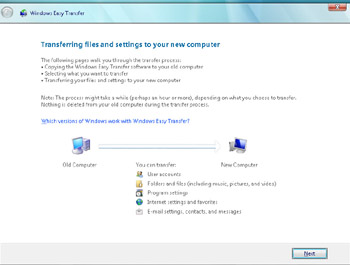
Figure 15-1: Starting Windows Easy Transfer -
If you are prompted to close open programs, click Close All to close all open programs.
-
On the Do You Want To Start A New Transfer Or Continue One In Progress page, click Start A New Transfer.
-
On the Which Computer Are You Using Now page, click This Is My New Computer.
-
On the Do You Have A Windows Easy Transfer USB Cable page, do one of the following:
-
Click Yes if you have an easy transfer cable. When prompted, connect the cable between your old and new computers, and then follow the prompts. Skip the rest of the steps.
-
Click No if you don’t have an easy transfer cable and then follow the rest of the steps in this procedure.
-
Computers running Windows 2000 or Windows XP do not have Windows Easy Transfer installed. On the Did You Install Windows Easy Transfer page, click I Need To Install Windows Easy Transfer.
-
Select the media, drive, or folder as appropriate, and then click Next. Windows Vista immediately copies the Windows Easy Transfer software to the media, drive, or folder you’ve chosen.
Caution Don’t exit Windows Easy Transfer on the new computer. If you do, you won’t be able to connect to the new computer by using a PC-to-PC cable or the network.
-
Go to the old computer, and follow the procedure outlined in the next section.
-
Selecting and Transferring Files and Settings
You can select and transfer files and settings to the new computer by completing the following steps:
-
Log on to the old computer as the user whose files and settings you are migrating. If you are migrating all user accounts and their associated files, you should log on using an account with administrator privileges.
-
Insert the media, attach the drive, or connect to the shared folder used in the preceding procedure as appropriate.
-
If Windows Easy Transfer doesn’t start automatically, open the MigWiz folder in the media, drive, or shared folder, and then double-click MigWiz.exe.
-
If prompted, close all open programs by clicking the Close All button.
-
On the How Do You Want To Transfer Files And Program Settings To Your New Computer page, specify how you want to transfer files and settings to the new computer by clicking one of the available options. You can transfer files directly by using a network. You can also store the data on a removable storage device or network folder.
-
Follow the prompts to establish a connection or select a save location as appropriate.
-
Once you’ve connected or selected a save location, you’ll be able to select the files and settings to transfer on the What Do You Want To Transfer To Your New Computer page. To transfer files and settings for all users, select Everything – All User Accounts, Files, And Program Settings. To transfer files and settings for the currently logged on user only, select Only My User Accounts, Files, And Program Settings.
-
Click Start Transfer to begin the transfer. Windows Easy Transfer will then inventory all the necessary files. When this operation is complete, you might be prompted to insert a blank, writable CD or DVD, or to plug in a USB flash or tape drive. After you do this, click Next, and then click Close.
-
Complete the migration on the new computer as discussed in the next section.
Finalizing the Migration
You can finalize the migration by completing the following steps:
-
Log on to the computer running Windows Vista to which you plan to transfer files and settings. If you are transferring files and settings for a specific user rather than all users of a computer, you should log on as that user.
-
Click Start, point to All Programs, Accessories, System Tools, and then click Windows Easy Transfer.
-
Read the introductory message, and then click Next.
-
On the Close All Programs page, all open programs must be closed prior to transferring files to the new computer. When prompted, close all open programs by clicking the Close All button, and then click Next.
-
On the Do You Want To Start A New Transfer Or Continue One In Progress page, click Continue A Transfer In Progress.
-
On the Are You Using A Home Network page, specify whether the old computer and new computer are on the same network. Click Yes or No as appropriate and then follow the prompts to complete the migration.
When the transfer is complete, all the selected user accounts, files, and settings should be migrated to the new computer.


