Using Windows Mobility Center
Using Windows Mobility Center
Windows Mobility Center provides a single location for managing mobile PC settings. You can access Mobility Center only if you are working with a laptop or a Tablet PC.
Getting Started with Windows Mobility Center
As shown in Figure 7-7, Mobility Center includes a series of control tiles that provide quick access to the most commonly used mobile PC settings. On a laptop or Tablet PC, you can access Mobility Center by right-clicking the Power icon in the taskbar’s notification area and then selecting Mobility Center.
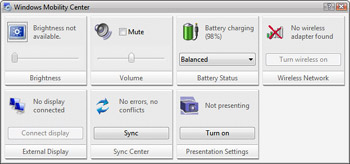
Figure 7-7: Using Windows Mobility Center
| Tip |
If you’ve disabled the display of the Power icon, you won’t be able to access it on the taskbar. Another way to access Mobility Center is to click Start and then click Control Panel. In Control Panel, click Mobile PC, and then click Mobility Center. |
Each configurable setting is featured on a separate control tile. The exact set of control tiles available depends on the type of mobile PC (either a laptop or a Tablet PC) and the mobile PC manufacturer. Typically, laptops have seven standard control tiles and Tablet PCs have seven or eight standard control tiles.
Configuring Your Mobile PC by Using Mobility Center
Most control tiles allow you to make direct adjustments to your mobile PC settings by using available options such as sliders to adjust the brightness, a selection list to change the power plan, or a toggle button to turn on or off presentation settings. The most common control tiles are:
-
Brightness Shows the current brightness setting. If brightness is configurable on your computer, you can use the slider provided to adjust the brightness of the display.
-
Volume Shows the current volume setting. If volume is configurable on your computer, you can use the slider provided to adjust the volume.
-
Battery Status Shows the status of the computer’s battery. You can use the selection list provided to quickly change from one power plan to another. If you’ve created custom power plans, these are available as well.
-
Wireless Network Shows the status or your wireless network connection. Click Turn Wireless On to enable your wireless connection for use.
-
External Display Provides options for connecting a secondary display to give a presentation. If a secondary display is available and you’ve connected the cables, you can click Connect Display to connect to the display.
-
Sync Center Shows the status of file syncing. Click Sync to start a new sync using Sync Center.
-
Presentation Settings Shows whether you are in presentation mode. In presentation mode, the mobile PC’s display and hard disk do not go into sleep mode due to inactivity. Click Turn On to enter presentation mode.
-
Tablet Display Shows the current display orientation. Click Change Orientation to change from landscape to portrait display or vice versa.
If your mobile PC includes other control tiles, the PC manufacturer probably provides them. You can learn more about these control tiles from the documentation that came with the mobile PC or by visiting the manufacturer’s Web site.


