Safeguarding and Enhancing Computer Startup
Safeguarding and Enhancing Computer Startup
By using a pre-operating system boot environment, Windows Vista radically changes the way computers start up. Not only does this change serve to better protect the computer at startup, it also enhances the boot environment by making it extensible—and an extensible boot environment can be customized to the needs of various firmware interfaces.
Getting Started with the Windows Vista Boot Environment
Earlier versions of the Windows operating system use two files, named Ntldr and Boot.ini, to boot into the operating system. Ntldr handles the task of loading the operating system. In Boot.ini, you enter boot loader and operating system options that specify boot partitions according to hard disk controller, SCSI bus adapter, physical disk, and physical partition that should be used. You can add options that control the way the operating system starts, the way computer components are used, and the way operating system features are used.
To better control operating system startup and enhance pre-execution security, Windows Vista defines a pre-operating system boot environment and starts the operating system from within this environment. The boot environment has two key components: Windows Boot Manager and various boot applications that run in the boot environment. You can think of Windows Boot Manager as a mini-operating system that controls your startup experience and enables you to choose which boot application to run. Boot applications are used to load a specific operating system or operating system version. For example, a Windows Boot Loader application loads Windows Vista.
Windows Boot Loader is designed to work with the Boot Configuration Data (BCD) store. Entries in the BCD store contain boot configuration parameters and control how the operating system is started. BCD provides an extensible and interoperable interface for describing boot configuration data. BCD abstracts the underlying firmware, making it easier for Windows Vista to work with new firmware models, such as the Extensible Firmware Interface (EFI). BCD also provides the foundation for a variety of new features in Windows Vista, including the Startup Repair tool and Multi-User Install shortcuts.
The BCD store is contained in a file called the BCD registry file. On BIOS-based operating systems, the BCD registry file is located in the \Boot\Bcd directory of the active partition. On EFI-based operating systems, the BCD registry file is located on the EFI system partition.
On most computers, the BCD store contains multiple entries. If you examine the BCD store on a BIOS-based computer, the entries you see will include:
-
A single Windows Boot Manager entry. There is only one boot manager, so there is only one boot manager entry.
-
A Windows Boot Loader application entry for each Windows Vista operating system installed on the computer. For example, if you have installed two different versions of Windows Vista on different partitions, you will see two Windows Boot Loader entries.
-
A single legacy operating system entry. This entry is not for a boot application. Instead, this entry uses Ntldr and Boot.ini to start up an earlier Windows operating system than Windows Vista. You will use this entry to start up Microsoft Windows Server 2003, Windows XP, and earlier operating systems if they are installed on a computer.
Modifying the Boot Environment
You must have administrative credentials to modify the BCD. Depending on what you want to change, you can use either of the following tools to modify BCD entries:
-
Startup And Recovery The Startup And Recovery dialog box, shown in Figure 10-1, enables you to select the default operating system to start if you have multiple operating systems installed on your computer. You can also specify time-out values for operating system selection lists and recovery options. To access these settings, click Start, and then click Control Panel. In Control Panel, click the System And Maintenance category heading link, and then click System. In the System utility, click Advanced System Settings in the left pane, and then on the Advanced tab of the System Properties dialog box, click Settings under Startup And Recovery.
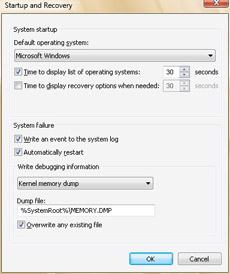
Figure 10-1: Using the Startup And Recovery dialog box to configure basic startup options -
System Configuration utility The System Configuration utility (Msconfig.exe), shown in Figure 10-2, allows you to control boot options. You can use the boot options to configure the computer to set the default operating system, to start the operating system in safe mode, to boot to the Windows prompt without loading the graphical components of the operating system, to force the computer to use standard VGA display settings, and more. To open the System Configuration utility, click Start, type msconfig.exe in the Search box, and then press Enter.
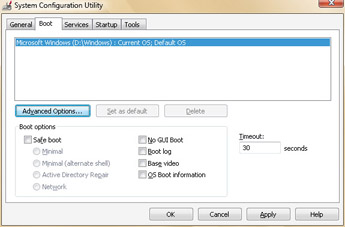
Figure 10-2: Using the System Configuration utility to configure advanced startup options
Developers and administrators have several other options for working with BCD entries. You can use the BCD Windows Management Instrumentation (WMI) provider to create scripts that modify the BCD store. Or you can use the BCDEdit command-line utility to view and manage the BCD store.
You can use BCDEdit to list the contents of the BCD store by following these steps:
-
Click Start, point to All Programs, and then click Accessories.
-
Right-click Command Prompt, and then select Run As Administrator.
Tip You must run the command prompt with administrator credentials to perform administrative tasks at the command line. If you don’t start the command prompt as an administrator, you will be denied permission to perform tasks that require administrator credentials.
-
Type bcdedit at the command prompt.
Listing 10-1 shows an example of the output from BCDEdit. As mentioned previously, this example output includes three entries: one for Windows Boot Manager, one for the Windows legacy operating system loader, and one for Windows Boot Loader. You can enter bcdedit /? at a command prompt to display options for this program.
 |
Windows Boot Manager
--------------------
Identifier:             {bootmgr}
Type:                   10100002
Device:                 partition=C:
Description:            Windows Boot Manager
Locale:                 en-US
Inherit options:        {globalsettings}
Boot debugger:          No
Default:                {current}
Resume application:     {}
Display order:          {ntldr}
                        {current}
Timeout:                30

Windows  Legacy  OS  Loader
------------------------
Identifier:             {ntldr}
Type:                   10300006
Device:                 partition=C:
Path:                   \ntldr
Description:            Legacy(pre-Longhorn) Microsoft Windows Operating System
Boot debugger:          No

Windows Boot Loader
-------------------
Identifier:             {current}
Type:                   10200003
Device:                 partition=D:
Path:                   \Windows\system32\winload.exe
Description:            Microsoft  Windows
Locale:                 en-US
Inherit options:        {bootloadersettings}
Boot debugger:          No
Windows device:         partition=D:
Windows root:           \Windows
Resume application:     {}
No Execute policy:      OptIn
No integrity checks:    Yes
Kernel debugger:        No
EMS enabled in OS:      No
|


