Chapter 7: Working with Laptops andTablet PCs
Chapter 7: Working with Laptops and Tablet PCs
Microsoft Windows Vista includes many enhancements for laptops and Tablet PCs. Because some of these enhancements have been discussed in earlier chapters, this chapter explores changes related to energy saving options, Tablet PC pens, and networked projectors. This chapter also describes Windows Mobility Center and how it can be used to quickly configure common mobile PC options.
| Note |
This book was written using the Windows Vista Beta to provide an early introduction to the operating system. More so than any other area of Windows Vista, the security features discussed in this book are subject to change. Some of the features might not be included in the final product, and some of the features might be changed substantially. |
Optimizing Performance and Saving Energy
Optimizing performance and saving energy is an issue with all computers, but especially with laptops and Tablet PCs, which run on battery power when they are disconnected from primary power. To help manage power consumption, Windows Vista uses power plans. Power plans are similar to the power schemes used in earlier versions of Microsoft Windows, but they are much easier to work with because the configuration interface has been streamlined and made more intuitive. Most power management settings are configured within a specified power plan. A few power options, however, are configured globally.
| Note |
As you read through the sections that follow, keep in mind that mobile PCs have additional options for turning off and shutting down. You can turn off a mobile PC by using the sleep button or by closing the lid. You can shut down a mobile PC by pressing and holding its power button. The way these buttons are used can be configured, as you’ll see. |
Getting to Know the Windows Vista Power Plans
Windows XP includes six power schemes, which are used to automatically manage the monitor, hard disks, standby mode, and hibernation mode, and provides a number of other options to control power settings. Windows Vista simplifies power configuration by providing three preferred plans:
-
Balanced The default (active) plan, which uses a balanced approach to managing power. This plan balances energy consumption and system performance. The processor speeds up when more resources are used and slows down when less are needed.
-
High Performance A high-power usage plan that optimizes the computer for performance. This plan ensures that you always have enough power for using graphics-intensive programs or playing multimedia games.
-
Power Saver A low-power usage plan designed to reduce power consumption. This plan slows down the processor to maximize the battery life.
Tip On laptops and Tablet PCs, the notification area of the taskbar includes a Power icon. Moving the mouse pointer over this icon shows the battery state and the power plan you are using. You can right-click the Power icon to display a shortcut menu with options for quickly accessing the Power Options utility and Windows Mobility Center.
The basic settings of power plans are used to control when a computer turns off its display and when it powers down. By default, both the Balanced plan and the Power Saver plan configure Windows Vista to turn off the display after 20 minutes of inactivity and to power down the computer after 1 hour of inactivity. The High Performance plan, on the other hand, configures Windows Vista to turn off the display after 20 minutes of inactivity but to never automatically power down. You can also create your own power plans.
| Caution |
Standby and hibernation are not configurable as basic power options because Windows Vista handles power down and shutdown in different ways. As discussed in the “ Turning Off and Shutting Down Computers Running Windows Vista” section in Chapter 1, Windows Vista enters a sleep state when you turn off the computer (in most instances), and it is only when you shut down that the power is turned off completely. If you want to configure Hibernation, you’ll need to use the Power Options dialog box. |
| Note |
When running on battery, laptops and Tablet PCs continue to use battery power in the sleep state, but at a very low rate. If the battery runs low on power while the computer is in the sleep state, the current working environment of the laptop or Tablet PC is saved to the hard disk and then the computer is shut down completely. This is similar to the hibernate state used with Windows XP. |
The advanced settings of the power plans are used to control every facet of power management, including both the basic settings and these additional settings:
-
Requiring a password on wakeup
-
Setting power saving mode for wireless adapters and PCI Express links
-
Configuring sleep and hibernate options
-
Defining power button and lid configuration
-
Setting the permitted minimum and maximum processor state
The differences in the advanced settings are what really set the power plans apart from each other. For example, the High Performance plan allows the computer’s processor to always run at 100 percent power consumption; the Balanced plan sets a minimum power consumption rate of 5 percent and a maximum rate of 100 percent; and the Power Save plan sets a minimum power consumption rate of 5 percent and a maximum rate of 50 percent.
 |
Well-run businesses always try to keep an eye on the bottom line to save on unnecessary costs. Using power plans is one way to do this. A typical desktop PC including flat-screen monitor consumes around $100 to $150 (US) worth of electricity per year. If your company has hundreds of PCs, you might be able to save several thousand dollars per year simply by implementing appropriate power plans that turn off the display and put computers to sleep when they aren’t being used.
In a business environment that has Active Directory deployed, power plans can easily be enforced on your desktop PCs using Group Policy. One thing to remember when you do this: the more aggressive (that is, more efficient in regard to energy savings) a power plan is, the greater its potential impact may be on performance for users. For example, a plan that puts computers to sleep after only ten minutes of inactivity may actually make users less productive if they need to keep waking their computers up to use them! The bottom line is that power plans aren’t just for mobile computers like laptops—they’re also great for saving energy costs in large desktop deployments.
Mitch Tulloch
Author and MVP — For more information, see http://www.mtit.com.
|
Selecting and Configuring a Power Plan
You can access and switch between power plans in Control Panel by following these steps:
-
Click Start, and then click Control Panel.
-
In Control Panel, click System And Maintenance, and then click Power Options.
-
As shown in Figure 7-1, you can specify the power plan to use by selecting it in the Preferred Plans list.
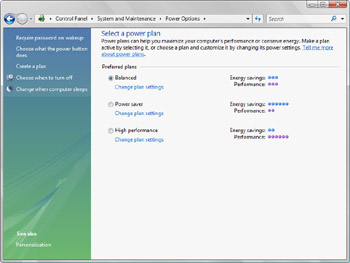
Figure 7-1: Selecting a power plan
You can change the options of a specific power plan by following these steps:
-
Access the Power Options utility in Control Panel.
-
Click Change Plan Settings for the plan you want to work with.
-
Use the Turn Off Display list to specify whether or when the computer’s display automatically turns off (see Figure 7-2).
-
Use the Put Computer To Sleep list to specify whether or when the computer automatically enters sleep mode.
-
If you want to configure advanced power options, click Change Advanced Power Settings.
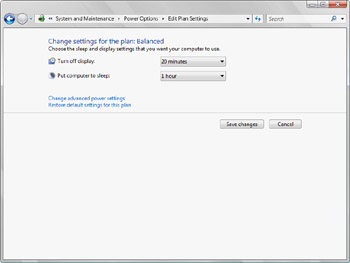
Figure 7-2: Configuring power plan options
Understanding Your Computer’s Power Button and Password Protection On Wakeup Options
Windows Vista allows you to define global Power Button and Password Protection On Wakeup options that apply to all plans. When you work with these settings, keep the following in mind:
-
By default, pressing and holding a computer’s power button shuts down the computer. Pressing a laptop or Tablet PC’s sleep button or closing the lid turns off the computer and puts it in sleep mode. You can also configure a computer so that pressing the power button puts it in either sleep or hibernate mode. When a computer hibernates, the state of the computer is saved to the hard disk and then the computer is shut down completely.
-
By default, all power plans use Password Protection On Wakeup. This option ensures that when your computer wakes up from sleep mode, no one can access your computer without first entering a password to unlock the screen.
You can set the Power Button and Password Protection On Wakeup options by following these steps:
-
Click Start, and then click Control Panel.
-
In Control Panel, click System And Maintenance, and then click Power Options.
-
In the left pane, click Choose What The Power Button Does.
-
Use the When I Press The Power Button list to specify whether the computer should shut down, sleep, or hibernate when the power button is pressed (see Figure 7-3).
-
Use the Password Protection On Wakeup options to specify whether the computer requires a password on wakeup.
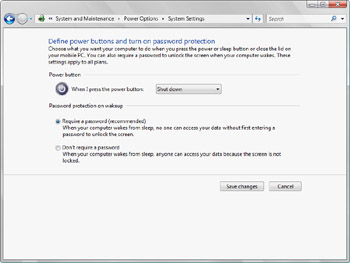
Figure 7-3: Setting Power Button and Password Protection On Wakeup options


