Using the Internet Explorer Safety and Security Features
Using the Internet Explorer Safety and Security Features
The Dynamic Security Protection package in Internet Explorer 7 is a comprehensive suite of safety and security features designed to safeguard the integrity of the computer and your personal information. The components of Dynamic Security Protection can be organized into four key areas:
-
Protected mode features
-
Privacy reporting
-
Phishing filters
-
Parental controls
Protected mode features, privacy reporting, and phishing filters are discussed in the sections that follow. Parental controls are discussed in Chapter 9, “Protecting User Accounts and Using Parental Controls.”
Understanding Internet Explorer Protected Mode
Unlike earlier versions of Internet Explorer, which have access to the operating system and running applications, Internet Explorer 7 operates in a protected mode, which isolates it from other applications in the operating system and prevents add-ons from writing content in any location beyond temporary Internet files folders without explicit user consent. Isolating Internet Explorer from other applications and restricting write locations prevents many types of malicious software from exploiting the computer. To further protect Windows Vista computers from malicious software, many other safeguards are in place, including:
-
Add-on restrictions
-
Domain and URL restrictions
-
Security zone restrictions
Understanding the Internet Explorer Add-Ons Restrictions
By default, ActiveX controls that can run in Internet Explorer 7 are limited. Preinstalled ActiveX controls are disabled by default to prevent potentially vulnerable controls from being exposed to attack. Internet Explorer also has a special Add-Ons Disabled mode in which all browser extensions and add-ons are disabled (except for critical add-ons that are part of the browser core components). To start Internet Explorer in Add-Ons Disabled mode, click Start, point to All Programs, Accessories, System Tools, and click Internet Explorer (No Add-Ons), or rightclick the Internet Explorer icon on the desktop and select Internet Explorer (No Add-Ons).
Internet Explorer 7 also makes its easier for you to manage installed add-ons by using the Manage Add-Ons dialog box, shown in Figure 4-4. These changes allow you to easily determine which add-ons have been downloaded and installed as well as which add-ons are currently loaded in Internet Explorer. Most downloaded add-ons can be easily disabled and deleted as well.
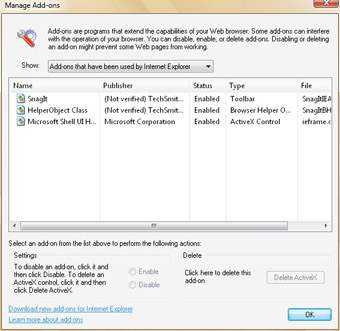
Figure 4-4: The Manage Add-Ons dialog box
To view and manage downloaded add-ons, follow these steps:
-
In Internet Explorer, click Tools, click Manage Add-Ons, and then select Enable Or Disable Add-Ons.
-
In the Show drop-down list, select Downloaded ActiveX Controls.
-
Click the downloaded add-on you want to work with.
-
To disable the add-on, click Disable. The add-on is then prevented from running in Internet Explorer.
-
To delete the downloaded add-on, click Delete ActiveX. The add-on is then permanently removed from Internet Explorer.
Understanding the Internet Explorer Domain and URL Restrictions
Internet Explorer 7 supports both standard English domain names and internationalized domain names. English domain names are domain names represented using the letters A–Z, the numerals 0–9 and the hyphen. Internationalized domain names are domain names represented using native language characters.
Because Internet Explorer supports internationalized domain names, Microsoft wanted to find a way to help ensure that international characters aren’t used to make a site seem like something it isn’t. This is where international domain name anti-spoofing comes into the picture. International domain name anti-spoofing is designed to protect you against sites that could otherwise appear as known, trustworthy sites. If you visit a site that uses characters that are visually similar to a known trusted site, Internet Explorer displays a warning notification.
Another protection added to Internet Explorer has to do with URL handling. Internet Explorer 7 features a redesigned URL handler, which protects the computer from possible URL parsing exploitations, such as URLs that attempt to run commands or URLs that perform suspect actions.
Understanding the Internet Explorer Security Zone Restrictions
As Figure 4-5 shows, security levels and zones are core parts of Internet Explorer’s security features. You can display security options for Internet Explorer by clicking Tools, selecting Internet Options, and then clicking the Security tab in the Internet Options dialog box.
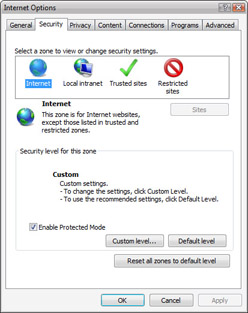
Figure 4-5: Configuring security levels and zone options in Internet Explorer
By default, Internet Explorer always runs in protected mode. You can enable or disable protected mode by selecting or clearing the Enable Protected Mode check box. The standard levels of security that you can use are:
-
High This level is appropriate for sites that might contain harmful content. Internet Explorer runs in its highest protected mode with maximum safeguards and in which less secure features are disabled.
-
Medium-high This level is appropriate for most sites. Internet Explorer prompts you prior to downloading potentially unsafe contents and disabling downloading of unsigned ActiveX controls.
Note Medium-high is a new security level in Internet Explorer 7, and it is also the default level for the Internet security zone.
-
Medium This level is appropriate only for trusted sites. In this mode, Internet Explorer prompts you prior to downloading potentially unsafe contents and disables downloading of unsigned ActiveX controls.
-
Medium-low This level is appropriate only for sites on your internal network. In this mode, Internet Explorer runs most types of content without prompting but does disable downloading of unsigned ActiveX controls.
-
Low This level is appropriate only for sites you absolutely trust, such as secure internal sites. In this mode, Internet Explorer uses minimal safeguards, and most content is downloaded and run without prompts.
To help you manage when the various security levels should be used, Internet Explorer defines four standard security zones:
-
Internet This zone is for Internet sites, except those listed in trusted and restricted zones. By default, the Internet zone uses medium-high security.
-
Local Intranet This zone is for all sites that are on your internal network (intranet). By default, the Local Intranet zone uses medium-low security.
-
Trusted Sites This zone is for all sites that you have specifically identified as trusted and requiring the lowest level of safeguarding against possible damage. By default, the Trusted Sites zone uses a custom security level that is close to medium security.
-
Restricted Sites This zone is for all sites that you have identified as restricted and requiring the highest level of safeguarding against possible damage. By default, the Restricted Sites zone uses high security.
You can change the default behavior by setting a new security level for a zone, if permitted. For example, you could increase security for the Internet zone by setting the security level to High. With any security levels except Restricted Sites, you can set a custom security level as well. With a custom security level, you configure individual security settings for content and downloads in any way desired.
 |
In addition to creating the new medium-high security level, Internet Explorer prevents you from using certain security levels in some security zones. When working with security zones and levels, you’ll need to keep the following in mind:
-
In the Internet security zone, only the high, medium-high, and medium security levels are available. However, you can set a custom security level that is less secure. If you select the Internet zone and click the Default Level button, the security level is set to Medium-High.
-
In the Local Intranet security zone, any of the security levels can be used. If you select the Local Intranet zone and click the Default Level button, the security level is set to Medium-Low.
-
In earlier versions of Internet Explorer, trusted sites use a custom low security level. Now trusted sites use a custom medium security level by default. If you select the Trusted Sites zone and click the Default Level button, the security level is set to Medium.
-
In earlier versions of Internet Explorer, restricted sites use a custom high security level that you can reset to any other security level. Now restricted sites use a nonconfigurable high security level. However, you can set a custom security level that is less secure.
For the Internet and Restricted Sites zones, Internet Explorer displays a warning on the information bar specifying that your security settings put your computer at risk if you use a custom security level lower than the default security level. You can restore the default security level by right-clicking the information bar and then selecting Fix Settings For Me. When prompted, click Fix Settings to restore the defaults.
One of the best ways to manage Internet Explorer security is to use Group Policy. For more information about configuring security levels and using Group Policy with Internet Explorer, refer to the Microsoft Windows Vista Administrator’s Pocket Consultant (Microsoft Press, 2006).
William Stanek
Author, MVP, and series editor for the Microsoft Press Administrator’s Pocket Consultants
|
Managing Cookies and Privacy Reporting
Cookies are used to store information on your computer so that the information can be retrieved in other pages or in other browser sessions. Many Web sites use cookies to store information you’ve entered into online forms, such as an e-commerce site that remembers your name and e-mail address. Cookies might also be used to store your user name if you’ve logged on to a site, your site preferences, and other information about you. Internet Explorer privacy settings seek to ensure that the information tracked by cookies is used only by the appropriate parties.
In the Internet zone, privacy levels are used to restrict and block certain types of cookies. Internet Explorer distinguishes between the site you are browsing and other sites from which content might come. The Web site that you are currently visiting is considered a first party. Any other Web site from which content on a page might be displayed is considered a third party. For example, if you are browsing a page on www.msn.com, you might find that some of the content comes from stj.msn.com. In this instance, www.msn.com is a first party and stj.msn.com is a third party. By clicking Page and then clicking Web Page Privacy Policy, you can display a privacy report for the current page. As Figure 4-6 depicts, this report shows:
-
Whether cookies were restricted or blocked based on your privacy settings.
-
Which Web sites have content on the page.
-
Whether a cookie for an individual site for accepted, restricted, or blocked.
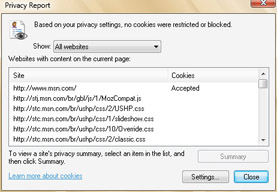
Figure 4-6: A Web privacy report
When you are viewing the Web privacy report, you can click the Settings button to display the Internet Options dialog box with the Privacy tab selected. According to the privacy rules, cookies set by first-party sites are subject to different constraints than cookies set by third-party sites. By default, Internet Explorer uses a Medium privacy level, as shown in Figure 4-7. The Medium privacy level:
-
Blocks third-party cookies that do not have a compact privacy policy.
-
Blocks third-party cookies that save information that can be used to contact you without your explicit consent.
-
Restricts first-party cookies that save information that can be used to contact you without your implicit consent.
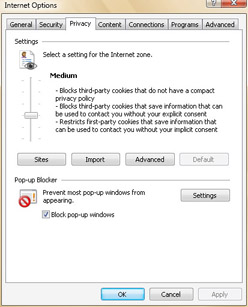
Figure 4-7: Viewing and setting the privacy level
In the Internet Options dialog box, you can configure other privacy levels using the options of the Privacy tab, including:
-
Block All Cookies Blocks all cookies from all Web sites, and blocks reading of existing cookies by Web sites.
-
High Blocks all cookies from Web sites that do not have a compact privacy policy, and blocks cookies that save information that can be used to contact you without your explicit consent.
-
Medium High Blocks third-party cookies that do not have a compact privacy policy. Blocks third-party cookies that save information that can be used to contact you without your explicit consent. Blocks first-party cookies that save information that can be used to contact you without your implicit consent.
-
Medium Blocks third-party cookies that do not have a compact privacy policy. Blocks third-party cookies that save information that can be used to contact you without your explicit consent. Restricts first-party cookies that save information that can be used to contact you without your implicit consent.
-
Low Blocks third-party cookies that do not have a compact privacy policy. Restricts third-party cookies that save information that can be used to contact you without your implicit consent.
-
Accept All Cookies Saves cookies from any Web site.
Protecting Your Computer from Phishing
Phishing is a technique whereby a site attempts to collect personal information about you without your knowledge or consent. Internet Explorer 7 has a phishing filter that proactively warns you against potential or known fraudulent sites and blocks the site if appropriate. You can manage this feature by clicking Tools, Phishing Filter.
| Note |
The phishing filter is always on by default. To turn off this feature, you can select Tools, Phishing Filter, Turn Off Automatic Website Checking. You can then manually check sites if desired by using the Check This Website option. |
When you browse sites on the Internet, a warning icon is displayed on the status bar to help remind you when you aren’t at a well-known site. The warning icon doesn’t mean that the site has a known problem, rather it means that the site is probably a smaller and less widely known site. Most commercial sites, such as MSN.com and Microsoft.com, are considered well-known sites, and when you visit these sites in Internet Explorer, you won’t see a warning icon.


