Tapping and Flicking Your Tablet PC Pen
Tapping and Flicking Your Tablet PC Pen
Tablet PCs use pens as input devices. Pens can be used to interact with items on the screen by tapping and flicking.
Tapping Your Pen
With pen taps, you can easily perform actions equivalent to using a mouse. Double-tapping the pen on the screen is equivalent to a double-click mouse action. Pressing and holding the pen to the screen is the equivalent to a right-click mouse action. You can also press the pen button to perform a right-click. On some tablet pens, you can grip the top of the pen to erase ink from the screen. By default, each tapping action of the pen is accompanied by some type of visual feedback.
You can set pen tap options by following these steps:
-
Click Start, and then click Control Panel.
-
In Control Panel, click Hardware And Sound, and then click Pen And Input Devices.
-
As shown in Figure 7-4, the Pen And Input Devices dialog box is displayed, with the Pen Options tab selected.
-
To configure double-tapping, double-click Double-Tap in the Pen Action section. You can then adjust how quickly you can tap the screen and the distance the pointer can move between tapping.
-
Click OK.
-
To configure pressing and holding, double-click Press And Hold in the Pen Action section. You can then change the amount of time you must press and hold the pen to the screen to perform the equivalent of a right-click and the amount of time to perform the right-click action.
-
Click OK to save the settings.
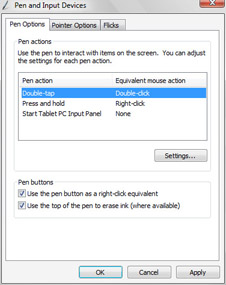
Figure 7-4: Setting pen tap options
To view or change visual feedback options, follow these steps:
-
Click Start, and then click Control Panel.
-
In Control Panel, click Hardware And Sound, and then click Pen And Input Devices.
-
In the Pen And Input Devices dialog box, click the Pointer Options tab, as shown in Figure 7-5.
-
A different type of visual feedback is provided for each pen tap action. If you don’t want to see visual feedback for a tap action, clear the related check box.
-
If you don’t want pen cursors to be shown instead of mouse cursors when you use the pen, clear the Show Pen Cursors Instead Of Mouse Cursors When I Use My Pen check box.
-
Click OK to save the settings.
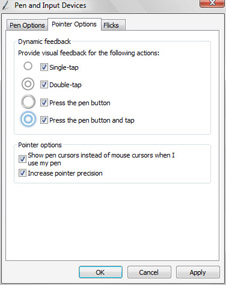
Figure 7-5: Setting visual feedback options
Flicking Your Pen
You can easily perform navigation and editing actions by flicking the pen in a specific direction. Navigational and editing flicks are configured separately. By default, only the following navigational flicks are enabled:
-
Flick left to go back—equivalent to clicking the Back button in Windows Explorer.
-
Flick right to go forward—equivalent to clicking the Forward button in Windows Explorer.
-
Flick up to scroll up—equivalent to using a scroll bar to scroll up the page in an extended document.
-
Flick down to scroll down—equivalent to using a scroll bar to scroll down the page in an extended document.
If you enable editing flicks, the default configuration is as follows:
-
Flick up-left to copy.
-
Flick up-right to paste.
-
Flick down-left to undo.
-
Flick down-right to delete.
You can set pen flick options by following these steps:
-
Click Start, and then click Control Panel.
-
In Control Panel, click Hardware And Sound, and then click Pen And Input Devices.
-
In the Pen And Input Devices dialog box, select the Flicks tab, as shown in Figure 7-6.
-
Use the Active Flicks Set options to configure the types of flicks allowed. If you want both navigational and editing flicks, select the Navigational Flicks And Editing Flicks option.
-
Use the Sensitivity slider to adjust how easily pen flicks are recognized. In most cases, you’ll want the sensitivity to be midway between relaxed and precise. However, if you are having issues with accidental flicks, you might want to use a more precise setting.
-
Click OK to save the settings.
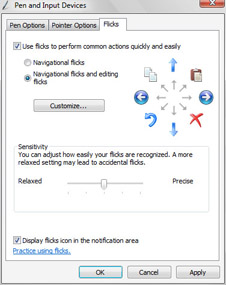
Figure 7-6: Setting pen flick options


