Connecting to Networked Projectors
Connecting to Networked Projectors
Increasingly, meeting rooms and conference centers have networked projectors set up for use during presentations. Before you use this type of projector, you must connect your laptop or Tablet PC to the local area network (LAN). Often this is as simple as plugging in an Ethernet cable to your laptop or ensuring that you are using the correct wireless network connection.
Once you are connected to the network in the conference or meeting room you are using, you can connect to the networked project by using the Connect To A Network Project Wizard, which walks you through the steps of finding the projector on the network and establishing a connection. To start and use the Connect To A Network Project Wizard, follow these steps:
-
Click Start, point to All Programs, Accessories, and then click Connect To A Network Projector.
-
Next specify how you want to connect to the projector, as shown in Figure 7-8.
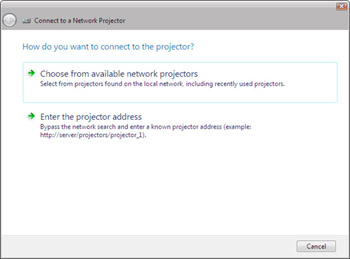
Figure 7-8: Specifying how to connect to the projector -
If you want to select from projectors found on the local network, click Choose From Available Network Projectors. The wizard searches for projectors on the network and returns its results along with a list of any projectors you’ve used recently. Click the projector you want to use, provide the access password for the projector if necessary, and then click Next.
-
If you know the network address of the projector, click Enter The Projector Address. On the Enter The Network Address Of A Projector page, shown in Figure 7-9, type the network address of the project, such as http://intranet.cpandl.local/projectors/ projector18. Enter any required access password, and then click Next.
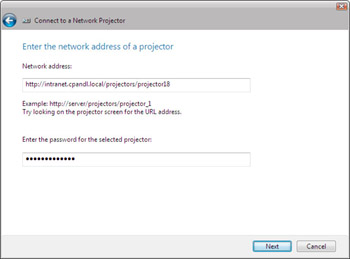
Figure 7-9: Specifying the project address and password -
After you’ve established a connection to the projector, click Finish to exit the wizard and begin using the projector.
Tip Often the network address is written on the projector itself. The password might be controlled, however, so you’ll need to know this beforehand.


