Getting Started with TPM Management
Getting Started with TPM Management
To take advantage of the Trusted Platform Module Services architecture, a computer running Windows Vista must be equipped with a compatible TPM and compatible BIOS. Windows Vista supports TPM version 1.2 and requires Trusted Computing Group (TCG)–compliant BIOS. BIOS that is TCG-compliant is BIOS that supports the Static Root of Trust Measurement specification as defined by the Trusted Computing Group. You can learn more about this specification at http://www.trustedcomputinggroup.org.
| Note |
The TPM Services architecture in Windows Vista provides the basic features required to configure and deploy TPM-equipped computers. This architecture can be extended by using BitLocker Drive Encryption, which is discussed in detail in the “Using BitLocker Drive Encryption” section later in this chapter. |
You manage the TPM by using the Trusted Platform Module Management console, shown in Figure 11-1. To start this console, follow these steps:
-
Click Start, point to All Programs, Accessories, and then click Run.
-
Type tpm.msc in the Open text box, and then click Enter.
-
Manage the computer’s TPM configuration by using the commands listed under Actions.
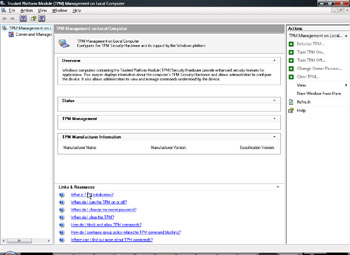
Figure 11-1: Managing the TPM by using the Trusted Platform Module Management console


