Getting into Your Multimedia
Getting into Your Multimedia
Windows Vista has more features to support multimedia than any earlier version of Windows. Depending on which version of Windows Vista you are using, your computer might include Windows Media Player 11, Windows Movie Maker 6, Windows Photo Gallery, or any combination of these three programs.
Getting Started with Windows Media Player
Windows Media Player 11 plays digital media, including music and videos from files on your computer as well as CDs, DVDs, and other media you insert. It can also serve as an Internet radio player.
The first time you start Windows Media Player by clicking Programs, All Programs, Windows Media Player, you’ll have to specify how Windows Media Player should be configured. As shown in Figure 6-8, you can either accept the default configuration or set a custom configuration. The default configuration works well in most instances.
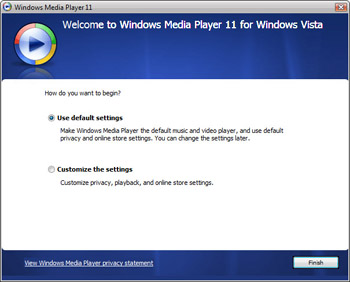
Figure 6-8: Configuring Windows Media Player for the first time
As Figure 6-9 shows, the Windows Media Player main window has been streamlined considerably from earlier versions. Not only does this make working with Windows Media Player more intuitive, but you’ll find that it is also much easier to organize your media. The key interface enhancements you should note are:
-
Navigation toolbar The Navigation toolbar is the top toolbar. It provides browserlike Back and Forward buttons that let you navigate to pages you’ve viewed previously. It also has quick access buttons: Now Playing, Library, Rip, Burn, Sync, and Musicmatch.
-
Address toolbar The Address toolbar allows you to navigate through the media available on your computer. It includes View Options and Layout Options buttons as well as a Quick Search box and a Show/Hide List Pane button.
-
Controls toolbar The Controls toolbar is in the lower portion of the main window. It provides basic controls for playing music, videos, and pictures as well as going to previous or next items. The buttons are Turn Shuffle On/Off, Turn Repeat On/Off, Stop, Previous, Play, Next, Mute, Volume Control, View Full Screen, and Switch To Skin Mode.
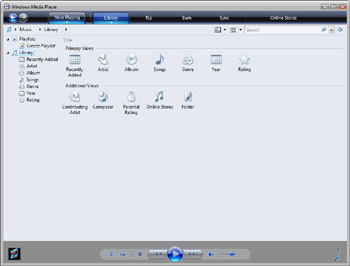
Figure 6-9: Using Windows Media Player 11
Navigating the Windows Media Player Quick Access Buttons
Figure 6-10 shows the Navigation toolbar in Windows Media Player 11. The Navigation toolbar’s quick access buttons are used as follows:
-
Now Playing Allows you to watch what’s currently playing.
-
Library Allows you to create play lists and manage content.
-
Rip Allows you to copy music from audio discs to your computer.
-
Burn Allows you to burn files to discs.
-
Sync Allows you to synchronize content to and from your portable devices.
-
Musicmatch Allows you to find online music sources.

Figure 6-10: The Navigation toolbar in Windows Media Player 11
If you click the lower portion of any quick access button, you’ll see an options menu that provides additional related options. For example, the Rip options menu allows you to set the default format and bit rate for the music you are ripping. The default format is Windows Media Audio, and the default bit rate is 128 kilobits per second (Kbps).
| Tip |
To get the best quality, you should set the bit rate to 192 Kbps. However, this increases the size of ripped files on your hard drive. |
Searching and Browsing Media Categories in Windows Media Player 11
Figure 6-11 shows the Address toolbar in Windows Media Player 11. Like the Address toolbar in Windows Explorer, the Address toolbar in Windows Media Player displays your current location as a series of links separated by arrows. This allows you to see your current location in relation to the locations you’ve navigated.

Figure 6-11: The Address toolbar in Windows Media Player 11
On the far left of the Address path is the Select A Category icon. This icon depicts the type of media you are currently working with. You’ll see different icons for each type of media you can work with, including:
-
Music
-
Pictures
-
Video
-
Recorded TV
-
Other Media
You navigate each link in the Address path in several different ways:
-
You can access a top-level page anywhere along the path that’s displayed on the Address bar by clicking the link for that view page. For example, you could open the Music page by clicking the Music link.
-
You can access a second-level page of any page displayed on the Address bar by clicking the arrow to the right of the page icon. This displays a list of the second-level pages for the currently selected page. To access one of these pages, you click the desired page in the list. For example, if you’re working with music and click the My Library options button, you can view your music organized by Artist, Album, Songs, Genre, Parental Rating, Folder, and so on.
At the far right of the Address toolbar is the Show/Hide List Pane button. Click this button to display your current playlist, where you can drag items to the list to add them. Click this button again to close the current playlist view.
The Address toolbar also includes a Search box. You can use the Search box to quickly search for the media information associated with the currently selected type of media. The Search feature matches complete or partial words included in the media information.
You can search your media by completing the following steps:
-
Click in the Search box.
-
Type your search text.
Windows Media Player returns matches as you type.
Click the Clear button to clear the search results.
Playing and Previewing Your Media
Figure 6-12 shows the Controls toolbar in Windows Media Player 11. The Controls toolbar is displayed in the lower portion of the main window. From left to right, the controls on the toolbar are:
-
Turn Shuffle On/Off Toggles the shuffle feature on or off.
-
Turn Repeat On/Off Toggles the repeat feature on or off.
-
Stop Stops playing or displaying the current file.
-
Previous Goes to the previous file. If you click and hold this button, you can rewind.
-
Play Plays the current file.
-
Next Goes to the next file. If you click and hold this button, you can fast forward.
-
Mute Mutes the sound.
-
Volume Control Adjusts the sound level.
-
View Full Screen Displays player in full screen mode, when allowed.
-
Switch To Skin Mode Displays mini-player with custom framing.

Figure 6-12: The Controls toolbar in Windows Media Player 11
Getting Started with Windows Movie Maker
Windows Movie Maker lets you create movies using pictures, videos, narration, and music. You start Windows Movie Maker by clicking Programs, All Programs, Windows Movie Maker. As Figure 6-13 shows, the main window has three areas:
-
Tasks pane Provides quick access to common tasks for importing, editing, and publishing movies.
-
Work area Provides the main work area, which you can divide into multiple view areas depending on the tasks you are performing.
-
Storyboard/timeline Allows you to organize the pictures, videos, narration, and music included in the movie according to a storyboard or timeline.
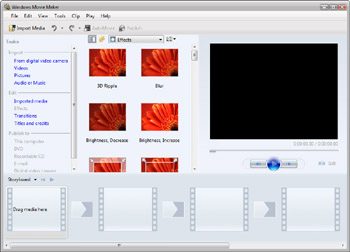
Figure 6-13: Using Windows Movie Maker
Movies are managed as projects. Once you open a project or create a new project, you can import pictures, videos, narration, and music for use in the project and then create your movie by putting these elements on the storyboard or project timeline in the order in which you want them to appear.
You can add titles and credits to a project as well. Titles can be inserted at the beginning of the project, before a selected clip, or as an overlay of a selected clip. Credits are added to the end of a project. When you have finished creating the movie, you can save it and then publish it so that other people can play your movie.
Getting Started with Windows Photo Gallery
Windows Photo Gallery allows you to view, edit, organize, and share pictures and videos. To start Windows Movie Make, click Programs, point to All Programs, and click Windows Photo Gallery. As Figure 6-14 shows, the main window has four key elements:
-
Navigation toolbar The Navigation toolbar is the top toolbar. It provides browser-like Back and Next buttons that let you navigate to pages you’ve viewed previously. It also has quick access buttons: File, Fix, Info, Print, Create, E-Mail, and Open.
-
Views pane Provides quick access for organizing and displaying pictures and videos by type, tags, date, ratings, and so on.
-
Preview/work area Displays thumbnail previews of pictures and videos when you select a particular category or type, and also provides the main work area for when you are performing tasks such as fixing a selected picture.
-
Controls toolbar The Controls toolbar is displayed in the lower portion of the main window. Basic controls are provided for manipulating a selected picture or video. You can change the default thumbnail size and the display size. You can also rotate pictures clockwise or counterclockwise.
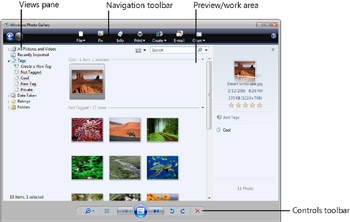
Figure 6-14: Using Windows Photo Gallery
Navigating the Windows Photo Gallery Quick Access Buttons
Figure 6-15 shows the Navigation toolbar in Windows Photo Gallery. The Navigation toolbar’s quick access buttons are used as follows:
-
File Allows you to add files and folders and manipulate existing files.
-
Fix Allows you to edit a selected picture using auto adjust, adjust exposure, adjust color, crop picture, and fix red eye options.
-
Info Displays an Information pane for a selected picture or video that provides details about the related file. You can use the Information pane to add a star rating, to add tags as keywords, and to add captions to a selected picture or video.
-
Print Allows you to print a selected picture or video.
-
Create Allows you to create a DVD or movie using selected pictures and videos.
-
E-Mail Allows you to e-mail selected pictures and videos.
-
Open Allows you to open a selected picture or video in another program.

Figure 6-15: The Navigation toolbar in Windows Photo Gallery
Searching and Browsing Pictures and Videos in Windows Photo Gallery
The Views pane, shown as a separate panel on the left side of Windows Photo Gallery, and the Quick Search box, shown in the right corner of Windows Photo Gallery, provide quick access for organizing and displaying pictures and videos by type, tags, date, ratings, and so on.
The Views pane includes several top-level categories and subcategories. Selecting a category or subcategory displays related pictures, videos, or both. The categories are used as follows:
-
All Pictures And Videos Under the All Pictures And Videos category are Pictures and Videos subcategories. These subcategories allow you to return quickly a list of all videos or all pictures in folders that Windows Photo Gallery has been configured to use.
-
Recently Imported Select Recently Imported to see a list of pictures and videos recently imported from a digital camera or other media source.
-
Tags Under the Tags category, you’ll find a list of all the tags you’ve used with pictures and videos. Tags are keywords that aid in searching and organizing your media. Clicking Create A New Tag allows you to create a new tag to be used as a keyword. Clicking Not Tagged displays all pictures and videos that you haven’t tagged. You can drag a picture or video from the Not Tagged category to a named tag category to add the tag to that item.
-
Date Taken Use Date Taken to navigate through pictures and videos according to the year, month, and date they were created.
-
Ratings Use Ratings to navigate through pictures and videos according to the star rating you’ve assigned to them. Assign a low star rating to your least favorite pictures, and a high start rating to your favorite pictures.
-
Folders Use Folders to determine which folders are associated with Windows Photo Gallery and to navigate through pictures and videos using views of these folders.
 |
Digital cameras make it easy to take thousands of pictures. It gets hard when you want to find pictures, though, because they’re probably named something like IMG_1322 or DSC3243.
Tags make it much easier to find your pictures. When you load your pictures from your camera, Windows Vista prompts you to assign a tag to that batch of pictures. So, pictures will have tags by default. You can also use Windows Photo Gallery to drag-and-drop thumbnails to assign tags to pictures. Your pictures still won’t have useful names, but it won’t matter because you can search for and group pictures according to their tags.
Tony Northrup
Author, MCSE, and MVP—For more information, see http://www.northrup.org.
| Tip |
By default, only the %UserProfile%\Pictures folder and the Public Pictures folders are used by Windows Photo Gallery. To specify that additional folders should be used, right-click the Folders category in the Views pane, and then select Add Pictures And Videos To Gallery. |
|
The work area of Windows Photo Gallery includes a Thumbnail Views button and a Quick Search box. You can use the Thumbnail Views button to display view and grouping options. You can use the Search box to quickly search for pictures and videos. The Search feature matches complete or partial words in the media information associated with pictures and videos. This allows you to search on file name, tags, and other information associated with pictures and videos.
You can search your media by completing the following steps:
-
Click in the Search box.
-
Type your search text.
Windows Movie Maker returns matches as you type.
Click the Clear button to clear the search results.
Playing and Previewing Your Pictures and Videos
Figure 6-16 shows the Controls toolbar in Windows Photo Gallery. The Controls toolbar is displayed in the lower portion of the main window. From left to right, the controls on the toolbar are:
-
Magnify Used to magnify or shrink the thumbnail views of currently displayed items.
-
Set Default Thumbnail Size Restores the default thumbnail size.
-
Stop Stops playing or displaying the current file.
-
Previous Goes to the previous picture or video.
-
Play Slide Show Plays a slide show of the currently listed pictures or videos.
-
Next Goes to the next picture or video.
-
Rotate Counterclockwise Rotates the selected picture or video counterclockwise.
-
Rotate Clockwise Rotates the selected picture or video clockwise.
-
Delete Deletes the selected picture or video.
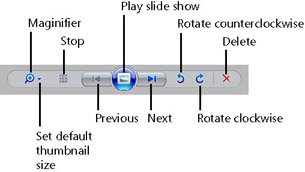
Figure 6-16: The Controls toolbar in Windows Photo Gallery


