Introducing Windows Security Center
Introducing Windows Security Center
Windows Security Center provides a one-stop destination for managing essential security features. To access Windows Security Center, click Start, and then click Control Panel. In Control Panel, click Security, and then click Security Center.
The way Windows Security Center works depends on whether your computer is configured for use as a member of a domain or as a stand-alone computer in a workgroup. In a domain, administrators rather than individual users manage the computer’s security settings, and Windows Security Center doesn’t report the current status of security features. In a workgroup, individual users can manage the security settings, and Windows Security Center reports the current status of security features, as shown in Figure 13-1.
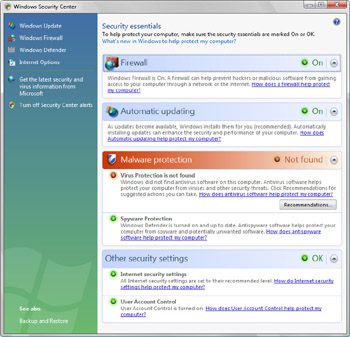
Figure 13-1: Using Windows Security Center
In workgroup configurations, Windows Security Center tracks security features using separate options panels that you can click to expand and to view additional details. The features tracked are:
-
Firewall Shows the status of the computer’s firewall. A firewall protects a computer by preventing unauthorized users from connecting over a network or from the Internet. If the firewall is off or in an unknown state, a red button is displayed next to the features that are turned off and you’ll see a Recommendations button when you expand the Firewall panel. Click the Recommendations button to display the Firewall Recommendations dialog box shown in Figure 13-2. You can click Turn On Windows Firewall to enable Windows Firewall. Or you can select I Have A Firewall Solution That I’ll Monitor Myself.
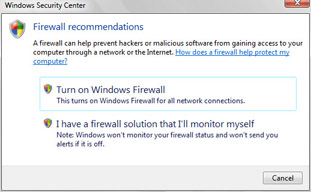
Figure 13-2: Getting firewall recommendations -
Automatic Updating Shows the status of automatic updating. Automatic updates help keep a computer up to date by examining the computer’s current state and determining whether there are updates from Microsoft that need to be applied. If automatic updating is not configured, you’ll see a Turn On Now button when you expand the Automatic Updating panel. Click the Turn On Now button to turn on Windows Update, and use the default (recommended) mode, in which updates for the operating system are downloaded and installed automatically. See Chapter 14, “Supporting Windows Vista,” for more information about Windows Update.
-
Malware Protection Shows the overall status of your computer’s malicious software protection, which includes both antivirus and antispyware software. When working with these components, keep the following in mind:
-
Windows Vista does not include antivirus software. You’ll need to use a thirdparty solution. If antivirus software is not found or is in an unknown state, you’ll see a Not Found warning. Click the Recommendations button to display the Antivirus Recommendations dialog box shown in Figure 13-3. To clear the warning, you click I Have An Antivirus Program That I’ll Monitor Myself.
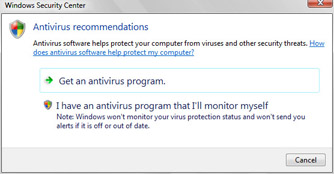
Figure 13-3: Getting antivirus recommendations -
Windows Defender is included in Windows Vista to provide antispyware protection. If Windows Defender is turned off, you’ll see a Not Found warning. Click the Recommendations button to display the Antispyware Recommendations dialog box shown in Figure 13-4. You can click Turn On Spyware Scanning For Windows Defender to turn on Windows Defender. Or you can select the I Have An Antispyware Program That I’ll Monitor Myself.
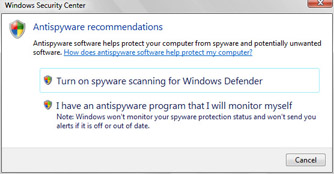
Figure 13-4: Getting antispyware recommendations -
Other Security Settings Shows the overall status of Internet security settings and User Account Control. You’ll see a warning if Internet security settings are set below their recommended levels or if user accounts are configured in a way that increases risk. The recommendations offered depend on the settings that put the computer at risk.
In both domain and workgroup configurations, the left panel of Windows Security Center provides the following links:
-
Windows Update Opens the Windows Update utility in Control Panel. This window shows the date of the most recent check for updates, the date on which the updates were last installed, and the current update configuration. You can also use this window to check for updates.
-
Windows Defender Opens Windows Defender if this feature is turned on. This window lists whether Windows Defender has detected any harmful or unwanted software, the date of the last scan, the scan’s schedule, the spyware signatures version, and whether you have turned on real-time protection. If Windows Defender is turned off, you’ll see a warning prompt. You’ll need to click Turn On And Open Windows Defender to access Windows Defender.
-
Windows Firewall Opens the Windows Firewall dialog box. This dialog box allows you to turn on or off the firewall and to set firewall options.
-
Internet Options Opens the Internet Properties dialog box with the Security tab selected so that you can set security options for the Internet, local intranet, trusted sites, and restricted sites.
-
Get The Latest Security And Virus Information From Microsoft Opens Internet Explorer and accesses the Security Update page on the Microsoft Web site, where you can read about the latest security threats and can download security tools that protect your computer against malicious software.


