Using the Menu Bar
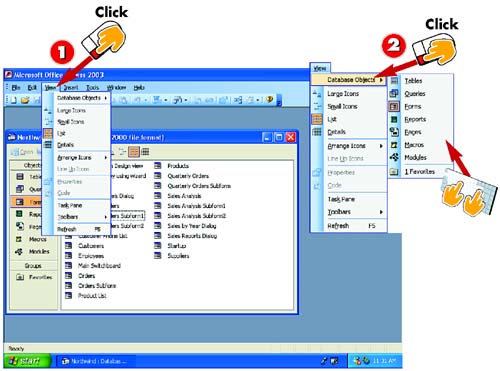

Click the View option in the menu bar. The View menu opens.

Click the Database Objects entry. A submenu appears, listing additional commands; click any of these commands to select them.

Press the Esc key on your keyboard or click anywhere outside the open menu. Doing so closes the menu without making a selection.
INTRODUCTION
The menu bar, located at the top of the Access window, displays Access's menus. Simply put, a menu is a list of commands or actions that you can perform.
TIP
Using Personalized Menus
By default, Access displays in its menus only the commands you use most frequently. You'll see an arrow at the bottom of each menu, which you can click to display a complete list of commands. To always display full menus (as shown in this book), open the Tools menu and choose Customize. Click the Options tab, click the Always show full menus option to select it, and click OK.
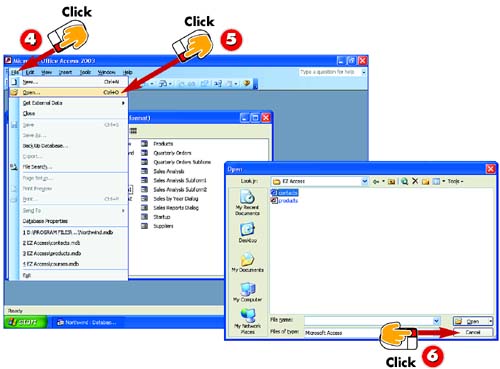

Click the File option in the menu bar. The File menu opens.

Click the Open command. Notice that this command is followed by an ellipsis; this indicates that selecting the command will open a dialog box that prompts you for additional information.

The Open dialog box opens. Here you can select the folder that contains the file you want to open, and then the file. Click Cancel to close the dialog box without opening a file.
TIPKeyboard Shortcuts Common actions have special keyboard shortcuts. For instance, to copy a selection, you can press Ctrl+C; press Ctrl+X to cut a selection; and press Ctrl+V to paste a selection. |


