Changing the Font
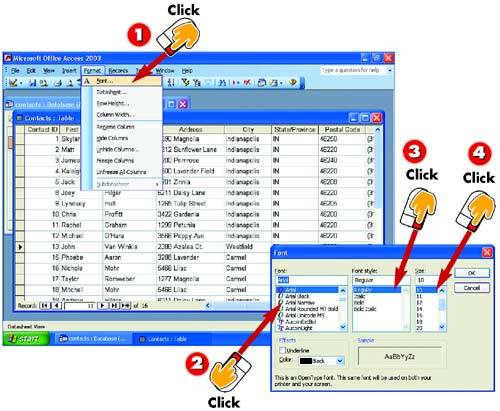

Open the Format menu and choose Font.

The Font dialog box opens. Click a font in the Font list. (You may need to click the scroll arrows to the right of the list to view all the available fonts.)

Click a font style (regular, bold, italic, or bold and italic) in the Font style list.

Click a font size in the Size list.
INTRODUCTION
Access uses Arial as the default font for entries. If you prefer a different typeface, you can change the font. You can also change the selected font's size and style.
TIP
Font Sizes
Fonts are measured in points, and there are 72 points to an inch. Therefore, the larger the point size, the bigger the font's text size.
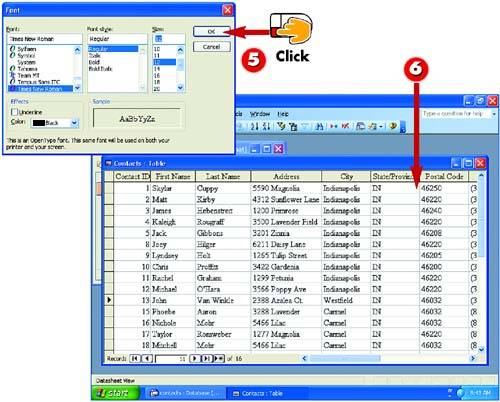

The Sample of the Font dialog box shows a preview of your changes. If you are satisfied with your font choices, click OK to make the changes.

The datasheet is formatted using your font selections.
TIPUndo Command Doesn't Work The Edit, Undo command will not undo this formatting change. If you want to undo the change, follow the steps in this task, selecting the original font, style, and size. |
TIPUnderlining You can choose to underline your entries. To do so, check the Underline check box in the Effects area of the Font dialog box. Then select an underline color from the Color drop-down list. |


