Creating a Yes/No Field
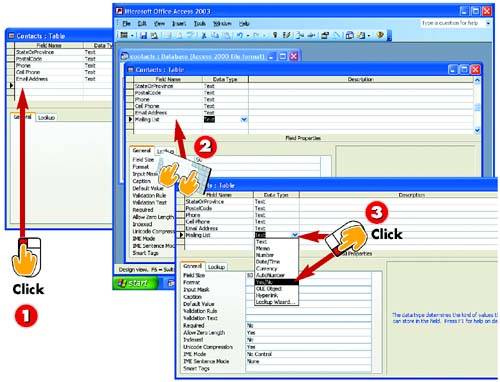

After you've opened the table you want to change in Design view, click in the first empty row or insert a new row.

Type a name for the field (in this example, Mailing List) and press Tab to move the insertion point to the Data Type column.

Click the down arrow that appears in the Data Type column and click the Yes/No option in the list that appears.
INTRODUCTION
In Part 2, you learned how to create a table, but not about all the different types of fields you can add to a table. One such field type is the Yes/No field, useful for situations in which there are only two possible valid entries for a field: yes or no, true or false, or on or off. For example, you might use a Yes/No field to indicate whether a customer wants to be on a mailing list. You can add this type of field when you first create your table or later (as covered here).
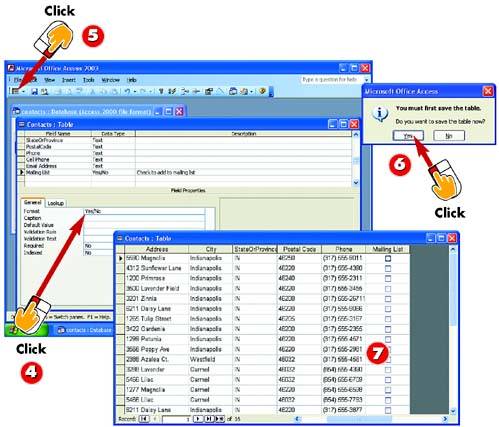

Make changes as needed to the field properties in the property sheet. For example, change the Format property from Yes/No to True/False or On/Off.

Click the View button on the Standard toolbar in the main Access window to toggle to Datasheet view.

Before it changes to Datasheet view, Access prompts you to save the changes to the table; click Yes to do so.

The Yes/No field is added. Here it is formatted as a check box; click the check box to select it for Yes, or leave it blank for No.
TIPYes/No Field Displays To change how a Yes/No field is displayed in the Datasheet and forms, click the Lookup tab in the property sheet, open the Display Control drop-down list, and choose Check Box, Text Box, or Combo Box. |


