Formatting the Datasheet
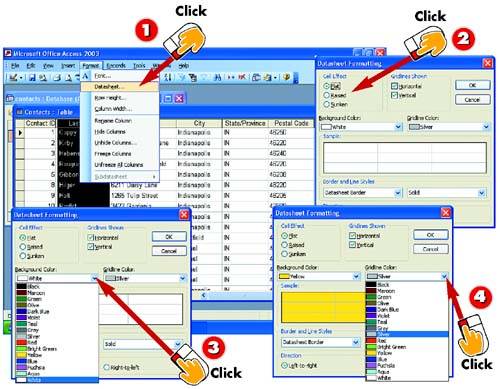

Open the Format menu and choose Datasheet.

The Datasheet Formatting dialog box opens. Choose Flat, Raised, or Sunken in the Cell Effect area to specify how cells in the datasheet should look.

To apply a background color to the datasheet (the default is white), click the down arrow next to the Background Color field and choose a color from the list that appears.

To change the color of the datasheet's gridlines, click the down arrow next to the Gridline Color field and choose a color from the list that appears.
INTRODUCTION
If you do not like the plain appearance of the datasheet (that is, the view of the table you use for entering records), you can modify its look. For example, you can apply a cell effect, turn on or off gridlines, and use background colors. These changes affect only the open datasheet.
TIP
Hiding Gridlines
Gridlines appear in the datasheet by default. To turn them off, uncheck the Horizontal check box, the Vertical check box, or both in the Gridlines Shown area of the Datasheet Formatting dialog box. You might do this when printing the datasheet.
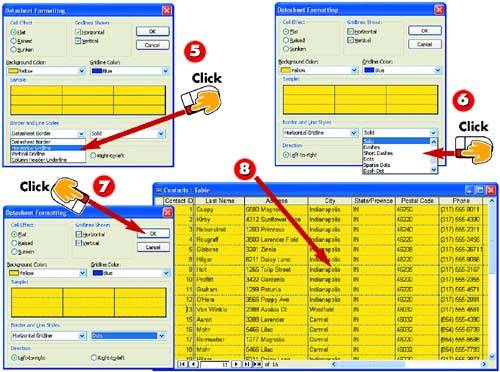

To change the line style of the datasheet border, gridlines, or column heading underline, select the item to change from the leftmost drop-down list in the Border and Line Styles area.

Click the down arrow next to the rightmost field in the Border and Line Styles area and select a line style for the datasheet border, gridline, or column heading underline.

The Sample area of the Datasheet Formatting dialog box shows a preview of your changes. If you are satisfied with the datasheet's new appearance, click OK.

The datasheet is formatted with your selections.
TIPReversing the Column Order To reverse the column order (putting the first column last and last column first), select the Right-to-left option button in the Direction area of the Datasheet Formatting dialog box. |


