Creating a Database Table from Scratch
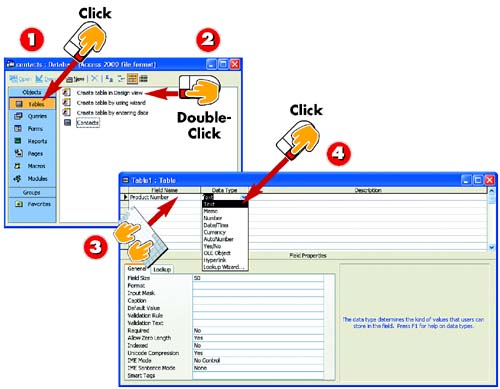

After you've created or opened the database for which you want to create a table, click the Tables option in the Objects bar in the database window.

Double-click the Create table in Design view option.

A blank table opens in Design view, containing Field Name, Data Type, and Description columns. In the Field Name column, type a name for the first field and then press Tab.

To change the data type from the default, Text, click the down arrow in the Data Type field and choose a new data type from the list that appears. Then press Tab.
INTRODUCTION
There may be times when you want to create a table from scratch instead of using Access's Table Wizard. In this case, you create a blank table and then create each of the fields by hand?typing a field name, selecting a data type, and, optionally, entering a field description. You can include as many fields as needed in your table.
TIP
Understanding Field Names
You must use a unique name for each field in your table, and it's a good idea to use descriptive names that remind you of the contents of that field. A field name can include as many as 64 characters.
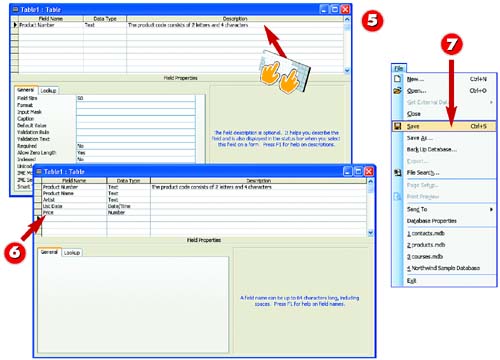

Optionally, type a field description in the Description column. This text appears in the Table window's status bar when you are entering data and this field is selected.

Repeat steps 3?5 as needed to continue adding fields.

To save the table, open the File menu and choose Save.
TIP
Understanding Data Types
For more information about the available data types, see "Setting a Field's Data Type" later in this part. In addition, Part 4 covers creating special data types.
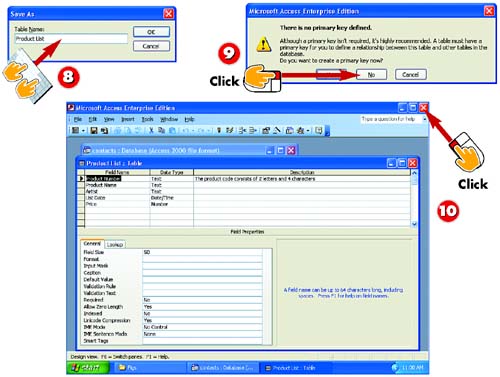

The Save As dialog box opens. Type a name for the table and click OK.

Access prompts you to set a primary key. Click No to set the primary key later.

The table is saved, and the name you typed in step 9 appears in the table window's title bar. To close the table window and return to the database window, click the Close button.
TIPSaving Tables The table is saved as part of the database file. |
TIPClosing the Table If you try to close the table without saving it first, Access prompts you to save. Click Yes to save the changes to the table design. |
TIPEntering Data After you create the table, click the View button on the Standard toolbar in the main Access window to switch to Datasheet view if you want to enter records. Part 4 covers entering data in detail. |


