Copying an Entry
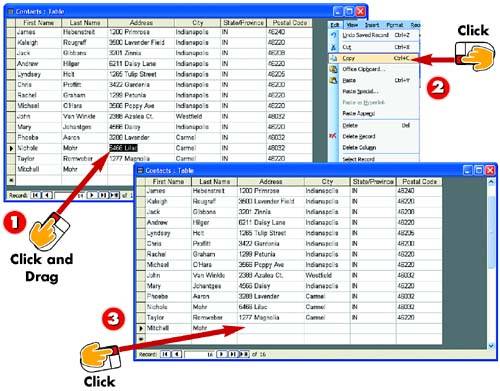

Select the entry you want to copy.

Open the Edit menu and choose Copy.

Click in the field in which you want to paste the copied data.
INTRODUCTION
Instead of retyping data that will appear in several records in your table, you can copy an entry (or partial entry) from one field to another. For example, you could copy the address from an existing record to a new record.
TIP
Using a Data-Entry Shortcut
If a field in a new record requires the same value as the entry in the row preceding it (for example, both records should contain Indianapolis in the City field), click in the field then press Ctrl+'. The entry will be duplicated in the new record, using the value from the row above it.
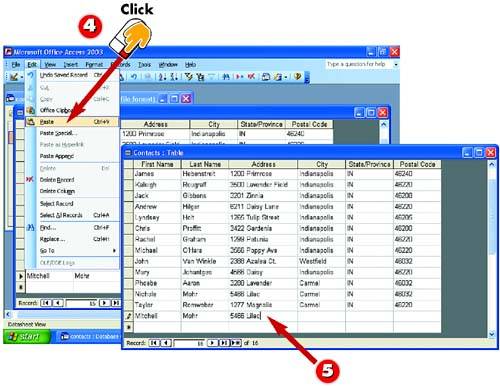

Open the Edit menu and choose Paste.

The copied data is pasted into the field.
TIPShortcuts If you prefer, you can use the Copy and Paste toolbar buttons or the keyboard shortcut keys (Ctrl+C for copy and Ctrl+V for paste). |
TIPMoving an Entry You use this same basic process to move, rather than copy, an entry from one location to another. Instead of opening the Edit menu and choosing Copy, use Edit, Cut. |


