Using Display Formats
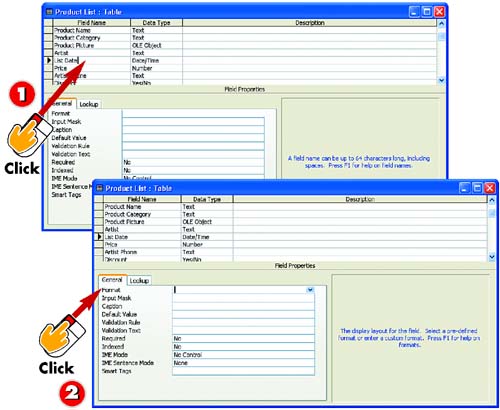

After you've opened the table you want to change in Design view, click in the field whose display format you want to modify (in this example, the List Date field).

In the property sheet, click in the Format field. A down arrow appears to the right of the field.
INTRODUCTION
Access enables you to select a predesigned format for the entries in your table. For example, you can select one format to display numbers in a currency format ($19.99), or another to display numbers as a percentage (10%). You can also select a variety of date and time formats.
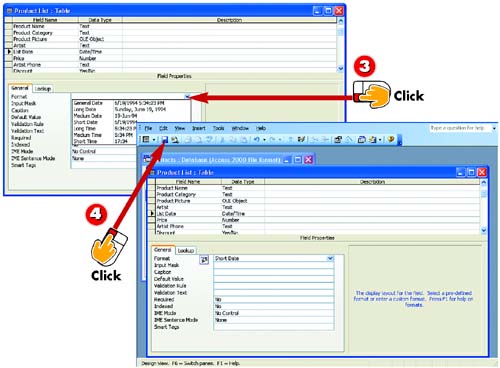

Click the down arrow and select the format you want to use from the list that appears. Here, date and time formats are available, because the field selected in step 1 is a Date/Time field.

The new format is selected. Click the Save button on the Standard toolbar found in the main Access window to save this change to the database table.
TIPChanging to Design View You can change to Design view from within Datasheet view by clicking the View button on the Standard toolbar in the main Access window. |
TIPAdding Decimal Places For Number fields, you can set the number of decimal places displayed by typing a value in the Decimal Places field in the property sheet. |


