Creating a Memo Field
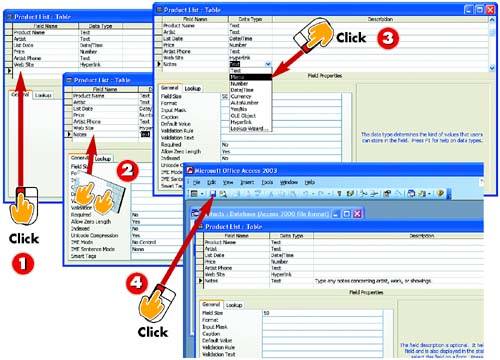

After you've opened the table you want to change in Design view, click in the first empty row or insert a new row.

Type a name for the field (in this example, Notes) and press Tab.

Click the down arrow that appears in the Data Type column and click the Memo option in the list that appears.

Press Tab and type a description for the field if necessary. Click the Save button on the Standard toolbar in the main Access window to save changes to the table.
INTRODUCTIONIn general, you should separate your data into small, manageable chunks so that you can easily sort and find data. If needed, though, you can store longer notes. For this type of entry, you can use a memo field. You can type more than 65,000 characters in this type of field. |


