Saving a Form
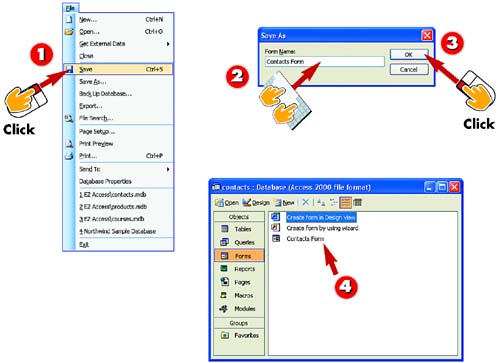

Open the File menu and choose Save. If you are simply saving changes to an existing form's design, the form will be saved.

If you are saving a new form for the first time, Access prompts you to type a name for the form. Do so in the Form Name field.

Click OK.

The form is saved. When you close the form, you'll see it listed in the database window with the name you typed in step 2.
INTRODUCTIONWhen you create an AutoForm or a form from scratch, you need to save the form, assigning it a name. The name you assign is how the form will be listed in the database window. You also need to save a form if you make changes to the form's design. |
TIPClicking the Save Button If you prefer, you can click the Save button in the toolbar to save the form. |
TIPClosing a New Form Without Saving If you close a new or edited form without saving it first, you are prompted to save it. Click Yes to save the form. |


