Moving Within a Workbook
Each blank Excel workbook contains three worksheets. You can add or delete as many worksheets as you need. Because a workbook consists of one or more worksheets, you need to move between the worksheets. Here's how:
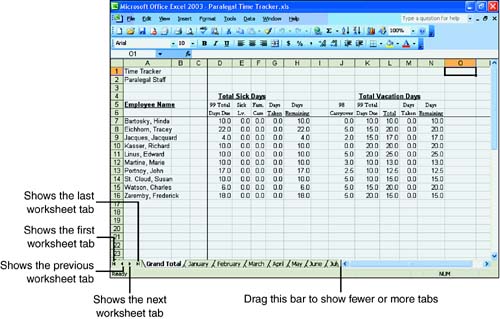
Click the tab of the worksheet you want to move to. If the tab isn't visible, use the tab scroll buttons, shown in Figure 1.16, to bring the tab into view, and then click the tab.
Figure 1.16. Choose the sheet you want to work on.
Moving Within a Worksheet
When the worksheet you want is visible on the screen, you need to move around in it. It's important to remember that the view on the screen might represent only a small portion of the total worksheet. After all, a worksheet can consist of more than one million cells. Even the biggest computer monitor can't display the entire sheet so that it is legible.
You move around your Excel worksheet with the mouse or the keyboard. To move from cell to cell, click the cell you want to move to. Notice that a dark border, called a selector, surrounds a selected cell. If the cell you want to move to isn't visible, use the scrollbars to move around the sheet.
 | If you're using an IntelliMouse, you can scroll around worksheets using the center wheel button. Hold down the wheel button and drag to quickly move through the worksheet. |
Using the Keyboard
If you're entering a lot of numbers or text from the keyboard, it's easier sometimes to move around a worksheet with the keyboard. That way, you can keep your hands on the keyboard and not have to jump on and off the mouse.
Table 1.3 shows the keystrokes you use to move around in a worksheet.
Press These Keys | To Move To |
|---|---|
Enter | One cell down or to the next cell in sequence |
Shift+Tab | One cell to the left |
Shift+Enter | One cell up |
Up Arrow, Down Arrow, Right Arrow, Left Arrow | One cell in the direction of the arrow |
Ctrl+Right Arrow or Ctrl+Left Arrow | To the right or left end of a row that contains data |
Ctrl+Up Arrow or Ctrl+Down Arrow | To the top or bottom of a column that contains data |
Home | To the first cell in the row |
Ctrl+Home | To the first cell in the worksheet |
Ctrl+End | To the lower-right cell in the worksheet |
Page Up | Up one screen |
Page Down | Down one screen |
Alt+Page Up | Left one screen |
Alt+Page Down | Right one screen |
Ctrl+Page Up | To previous sheet |
Ctrl+Page Down | To Next sheet |
F5 or Ctrl+G | Opens the Go To dialog box |


