Adding Dates and Times
Dates and times are other important values you can enter in Excel. Treating dates and times as values makes your life easier. For example, instead of counting the number of days in the current accounting cycle or determining the age of an accounts receivable account, Excel can do the work for you.
Excel keeps track of the dates you enter by assigning each date with a serial number. The first date, January 1, 1900, is assigned the number 1; January 2, 1900, the number 2; and so on. A date can be displayed in many different formats, but Excel always keep track of the date's underlying serial number. Accordingly, you can use the dates in your calculations.
When you enter a date, you can choose to enter the year in two-digit format or use the full four digits. Using four digits is safer, because Excel will always be able to identify whether the year occurs in the 19XX or 20XX range. Here's how Excel interprets the year in a two-digit year format:
If you type 00 through 29 for the year, Excel uses the years 2000 through 2029. For example, if you type 3/18/25, Excel assumes the date is March 18, 2025.
If you type 30 through 99 for the year, Excel uses the years 1930 through 1999. For example, if you type 10/24/47, Excel assumes the date is October 24, 1947.
Times are maintained in a military time format. Excel treats each time that you enter as fractional part of 24 hours. For example, Excel treats 11:30 PM as the value 23:30. Just as with dates, you can easily use times in your calculations.
 | If you are entering many dates covering a wide range, you might find it confusing to remember how the two-digit format tracks dates. Play it safe and enter the year with four digits for perfect results. |
Table 2.1 shows the date formats you can use in Excel. This table also contains times because in some cases, time is incorporated into the date format.
Format | Example | Comments |
|---|---|---|
Month/Date/Year | 12/31/99 or 12/31/1924 | A two-digit year between 0 and 29 is interpreted as 20XX. All others are interpreted as 19XX. |
Date-Month-Year | 31-Dec-99 | Same comment as the previous format. Use the full name of the month or its standard abbreviation. |
Date-Month | 31-Dec | Assumes current year. |
Month-Date | Dec-31 | Assumes current year. |
Month-Year | Dec-98 | A two-digit year between 0 and 29 is interpreted as 20XX. All others are interpreted as 19XX. |
Hour:Minute | 10:02AM | Use of AM is optional. |
Hour:Minute | 9:38PM | Enter PM if you're not using 24-hour military time. |
 | You can quickly enter the current date or time in a cell. For the date, click into a blank cell and press Ctrl+; Enter the time by pressing Ctrl+Shift+;?this trick is useful if you or your co-workers want to keep track of when you last updated your worksheet. |
| If you can't enter a date in the format you want, and if you're using Excel on a network, be sure to check with your network administrator to determine whether the date entry has been set up in a special way. Excel 2003 allows network administrators to change the way dates are entered across the entire network. |
The next step is to enter some sales numbers into your worksheet. Later you can update the numbers you enter for practice with your own actual amounts. The sales worksheet should be open and visible on the screen from the previous exercise.
To Do: Add Values to the Sales Worksheet
Click in cell B4 and type the value 600. When you're done typing, press the down arrow key to move down to the next cell.
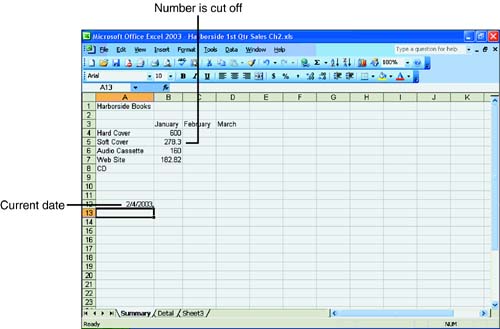
Type 278.30 and press the down arrow key. Notice that the second number to the right of the decimal point is cut off.
Type 160 in cell B6, the cell that displays your Audio Cassette sales in January. Press the down arrow key when you're done typing.
Instead of typing a number in the next cell, you're going to let Excel calculate your CD sales. To let Excel know that you're going to perform a calculation, type an = sign and then type 135, the plus sign (+), and the number 47.82. Your cell entry should look like the following:
=135+47.82
Take care not to enter any spaces between the numbers and the operators. Press the down arrow when you've checked your typing. The result of the simple calculation appears in the cell.
Move down to cell A11 and press Ctrl+; (semicolon). The current date is displayed. Press Enter to enter the date into the cell. Your worksheet should look similar to the one in Figure 2.6.
Figure 2.6. The sales worksheet with values.