Copying from Cell to Cell
Like other Windows programs, Excel makes it easy to rearrange the data you enter in your worksheets. You can copy data from one place to another on the same worksheet or to other worksheets in the same workbook. You can even copy data from one workbook to another.
 | In addition to copying data in Excel, you can also copy data to other programs, such as Word or Outlook. You learn how to integrate data with other Office programs in Hour 19, "Integrating Excel with Other Office Applications." |
You can copy or cut data in Excel. If you choose to copy, a carbon-copy image of the data you copied is maintained on the Clipboard. If you cut data, the selection is actually removed from your worksheet (as if you'd cut it with scissors).
| When you copy labels or values, a carbon copy of the data is pasted. Formulas are handled somewhat differently. You have the opportunity to work with formulas in Hour 4, "Managing Your Files and Workbooks." |
Copying (and cutting) data is accomplished with the aid of a handy Windows utility called the Clipboard. Whenever you use the Copy or Cut command, the data is placed on the Windows Clipboard. The Clipboard is the intermediary in the copy or cut-and-paste operation. Data can be pasted into an Excel worksheet from the Clipboard one or multiple times. For example, you can copy your company logo, a paragraph, and a graphic to the Windows Clipboard for pasting into your corporate forms.
Selecting the Cells to Copy or Cut
You need to select the cell or cells that you want to copy or cut before you can send them to the Clipboard. Select a single cell by clicking it. If you want to select multiple cells in a rectangular block, click the first cell. Press and hold the Shift key and drag the mouse pointer over the block you want to copy. A black border appears around the block, and the cells inside appear colored, as shown in Figure 2.7. When all the cells that you want to copy are selected, release both the mouse button and the Shift key.
Figure 2.7. The cells are selected.
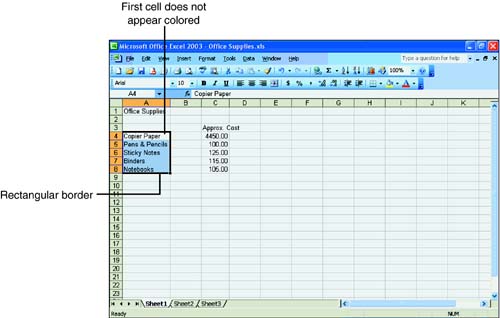
| The first cell in a block of selected cells might not appear colored or selected. However, if a black border surrounds the block, the first, non-highlighted cell is included in the selection. |
| Don't panic if you accidentally choose the Cut command instead of Copy and the cells disappear from your worksheet. Simply click the Undo button on the Standard toolbar to make the cells reappear. |
In Excel, you can select multiple cells that are not located in a rectangular block. To select non-touching cells, hold down the Ctrl key as you click each cell that you want to copy. Each cell that you click appears highlighted. Release the Ctrl key when the cells you want to copy are selected.
Excel won't let you cut or copy many sets of non-touching cells. Cells along one row or one column seem to work best. Even then, when you paste non-contiguous cells, Excel makes them contiguous again.
Either way, click the Copy button or the Cut button on the Standard toolbar after the cells are selected. If you can't see the toolbar, or want to access the command from the menu instead, choose Edit, Copy or Edit, Cut. A marquee appears around the copied cells. If you're cutting the cells, they disappear from the worksheet.
| Press Ctrl+C to activate the Copy command from the keyboard after you've selected the cells to copy. Ctrl+X is the keyboard command to cut the cells. You paste the cells from the keyboard by pressing Ctrl+V. To get rid of the dotted marquee around the cells you copied, press the Esc key. |
Pasting the Copied or Cut Cells
Pasting the cells you copied or cut is a snap. Click the first cell where you want the new cells to appear. If you're pasting a block of cells, you do not have to highlight a rectangular block; Excel assumes that you want the cells to appear in the order and shape in which they were copied. Click the Paste button on the Standard toolbar or chose Edit, Paste. The cells appear in their new location.
Excel pastes data in four ways:
One cell to one cell? A single cell from the Clipboard is pasted to one cell.
Multiple cells to one cell? Multiple cells are pasted into a rectangular block, of which only the first cell is selected.
One cell to multiple cells? A single cell from the Clipboard is pasted into all highlighted cells.
Multiple cells to multiple cells? The selection of cells from the Clipboard is pasted into a like-sized rectangular block.
Working with the Clipboard Task Pane
The handy Clipboard task pane, as shown in Figure 2.8, holds your copied selections. Whenever you copy or cut one or more selections during your current Windows session, you can view the Clipboard task pane by choosing View, Task Pane.
Figure 2.8. The Clipboard task pane holds your copy selections.
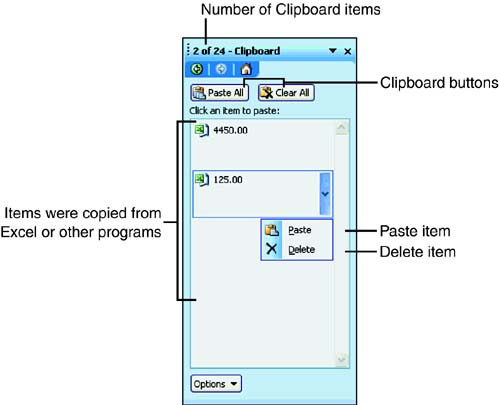
The title bar on the Clipboard task pane indicates the number of items you copied or cut and the maximum number of Clipboard items you can have, which is 24. An icon that represents the Office application from which the item was copied or cut displays at the top left of the item. The Clipboard buttons for pasting and clearing all items appear beneath the task pane toolbar.
The most recent copied or cut selection appears at the top of the Clipboard gallery. When you point to an item, a border displays with an arrow on the right border. When you click the arrow, a menu appears with the Paste and Delete commands. Choose Paste to insert the item in the current cell or choose Delete to remove the item from the Clipboard.
When you want to paste all the items on the Clipboard to the worksheet, click the Paste All button. To delete all the current Clipboard items, click the Clear All button.
The Clipboard task pane provides some wonderful advantages. Instead of having to paste the last data that you copied, you can pick and choose from previously copied data. The Clipboard task pane stores up to 24 items that you copied or cut during the current Windows session. When you close Windows, the Clipboard is automatically cleared.
| If you want the Clipboard task pane to display automatically when you copy items, click the Options arrow at the bottom of the Clipboard task pane. Then choose Show Office Clipboard Automatically. |
Drag It and Drop It
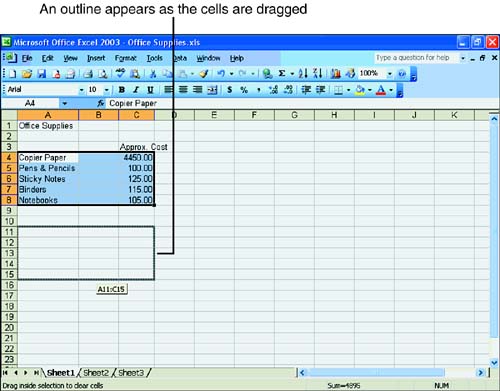
The drag-and-drop technique is a fast, easy way to copy or move data in the visible viewing area. First, select the cells you want to move or copy. When the cells appear highlighted, move the mouse pointer over the border of the selected cells. The mouse pointer takes the shape of an arrow.
If you want to copy the selected cells, press and hold the Ctrl key. (If you're moving the cells, you don't need to hold down any key.) Now click the mouse button and drag the border. As they're being dragged, an outline of the selected cells appears. When the data is located in the spot in which you want it to appear, release the mouse button. The data appears in the new location as shown in Figure 2.9.
Figure 2.9. Drag-and-drop works best if you can see the location for the new cells.
To Do: Copy Worksheet Entries with Various Copy Techniques
Select cell B4 by clicking it. A border appears around the cell.
Hold down the Ctrl key and position the mouse pointer in the border of the cell. A large plus sign appears.
Using the Ctrl key, move the mouse pointer to the cell directly to the right (cell C4). You've just used the drag-and-drop method to copy from one cell to another.
With cell C4 selected, press Ctrl+C. This copies the data in cell C4 to the Clipboard.
Click cell D4. The cell is highlighted, which tells Excel where you want to paste the data.
Press Ctrl+V. This pastes the data into the selected cell. You've just used the shortcut keys to copy and paste data from one cell to another cell.
Click cell B5 to select it. Point to the small square in the lower-right corner of that cell. Notice the mouse pointer changes to a small plus sign, which is called the fill handle.
Drag the fill handle to cells C5 and D5. Now you've used the fill handle method to copy data when cells are adjacent to one another.
Select cell B6 (January's Audio Cassette amount) by clicking it and then click the Copy button on the Standard toolbar. A dotted marquee appears around cell B6. The data you selected has been copied to the Clipboard.
Click into cell C6 and select cell D6 by dragging the mouse. The two cells appear highlighted.
Click the Paste button on the Standard toolbar. The amount you copied to the Clipboard is copied to the cells you selected. Press Esc to remove the dotted marquee.
 | Always look at the cells you've pasted from the Clipboard. It's easy to paste a selection to the wrong location and possibly overwrite important data. If you've pasted to the wrong spot, click the Undo on the Standard toolbar. |


