Using Excel Menus and Dialog Boxes
Maybe you prefer using a menu instead of a button, or the command you need isn't shown on any of the toolbars displayed on the screen. In any case, you can access Excel's commands from the menu bar. To make a selection from the menu, click a menu name in the menu bar, drag the mouse down the list until the command you want is highlighted, and click (see Figure 1.8).
Figure 1.8. A dimmed menu command means that command is not currently available.
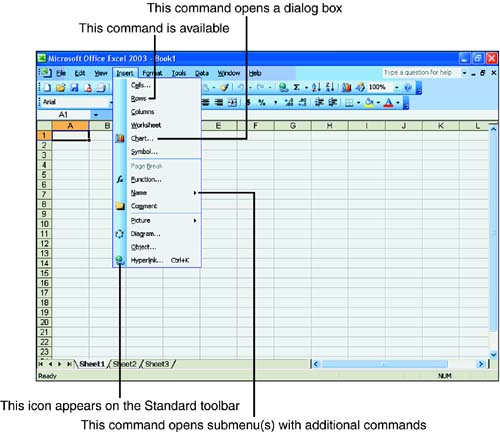
What happens after you click a menu command varies with each command. If an icon appears next to the menu command, the icon appears on the Standard toolbar.
If three dots (called an ellipsis) follow a menu command, a dialog box asks you to enter more information or choose from a list of options. If an arrow follows the menu command, clicking the command opens a submenu with additional commands. Sometimes, just clicking a menu command executes it. For example, clicking File, Open accesses a dialog box, and clicking File, Save saves the file that's displayed on the screen.
Just like the buttons on toolbars, menu commands can sometimes appear dimmed. A command that's dimmed means that the command is not currently available. Clicking a dimmed menu command is a waste of time?nothing happens.


