Changing PowerPoint Views
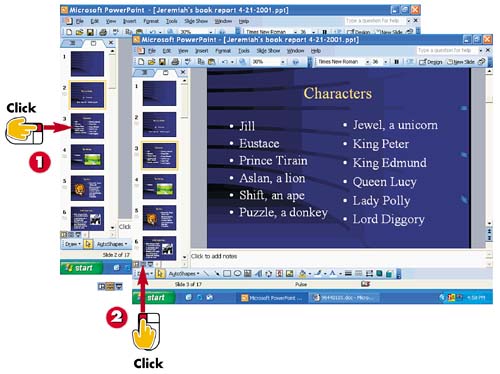

Normal view displays by default. To view another slide in your presentation, click the slide in the Slides tab.

PowerPoint displays the slide. To view all the slides, click the Slide Sorter View button.
INTRODUCTION
You can use PowerPoint's View buttons to change how you view slides in a presentation. By default, PowerPoint displays a single slide in the work area, called Normal view. You can switch views to see all the slides in a presentation or to view the actual presentation.
TIP
Closing the Outline and Slides tabs
To free up more workspace onscreen, you can close the Outline and Slides tabs. Click the Close button at the top of the pane. To view the panes again, select View, Normal (Restore Panes).
TIP
Rearranging Slides
You can use Slide Sorter view to rearrange and reorder the slides in your presentation. See Part 10, "Fine-Tuning a Presentation," to learn more.
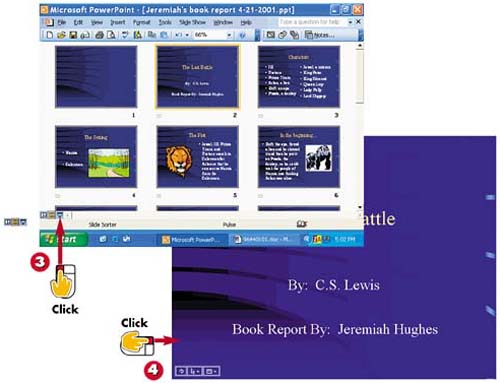

PowerPoint displays all the slides in your presentation. Click the Slide Show View button.

PowerPoint displays your presentation in full-screen mode. Click anywhere onscreen or press Enter to advance each slide, or press Esc to exit at any time.
TIPRunning a Slide Show You can learn more about running a slide show in Slide Show view, including ways to interact with the slide, in Part 12, "Running a Presentation." |
TIPUsing the View Menu You can also use the View menu to switch between PowerPoint view modes. Select View, and then click the view mode you want to apply. |


