Opening and Closing an Existing Presentation
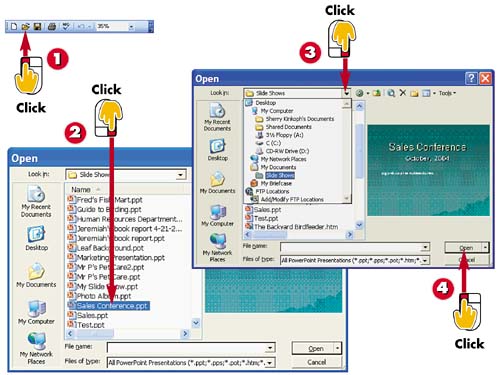

Click the Open button on the Standard toolbar.

The Open dialog box opens. Click the file you want to open to select it.

To locate the file in another folder or drive, click the Look In drop-down list, navigate to the folder or drive, and then select the file.

Click Open. PowerPoint opens the presentation.
INTRODUCTION
You can open a presentation you have previously saved in order to work on the slides some more. In addition, you can close a file you no longer want to work on, yet keep the PowerPoint window open to start new files.
TIP
Using the Menu Method
You can also display the Open dialog box using the File menu. Select File, Open.
TIP
Double-clicking
A quick method of opening a file from the Open dialog box is to simply double-click the filename.
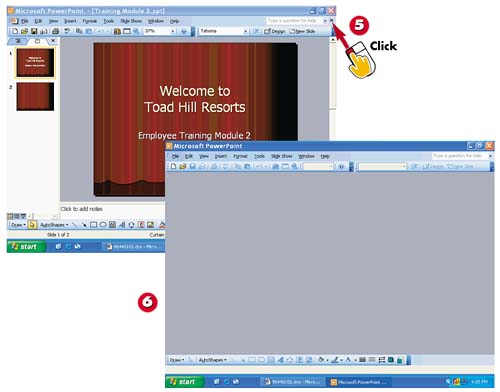

To close a presentation, click the file's Close button.

PowerPoint immediately closes the presentation.
TIPSwitching Between Multiple Files You can open multiple files in PowerPoint and switch between them; use the Task bar or the Window menu to select which presentation to view. |
TIPSaving First If you have made changes to your presentation, PowerPoint prompts you to save your work before closing the file. Click Yes to save. |
HINTCaution Be careful not to click the program window's Close button, or you will end up closing PowerPoint entirely. The program window's Close button is located in the upper-right corner, directly above the file's Close button. |


