Creating a Bulleted or Numbered List
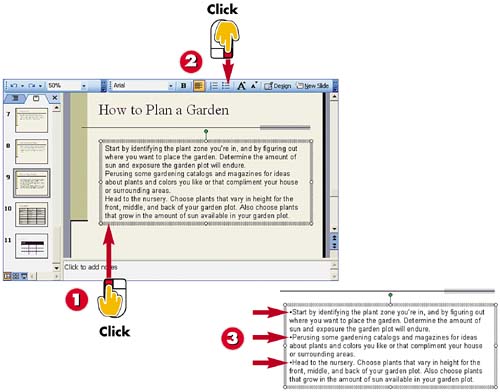

To add bullets, click the text box you want to change.

Click the Bullets button on the Formatting toolbar.

PowerPoint inserts bullets in front of each line of text.
INTRODUCTION
Although many of PowerPoint's preformatted layouts include bulleted lists, you might need to create a new list for a new text box you add, or turn an existing bulleted list into a numbered list.
TIP
Changing the Bullets
You can customize the bullets and numbers used in bulleted lists. See the next task, "Customizing Bullets," to learn more.
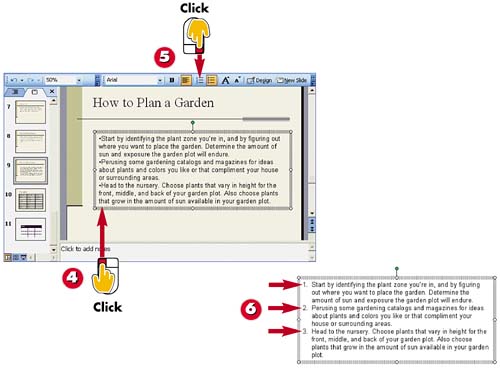

To add numbers, click the text box you want to change.

Click the Numbers button on the Formatting toolbar.

PowerPoint inserts numbers in front of each line of text.
TIPRemoving Bullets To turn a bulleted or numbered list back into regular text, first select the text box, and then click on the Bullets or Numbers button on the Formatting toolbar. |
TIPRemoving a Single Bullet To remove a single bullet, click in the line of text containing the bullet you want to remove, and then click the Bullets button on the Formatting toolbar. PowerPoint turns off the bullets feature for that particular line of text. |


