Adding a Contact from an E-mail
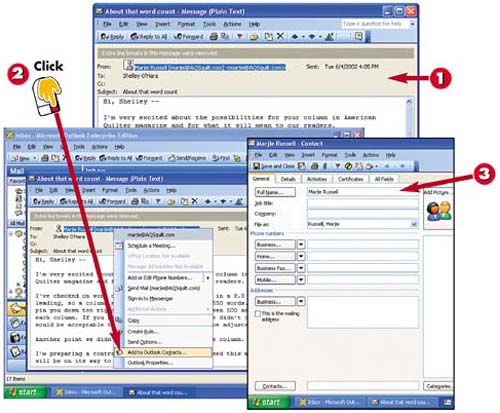

Open an e-mail to or from the person you want to add to your contact list.

Right-click the sender's name in the message header and then click Add to Outlook Contacts in the shortcut menu that appears.

A contact window opens, with the Full Name, File As, and E-mail fields already completed.
INTRODUCTION
If you've sent or received an e-mail message from a person whom you'd like to add to your contact list, you can use that message to create the new contact.
TIP
Contact Already Entered?
If the contact has already been entered in your contact list, the shortcut menu shown in step 2 will feature a command for opening the Contact window. Do so, make changes to the information as needed, and click the Save and Close button when you are finished.
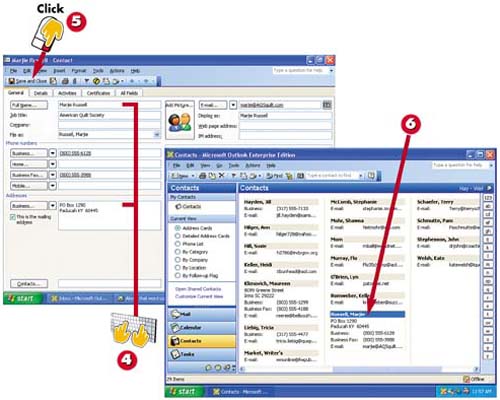

Type information about your contact into any fields as needed.

When the entry is complete, click the Save and Close button in the main Outlook toolbar.

The contact is added to your contact list.
TIPOther Shortcut Commands You can select other commands from the shortcut menu shown in step 2, including ones that enable you to schedule a meeting or send mail. |


