Task 11: Displaying the Folders List
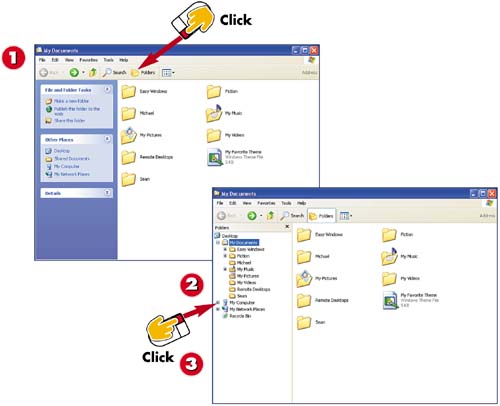

Click the Folders button.

You see the Folders List. The top level is the Desktop; beneath that you see the icons on the desktop.

You can expand or collapse any of the folders and drives in the list by clicking the plus sign next to the drive or folder.
INTRODUCTION
To see a hierarchical listing of all the folders on your system, display the Folders List. You might prefer this view when working with folders and files because you can see the contents of the selected folder as well as all the other drives and folders on your computer.
TIP
Hide Content
When you click a plus sign to expand the folder or drive, the icon changes to a minus sign. You can click the minus sign to hide the contents of that item. For instance, you might hide content if the Folders List becomes too long.
TIP
Select Folders
You can select folders in the Folders List by clicking the folder you want. The right pane then shows the contents of the selected folder.
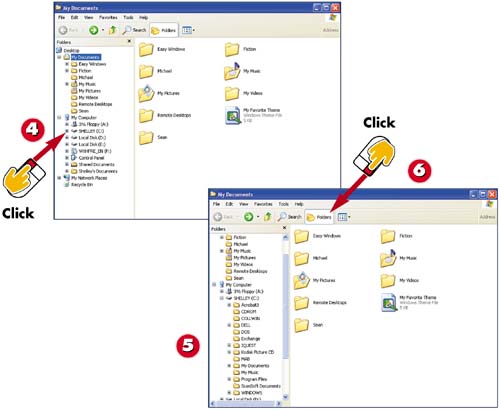

You see the drives and folders on My Computer. You can continue to expand the listing. For example, click the plus sign next to your hard drive.

You see the contents of that drive. You can continue to expand the listing to display other nested folders.

To close the Folders List, click the Folders button again.
INTRODUCTIONDisplay Other Bars You can display other bars within a folder window. To do so, click View, Toolbars, and then Explorer Bar. Select the Explorer Bar you want to display. |
TIPWindows Explorer You can use Windows Explorer in much the same way you use the My Computer window: to copy and move folders, to create and rename folders, to view details, and so on. Basically, Windows Explorer is a file window with the Folders List displayed. Click Start, All Programs, Accessories, and then Windows Explorer to use this feature. |


