Task 8: Canceling a Print Job
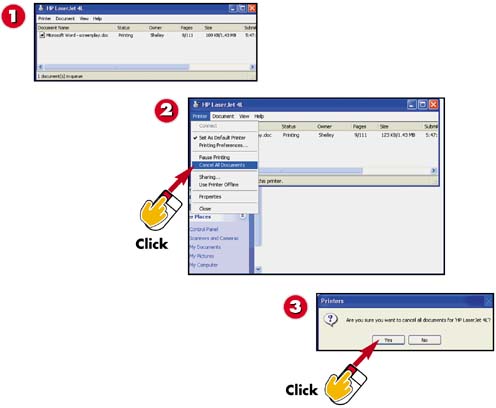

Display the print queue. See Task 7, "Viewing the Print Queue," for help with this step.

Click Printer and then select the Cancel All Documents command.

Click Yes to confirm the cancellation.
INTRODUCTIONIf you discover an error in the job you are printing, or if you decide that you need to add something to it, you can cancel printing. Canceling printing prevents you from wasting time and paper. |
TIPNothing Listed? You must be quick to pause or stop a short print job. If nothing appears in the print queue, it probably means that the entire print job has already been sent to the printer. |
TIPPause the Printer To pause all print jobs, click Pause Printing. To restart the printer after you have paused it, click Printer and then click the Pause Printing command again. |


